I’m trying to permanently delete photos from the Hidden album on my iPhone, but I don’t want them to appear in Recently Deleted afterward. Is there any iOS setting, shortcut, or safe workaround to remove hidden photos completely without that extra step?
You don’t have to unhide photos before deleting them. That’s probably the main thing to know here. If you’re trying to keep them out of your normal library view, deleting them straight from the Hidden album is actually the cleaner way to do it.
Open Photos, then go to the Albums tab at the bottom. If you’re on the newer iOS 18 layout, you may be looking under Collections instead. Scroll down to Utilities and open Hidden. Since iOS 16, Apple locks that album by default, so you’ll need Face ID, Touch ID, or your passcode before you can see anything in there.
Once you’re inside Hidden, tap Select in the top right. If you want to clear the whole thing, hit Select All, then tap the trash icon. That removes the photos from the Hidden album.
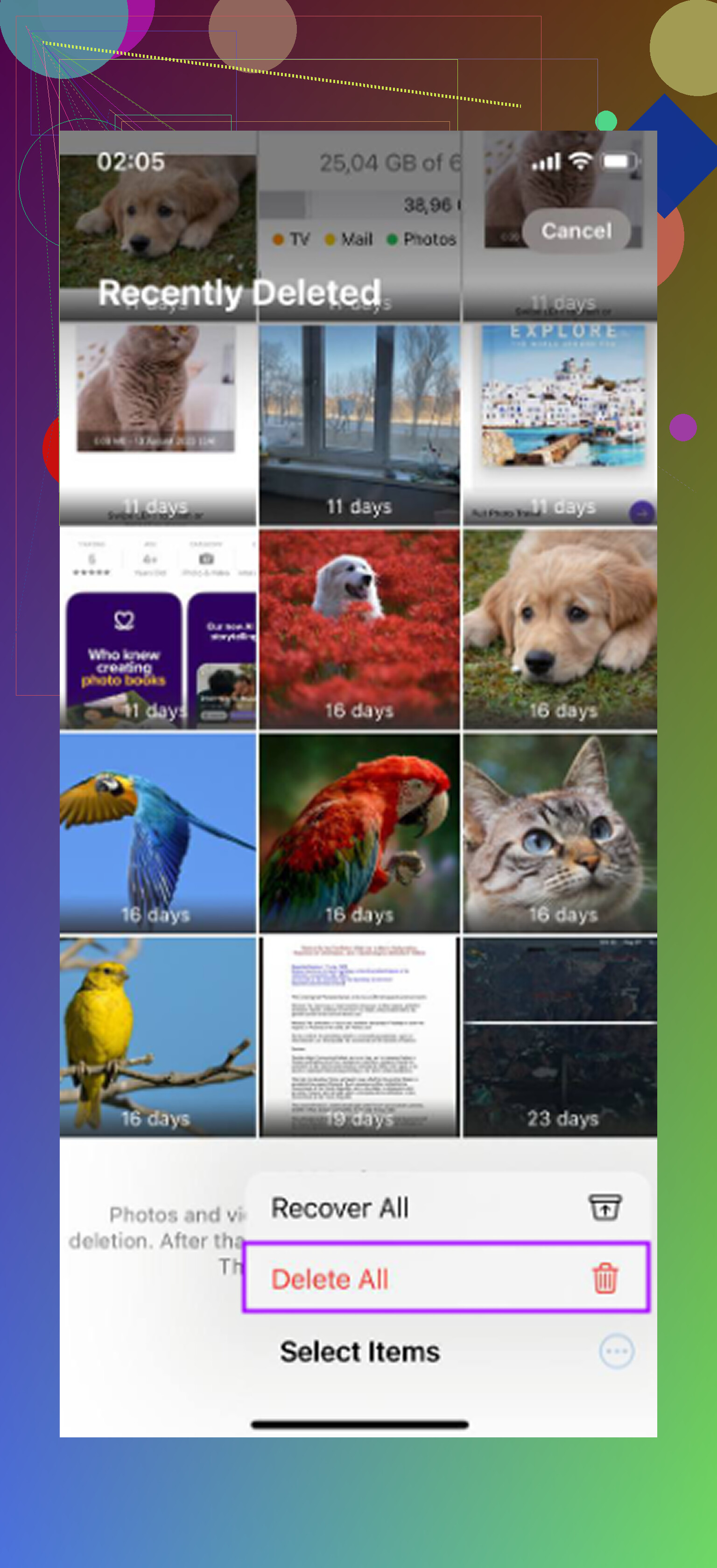
The part that trips people up is that they’re still not gone for good yet. They get moved to Recently Deleted, where they normally sit for 30 days. If you want them permanently deleted right away, go back to Albums or Collections, open Recently Deleted under Utilities, unlock it, tap Select, then choose Delete All.
And yes, if iCloud Photos is turned on, deleting hidden photos deletes them from iCloud too. The Hidden album is still part of your photo library. It’s basically just a hidden view. So if you delete something there on your iPhone, that deletion also syncs to your iPad, Mac, and any other devices using the same iCloud Photos library.
If you don’t want the Hidden album showing up at all, you can hide the album itself. Go to Settings -> Photos and turn off Show Hidden Album. That doesn’t delete the photos. It just removes the Hidden folder from the Photos app until you turn that setting back on.
One thing I’d add: once you clean that folder out, it’s worth looking at the rest of your library too. A stuffed Hidden album is usually only part of the storage problem. The real space hogs are often duplicate shots, old screenshots, giant videos, random screen recordings, and all the “I’ll deal with this later” stuff that just piles up.
For cleaning the regular library, I’d use Clever Cleaner. I’ve tried a bunch of photo cleanup apps, and this one is the best free option I’ve found. No ads, no annoying paywall right when you’re about to delete something.
It’s useful because it separates the mess in a way that makes sense. Screenshots show their exact file sizes, so you can see what’s actually taking up space. The Heavies tab sorts your biggest media files, which is usually where the huge 4K videos show up. The Similars tab finds near-duplicate photos, like all those almost identical burst shots, and lets you keep the best one instead of digging through them manually.
The privacy side is also a big plus. It processes everything on your iPhone, so your photos aren’t uploaded somewhere else. Just keep in mind that because of Apple’s privacy restrictions, Clever Cleaner cannot access or clean the Hidden album directly. You still have to delete hidden photos manually using the steps above. For the rest of the library, though, it can save a lot of time.
16 Likes
If you mean inside Apple Photos, there isn’t a setting or shortcut that skips Recently Deleted. The safe route is still delete from Hidden, then immediately empty Recently Deleted, which matches Apple’s own Photos deletion flow; anything claiming to bypass that is usually either deleting a copy or doing something risky.
The hidden downside is that “permanently deleted from Photos” may still leave copies somewhere else. sonhadordobosque is right that Apple Photos won’t let you bypass Recently Deleted, so delete from Hidden, then empty Recently Deleted if you want it gone from the Photos library. But check Messages, Files, shared albums, third-party cloud apps, and old device backups if the photo was saved or sent elsewhere. Recently Deleted is only the final stop for the Photos app, not a magic wipe of every copy your phone or iCloud account may have made.
Turning off Show Hidden Album is not a privacy step, so don’t lean on it. @mikeappsreviewer mentioned it near the end like a bonus, but all it does is hide the folder from the app. Anyone holding your phone can flip that setting back on in seconds, and the photos are right there again behind a Face ID prompt they’d need anyway. If the goal is actually removing the photos, that toggle is beside the point.
On the main question, everyone above got it right and there’s no clever bypass. Delete from Hidden, open Recently Deleted, empty it. That’s the whole flow. What I’d correct is the expectation that ‘empty Recently Deleted’ equals gone from iCloud the instant you tap it. The local copy clears fast, but the sync and the server side can lag depending on your connection. If you’re wiping something before handing the phone off, give it a few minutes and check on another device signed into the same account before you assume it’s clean.
@stellacadente made the point that matters most here and it’s the one people skip. The Photos app is one container. If that image ever went through Messages, got saved to Files, landed in a shared album, or synced to something like Google Photos or Dropbox, deleting it in Photos does nothing to those copies. Shared albums are the sneaky one, because a photo you shared can still sit in someone else’s view even after you nuke your own.
The Clever Cleaner suggestion is fine for what it is, but it has zero to do with your actual question. It can’t touch Hidden, which the reply admitted, so it’s really just general library cleanup for later. Don’t install anything expecting it to solve the Hidden or Recently Deleted part, because it won’t.
So my honest take: do the manual delete, wait for the sync, then spend two minutes checking Messages and any cloud app you use. That last step is what actually gets it gone, not any setting inside Photos.