My iPhone storage is almost full, and I realized a lot of space is probably being used by downloaded files spread across different apps. I’m trying to find the fastest way to delete downloads on iPhone without opening every single app one by one. Is there a built-in setting or easier method to clear downloaded files and free up storage?
If you’re trying to find downloaded files on an iPhone, the messy part is this, there isn’t one clean master folder for everything. I ran into the same thing after moving over from a laptop, and it felt dumb at first.
Most downloads are split up by app.
Safari usually sends files into the Files app. Open Files, tap Browse, then look in these spots:
On My iPhone
iCloud Drive
Inside one of those, you’ll often see a Downloads folder. That’s the first place I’d check.
One thing I missed the first time, Chrome and Firefox often stash stuff in their own folders under On My iPhone. I spent 15 minutes hunting for a PDF before noticing Chrome had made its own little pile.
If your goal is to remove Safari downloads, there’s an annoying catch. Tapping the down arrow in Safari and clearing Downloads often removes the list, not the file itself. I did this once, thought I had cleaned house, then my storage number barely moved.
To remove the real file, go back to Files and delete it there.
Also, deleting a file does not free space right away. iPhone keeps deleted stuff in Recently Deleted for 30 days. Same deal as a trash bin.
What I had to do:
Files app
Browse
Recently Deleted
Delete All
If photos or videos are part of the problem, do this too:
Photos app
Albums
Recently Deleted
Delete everything there
This part mattered more than I expected. My phone got slow when storage was close to full. Camera took longer to open. Apps froze. A few crashed. After clearing space, it settled down.
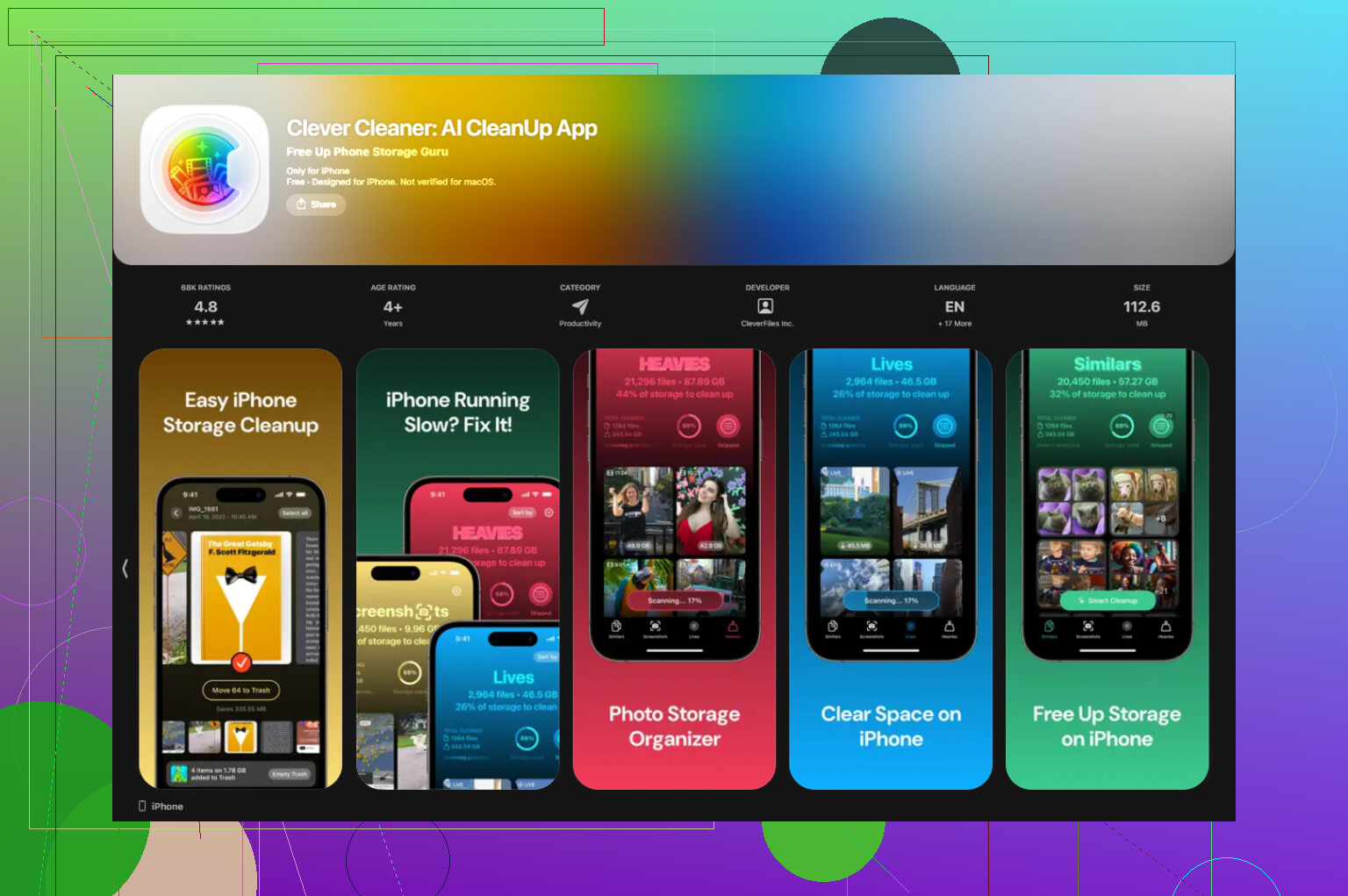
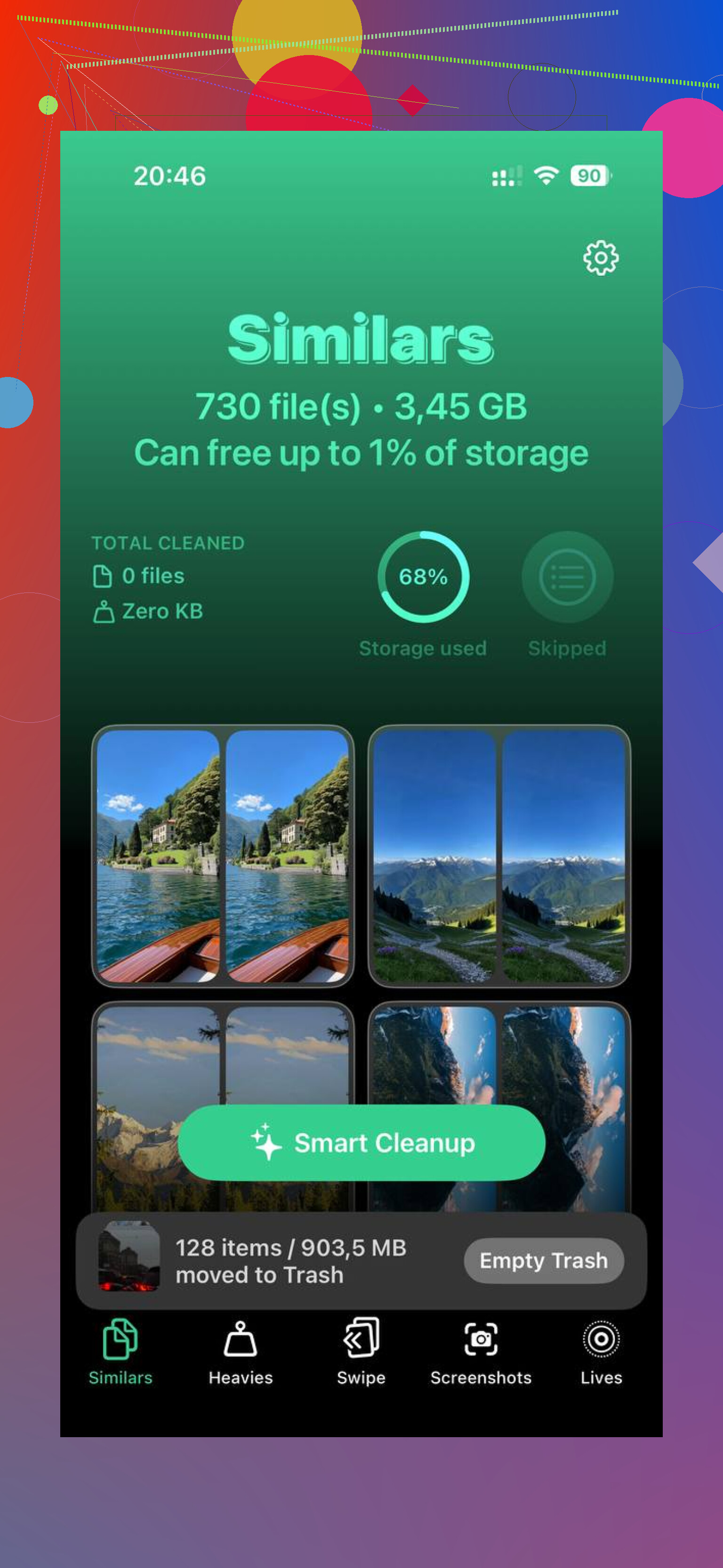
I tried cleaning it by hand first. Too slow. A few files here, a few there, no big change. Later I used Clever Cleaner because I wanted something faster for large media. What I liked was the simple size sorting. I found old screen recordings, giant videos, and duplicate photos fast. The Heavies section helped most. Similars was useful too, since my photo library had way too many near-copy shots.
After I cleared a big batch of files, around 20GB or so, and emptied Recently Deleted, the lag dropped off hard. The phone felt normal agian.
So the short version:
Check Files
Look in On My iPhone and iCloud Drive
Open Downloads and any browser-specific folders
Delete files there
Empty Recently Deleted
Do the same in Photos if needed
If your iPhone feels sluggish, low storage is one of the first things I’d look at.
20 Likes
Fastest route is Settings, not app-hopping.
Go to Settings > General > iPhone Storage. Wait a bit. Apple sorts apps by size. Tap the biggest ones first. Look for apps with “Documents & Data” taking tons of space. Streaming apps, podcast apps, Messages, and social apps are usual offenders.
This is where I kind of disagree with @mikeappsreviewer. Hunting in Files helps, but if your goal is speed, iPhone Storage gives you the better map first. You see where the bloat is instead of guessing.
A few high-impact moves:
- Offload or delete large apps you barely use.
- In Messages, remove big attachments. Settings > General > iPhone Storage > Messages.
- Clear downloaded media in apps like Netflix, Spotify, YouTube, Podcasts.
- Review Safari data in Settings > Safari > Clear History and Website Data. It won’t erase every file download, but it trims storage.
- Check Mail if you keep giant attachments synced.
If most of your space is photos and videos, use Clever Cleaner. It’s faster for finding duplicates, large clips, and junk screenshots. Way less annoying tbh. If you want a bigger list of tools, this roundup on best free iPhone cleaning apps for clearing storage is useful.
Shortest version. Use iPhone Storage to find the worst apps first, then clean those. That saves more time than poking through evry folder one by one.
Fastest way, honestly, is to stop thinking in terms of “downloads” and think in terms of “where is the storage actually bloated.”
@sternenwanderer is right about using iPhone Storage as the map first, but I kinda disagree that clearing Safari data is worth much if you’re desperate for space. Usually the real hogs are downloaded videos, message attachments, offline music, and giant photo libraries.
What I’d do:
- Settings > General > iPhone Storage
- Let it load fully
- Look at the top 5 biggest apps only
- Tap each and check if it has an in-app delete downloads option
A lot of apps let you wipe downloaded content from inside their own storage screen without digging forever:
- Netflix
- Spotify
- YouTube
- Podcasts
- Audible
- Google Drive
- Messages
Also check the “Review Downloaded Videos” recommendation if iOS shows it. That one gets missed alot.
One more thing people forget: Files synced from cloud apps may reappear if they’re still stored in iCloud Drive, Google Drive, or Dropbox. So deleting local copies is nice, but if sync is on, the mess can come back. That’s why I don’t fully agree with @mikeappsreviewer’s folder-first approach for speed. It works, just not the fastest if storage is critically low.
If your biggest issue is media clutter, Clever Cleaner is actually useful for bulk cleanup of huge videos, duplicate pics, screenshots, and similar junk. This is a decent thread on real Clever Cleaner reviews for freeing up iPhone storage.
Short version: use iPhone Storage to identify the worst offenders, delete offline media first, then clean up photos/videos. That gets results way faster than opening evry app one by one.
I’d split the difference with @sternenwanderer, @codecrafter, and @mikeappsreviewer: they’re all focusing on where files live, but the quickest bulk win on iPhone is often the built-in Recommendations section inside Settings > General > iPhone Storage. A lot of people stop at the app list and miss the suggestions Apple puts above it, like reviewing large attachments, downloaded videos, or auto-offloading unused apps.
A couple angles nobody really emphasized:
- Change download behavior going forward:
In Settings > Safari > Downloads, switch the location and set downloads to your preferred folder so future cleanup is easier. - Reduce message retention:
Settings > Apps > Messages > Keep Messages and set it to 1 Year or 30 Days if you don’t need ancient threads. Huge space saver over time. - Auto-remove podcast downloads:
Podcasts can quietly hoard gigs. Check its settings for automatic deletion of played episodes. - Reboot after major cleanup:
iOS sometimes reports storage weirdly until the phone settles. Not magic, just practical.
On Clever Cleaner:
Pros: fast for duplicate photos, big videos, screenshots, easier than manual sorting.
Cons: less useful for app-specific offline downloads like Netflix or Spotify, and you still need to review what it flags before deleting.
So yeah, I slightly disagree with the “Files first” approach if your storage is almost maxed out. Files is good for loose documents, but the real junk is usually attachments and offline media. Use Clever Cleaner for photo/video clutter, and use iPhone Storage for everything else.