My external hard drive suddenly shows up as RAW instead of NTFS, and now I can’t open it or access my files. It has important photos and work documents on it, so I need a safe way to convert RAW to NTFS without formatting the drive or losing data. What steps should I try first?
A RAW label on an NTFS drive usually means Windows lost track of the file system. I’ve seen it happen after a power cut, yanking an external drive without ejecting it, a crash mid-copy, file system damage, bad sectors, or flaky USB hardware like the cable, enclosure, or controller. The drive itself did not always change. Often your files are still sitting there, but Windows stops reading the NTFS structure and throws up RAW instead.
What I’d do first is keep the order straight. Data first. Format later.
- Don’t format the drive, even if Windows keeps nagging you.
- Try the drive on another PC, another USB port, or swap the cable. I’ve had a bad cable fake a bigger problem more than once.
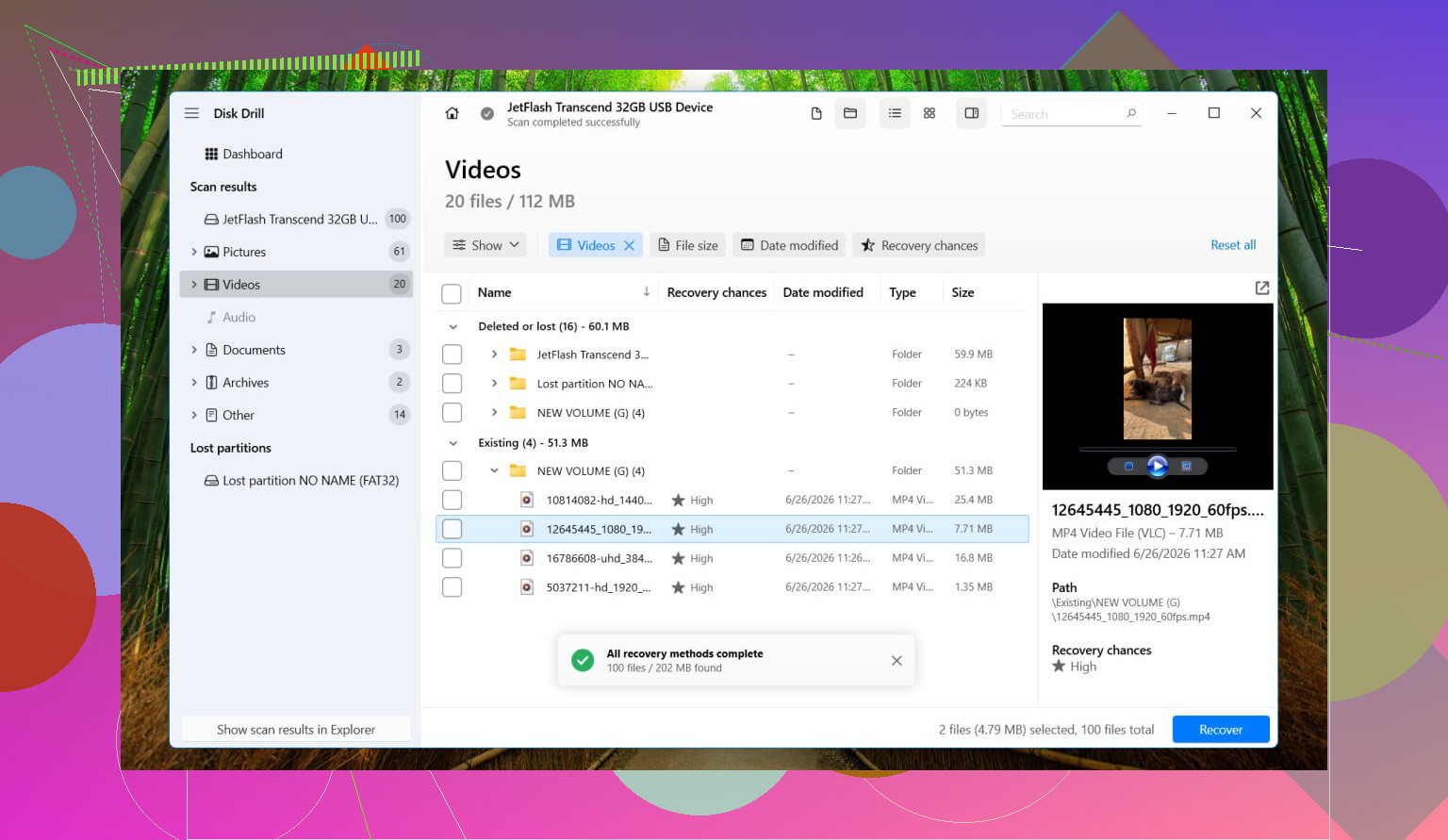
- If it still shows as RAW, recover the files before touching the partition. I’ve had decent results with Disk Drill since it handles RAW partitions without much fuss.
- If the drive seems unstable, random disconnects, weird noises, crawling transfer speeds, make an image first. In Disk Drill, open Extra Tools > Byte-to-byte Backup, save the image to a different drive, then mount the image and scan it instead of hammering the original disk.
- Run a Universal Scan, look through the found files, and recover them to another disk. Do not write them back to the RAW drive.
- After you confirm the recovered files open fine, format the RAW partition back to NTFS. File Explorer works. Disk Management works. DiskPart works too if you prefer command line stuff.
- Then copy your recovered data back onto the newly formatted drive.
A few things people mix up a lot:
- RAW does not always mean dead hardware. I’ve seen plenty of drives go RAW from file system corruption alone.
- SMART showing Good is useful, but only for the drive’s physical health. It says nothing about whether the NTFS structure is still readable.
- I would not run CHKDSK or TestDisk before recovery if the files matter. CHKDSK usually refuses RAW volumes anyway. TestDisk sometimes helps, sure, but it writes changes directly to disk. I woudn’t risk that before pulling the data off.
So no, there isn’t a clean in-place RAW-to-NTFS switch where your files stay untouched. The safe path is recover the files, format to NTFS, then put the data back. That’s the route I’d trust with my own drive.
7 Likes
RAW to NTFS without data loss is usually not a true conversion. It is a repair job, or a recovery job.
I agree with @mikeappsreviewer on one part. Do not format first. But I slightly disagree on avoiding every repair attempt in all cases. If the drive is stable, no clicking, no disconnects, no slow freezes, you can test the file system before full recovery.
What I’d check:
- Open Disk Management.
- See if the partition size looks correct.
- Open Device Manager and check for USB errors.
- Read SMART with CrystalDiskInfo. Reallocated sectors, pending sectors, or CRC errors matter. CRC often points to a bad cable or enclosure, which is super common on externals.
If SMART looks clean and the disk stays connected, try this from admin Command Prompt:
chkdsk X: /f
Sometimes Windows says RAW and CHKDSK refuses. Sometimes it still runs if the volume type was misread. If it says file system is RAW and exits, stop there. Don’t keep poking at it.
If you need the files, recover them to another drive. Disk Drill is a solid option for RAW drive recovery because it scans by file signatures and found partition data. Save recovered files somewhere else. Never back onto the same external. That part matters a lot.
After your files are safe, format the drive to NTFS and test it. If it turns RAW again after one copy session, the issue is hardware, not NTFS.
One more thing people skip. If this is an SSD in a USB enclosure, the enclosure chipset fails a lot more often than people think. I’ve fixed “RAW drives” by moving the SSD into a different enclosure. Kinda dumb, but it hapens.
For anyone searching, this thread covers how to convert a RAW drive to NTFS without losing your files.
There really isn’t a true “convert RAW to NTFS without losing data” button, and that’s the part Windows never explains. RAW is usually just Windows saying “I can’t read the file system anymore,” not neccesarily “all data is gone.”
I mostly agree with @mikeappsreviewer and partly with @cazadordeestrellas, but I’m a little less optimistic about trying repairs first on an external drive with important files. Before anything else, check one thing people forget: open Disk Management and see whether the drive letter is missing or the partition shows as Healthy but RAW. If the size is wrong or unallocated space appears where your files should be, that points more toward partition table damage than simple NTFS corruption.
Also, if this drive was ever used on a Mac, TV, camera, or NAS, rule out file system confusion before assuming total damage.
My take:
- Stop using the drive.
- Check cable, enclosure, and power.
- Look at SMART if possible.
- If the partition size looks correct, recover files first.
- Recover to a different disk, not the same one.
Disk Drill is a solid choice here because it handles RAW drives well and lets you preview recoverable files before you commit. That matters when you’re trying to save photos and work docs, not just random junk. If previews look good, copy everything off first, then format the drive back to NTFS.
One thing I would add that wasn’t mentioned much: after formatting, do a full format, not quick format, if you suspect bad sectors. It takes longer but can expose a failing drive. If it goes RAW again after that, retire the enclosure or the disk. Don’t trust it agian.
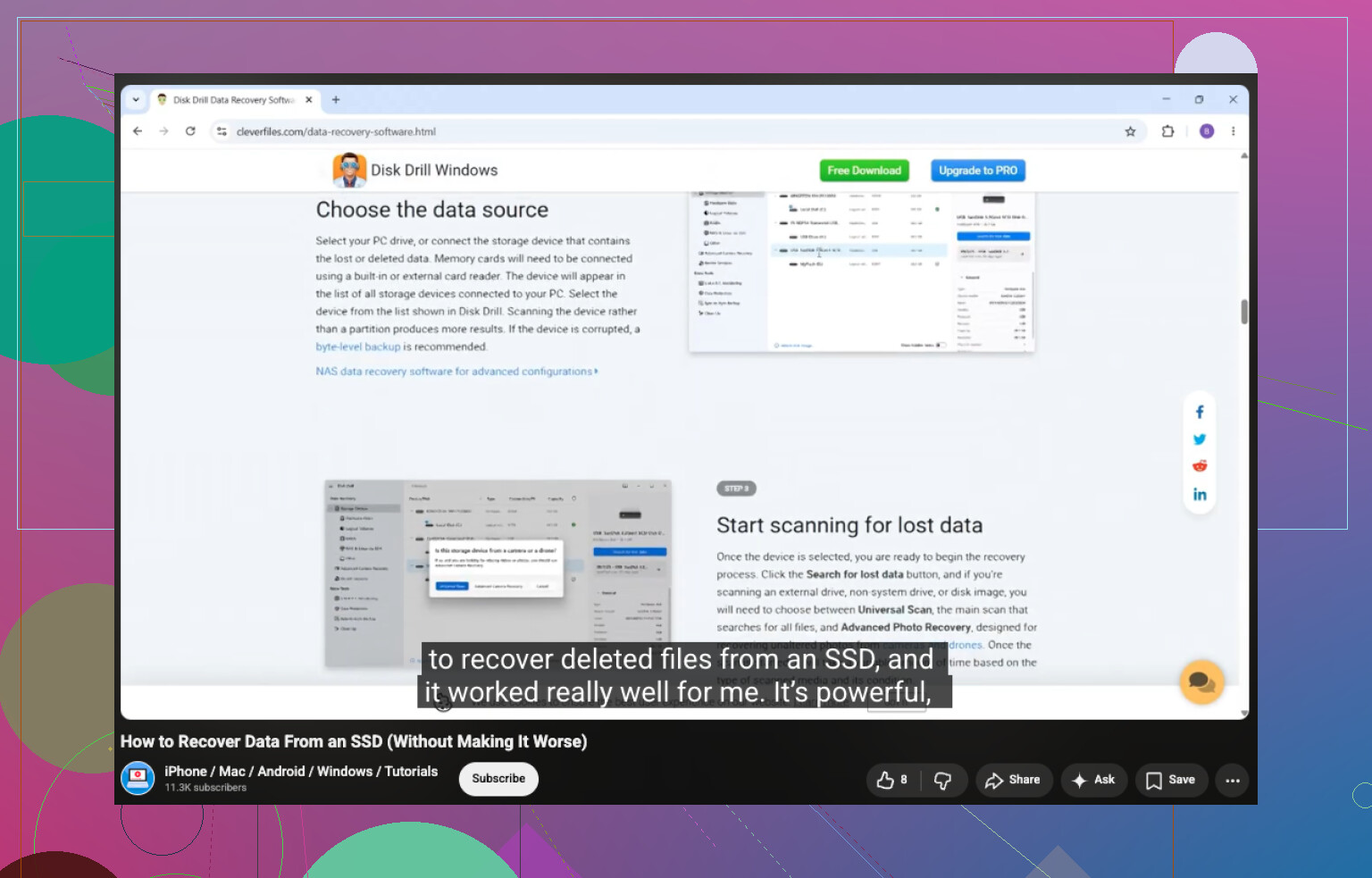
If you want more help on SSD-related file recovery, this guide on how to recover data from an SSD safely is easy to follow too.