Twitter is taking up a lot of storage on my iPhone, and I think the app cache may be the problem. I’m trying to free up space without deleting important data or losing my account settings. What’s the safest way to clear the Twitter/X cache on iPhone?
If you’re trying to clear Twitter cache on an iPhone, the setting is not in the normal iPhone Settings app. It’s buried inside Twitter/X itself, which is probably why it’s easy to miss.
Where to clear the Twitter/X cache
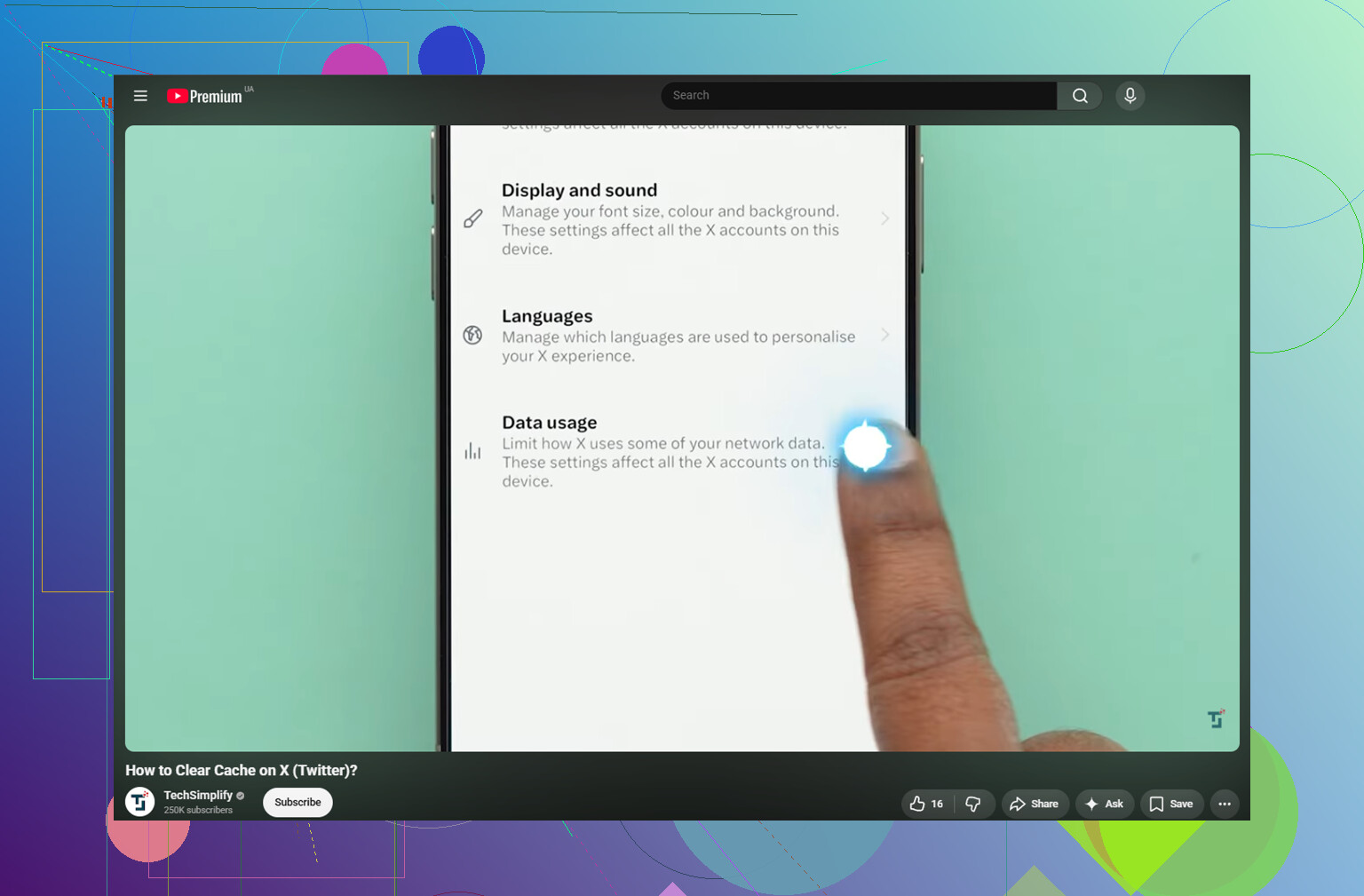
Open Twitter/X, then go here:
- Tap your profile icon in the top left
- Go to Settings and Support, then Settings and Privacy
- Tap Accessibility, Display, and Languages
- Open Data Usage
- Scroll down to the Storage section
You should see two storage options there.
Media storage is the safer one to clear first. That’s mostly cached images, GIFs, thumbnails, and bits of video the app loads while you scroll. Clearing it should not sign you out.
Web storage is different. That’s tied to websites opened inside the app’s browser, including cookies and cached page data. If you clear all web storage, you may get logged out, so make sure you know your password. If you just want to free up some space without messing with logins, clearing only the web page storage is the safer move.
This does not delete your saved posts, account info, or anything like that. Search history is separate too. If you want to clear that, it’s under Settings and Privacy, then Privacy and Safety, then Clear Search History.
Will this fix storage problems?
It can help for a little while. Depending on how much you use Twitter/X, clearing media cache might free up around 1 to 3GB. The annoying part is that the cache comes back pretty quickly once you start using the app again.
That’s what happened when I dealt with it. I cleared the Twitter cache, got some space back, and then the storage warning came back about a week later. Twitter cache was not really the main problem. The bigger issue was the photo library: old screenshots, duplicate-looking photos, burst shots, and huge videos that had been sitting there for years.
When an iPhone is almost full, it can still feel slow even after you clear one app’s cache. iOS needs free space for temporary system files. If storage is packed, the phone has less room to work. And honestly, app cache is usually small compared with photos and videos. One old 4K screen recording can take more space than a big chunk of Twitter cache.
What helped more
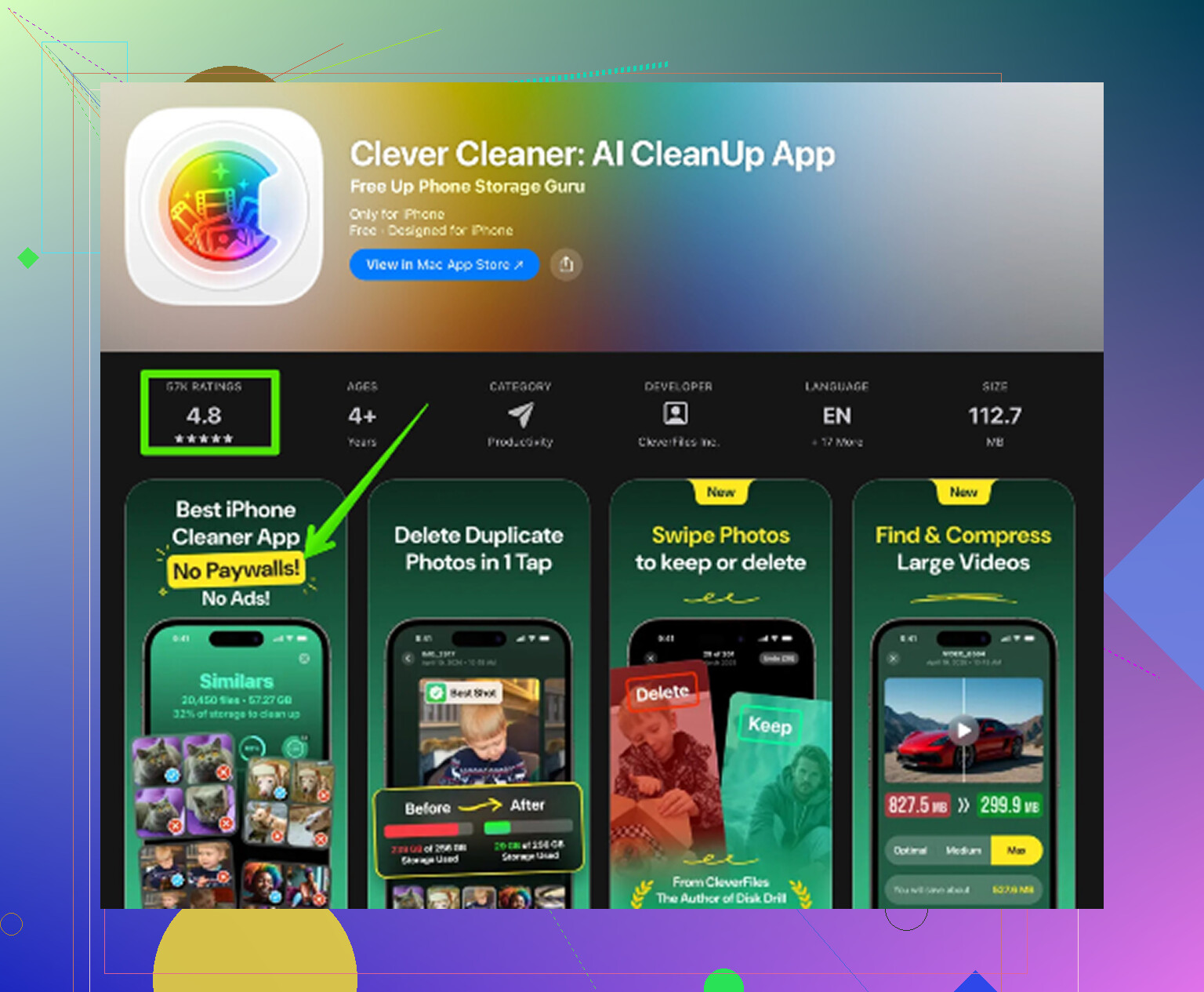
After clearing the app cache, the real fix was cleaning up the photo library. Clever Cleaner made that part a lot easier because it’s free, has no ads, and does not require a subscription.
It does not clear Twitter cache or app data. You still have to do that manually using the steps above. What it does is point out the photo and video files that are actually eating your storage.
The Heavies tab sorts your files from largest to smallest and shows the exact size of each one. That makes it easy to find big screen recordings and large videos instead of scrolling through thousands of photos.
The Similars tab groups near-duplicate photos and chooses a Best Shot from each group. So if you took ten versions of the same picture, you can clean that up without checking every single one manually.
It also shows file sizes on screenshots before you delete them, which helps because you’re not just guessing what is worth removing. Everything runs on the device too, so the photos are not uploaded somewhere else.
The best order is: clear Twitter/X media cache first for quick space, then clean up the photo library with Clever Cleaner to deal with the bigger storage problem. After deleting photos or videos, go to Photos, then Recently Deleted, then Delete All. Otherwise the storage number may not change right away.
13 Likes
The annoying catch is that iOS may still show Twitter/X using a lot of space even after you clear the cache, because the app can rebuild some of it as soon as you scroll again. @mikeappsreviewer’s path inside the app is the right place to start, but if the number does not drop much, the faster blunt fix is to delete the X app and reinstall it from the App Store. That removes the app’s local data more completely than the built-in cache buttons, but make sure you know your login, have access to 2FA, and don’t have unsent drafts you care about. Your account, posts, follows, bookmarks, and settings live online, so those should come back after signing in. If you are only trying to avoid logging in again, clear media storage first. If you want the cleanest reset, reinstalling is usually less fiddly.
If Twitter/X is only using a little extra space, clearing media storage inside the app is fine; if iPhone Storage shows the app sitting at several GB, don’t waste too much time tapping cache buttons. The thing people mix up is Offload App versus Delete App. Offload keeps the app’s documents and data, so it may leave the bloated storage behind. Delete App is the cleaner reset, then reinstall and sign back in. I agree with @cacadordeestrelas on checking your login and 2FA first, because that is the only real “gotcha.” Your account stuff is on X’s servers, but drafts, temporary downloads, and anything not synced can disappear.
Don’t offload it if your goal is to shrink Twitter/X.
Offload App sounds like the safe middle option, but for this specific problem it can be disappointing because iOS may keep the local documents/data that are taking up space. If X is showing as huge under Settings > General > iPhone Storage > X, the clean reset is Delete App, then reinstall it. That is different from deleting your X account. It removes the app from the phone, not your profile from X’s servers.
Before doing that, check how you sign in. A lot of people remember their username but forget they used Apple, Google, or a phone-number login years ago. If you have 2FA turned on, make sure you still have access to the authenticator app, SMS number, backup codes, or security key. That is the part that can turn a simple reinstall into a headache.
The in-app cache clearing is the gentler first try. Clear media storage first, then web storage only if you are okay with possibly being logged out of websites opened inside X. I would not bother clearing Safari history or random iPhone settings expecting it to fix X, because that is a separate cache. Same goes for third-party “phone cleaner” apps claiming they can clear Twitter cache directly. iOS generally does not let another app wipe X’s internal data. Apps like Clever Cleaner may help with photos and videos, but they are not a Twitter cache button.
After deleting and reinstalling, give iPhone Storage a few minutes to recalculate. Sometimes the number does not update instantly, and restarting the phone can make it refresh. If X grows again quickly, that is normal behavior for a media-heavy app. The safest routine is: clear media cache when you want a quick cleanup, delete/reinstall when it gets ridiculous, and keep login/2FA sorted before touching anything.
Reinstalling the app can quietly cost you your drafts, and that catches people off guard more than the login stuff. Unsent posts and half-written replies live only on the phone. If you delete X without posting or copying them out first, they’re gone. The account settings come back fine, but that draft you were sitting on does not.
@mike34 is right that Offload is the wrong tool here. Offload’s whole point is keeping the documents and data, which is exactly the part bloating your storage. So if you offload X expecting the number to drop, you’ll be annoyed. Delete and reinstall is the real reset.
Where I’d push back a little is the idea that in-app cache clearing is worth much time. On a media-heavy app like X, media storage refills so fast that clearing it feels like bailing water. If the app is genuinely sitting at several GB, I’d skip straight to the delete-reinstall and not bother tapping the cache buttons at all. Save yourself the two-step dance.
The photo library point from @mikeappsreviewer is honestly the more useful takeaway in this whole thread. App cache is rarely the thing that fills a phone. It’s the 4K videos and the burst shots you forgot about. Something like Clever Cleaner is fine for spotting the big offenders quickly, just don’t expect it to touch X at all, which the earlier replies already flagged correctly. It sorts your own photos and videos, nothing more.
One practical note people forget: after you delete anything, whether it’s X or a pile of videos, the storage number lags. Give it a few minutes, and if it still looks wrong, restart the phone. iOS recalculates on its own schedule, not yours.