Facebook on my iPhone has been loading slowly and showing old posts/images, so I think the app cache may be the issue. I want to clear the Facebook cache without deleting or reinstalling the app because I don’t want to lose settings or sign back in. What’s the best way to do this on iOS?
I’d start with the Facebook app itself if it’s sitting at something ridiculous like 10GB or 15GB. iOS doesn’t give you a clean “Clear Cache” button the way Android does, so you’re stuck using the storage options Apple gives you.
Go to Settings > General > iPhone Storage, then find Facebook.
If you want the safer, less annoying option, try Offload App first. That removes the app from your phone but keeps its documents and data. When you tap the Facebook icon again, iOS downloads the app back, and a chunk of the temporary junk usually gets cleaned out. The nice part is that this normally does not sign you out, so it’s pretty painless.
But if Facebook has grown into a monster, offloading may not do much. A lot of the space is usually buried in Documents & Data, meaning cached videos, images, web stuff, and whatever else Facebook has been collecting while you scroll.
For the real cleanup, use Delete App from that same iPhone Storage screen, then reinstall Facebook from the App Store. That wipes the local app data and cache completely.
And yes, deleting the app will log you out. You’ll need to sign back in after reinstalling it. But it won’t delete your Facebook account, posts, photos, friends, messages, or anything like that. Those are stored by Facebook, not only on your iPhone. You’re just clearing the copy of app data sitting on your device.
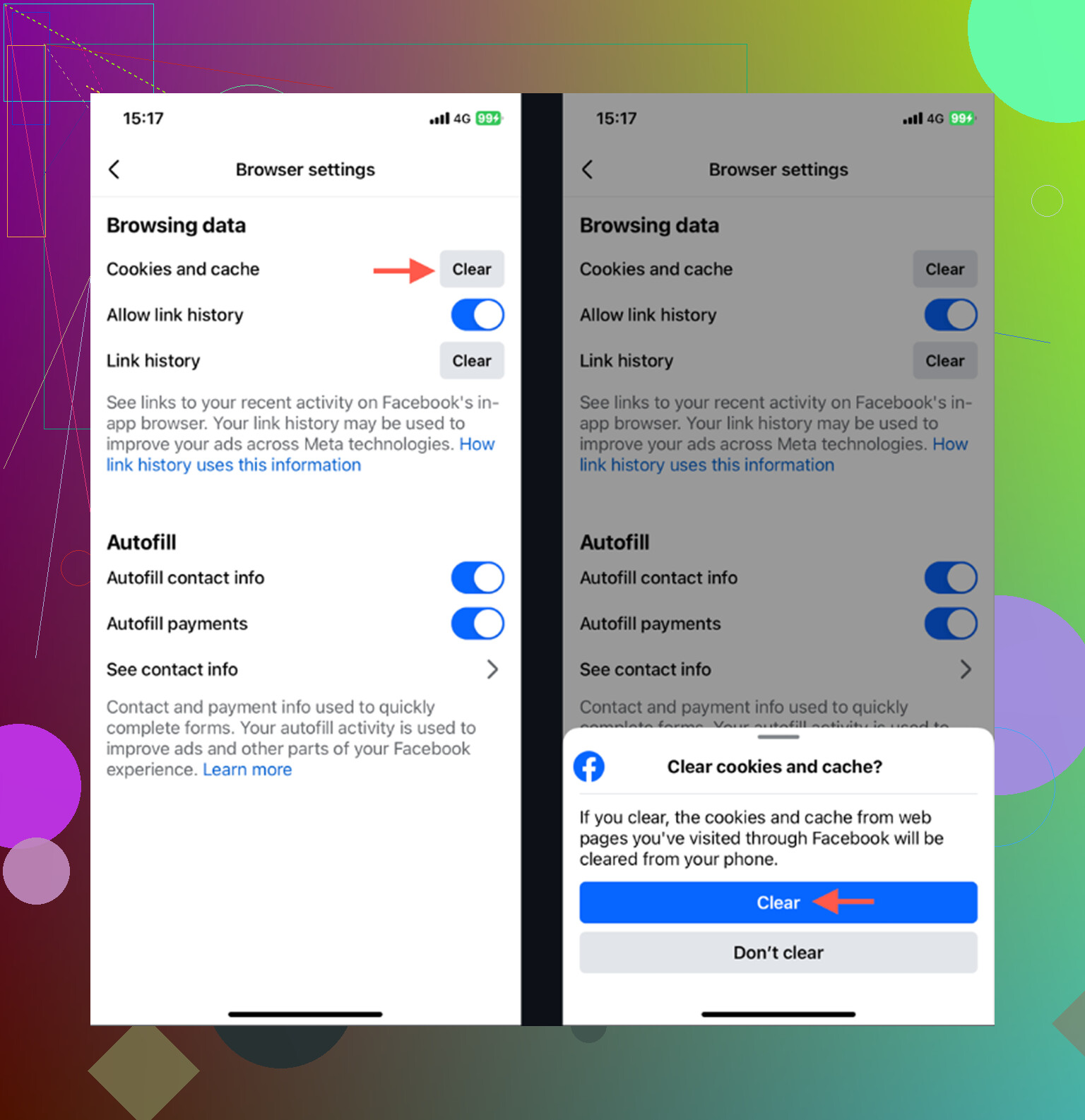
There’s also a smaller cleanup option inside Facebook:
Menu > Settings & Privacy > Settings > Browser
From there, you can clear the in-app browser cookies and cache. It can free up a little space from sites you opened through Facebook links, but don’t expect it to fix a 15GB Facebook install by itself.
The annoying part is that this is temporary. Facebook will start rebuilding its cache as soon as you use it again, especially if you watch a lot of Reels or scroll through image-heavy posts. You can delete and reinstall it today, then see the storage number creep back up after normal use.
I eventually realized Facebook wasn’t the main reason my iPhone storage kept filling up. The bigger mess was my Photo Library: duplicate shots, old screenshots, and huge 4K videos I forgot were even there.
That’s where something like Clever Cleaner is more useful. It won’t clean Facebook’s cache, because iOS doesn’t really let third-party apps do that automatically. But it does help with the stuff that usually eats the most storage: photos and videos.
The Heavies section shows your largest media files, so you can quickly find the giant videos taking up space. The Similars section groups together near-duplicate photos, like all those repeated attempts at the same picture, and shows the file sizes so you can decide what to keep. It also shows screenshot sizes, which is useful because those pile up fast.
Another good thing is that the processing happens on-device, so your photos aren’t being uploaded somewhere else for cleanup.
So if Facebook is huge right now, delete and reinstall it to get some space back quickly. But if your iPhone keeps yelling about storage, check your photo library too. Cleaning out the big videos and duplicate photos usually makes a much bigger difference than chasing Facebook’s cache every week.
20 Likes
Be careful with Offload App: it may leave behind the exact Facebook data you’re trying to clear.
If you don’t want to delete the app, your realistic options are clearing Facebook’s in-app browser data, force-quitting Facebook, and restarting the iPhone. If old images/posts still keep showing after that, the full delete/reinstall is usually the only real cache reset on iOS.
Old posts or images do not necessarily mean the local cache is bad. Facebook may be showing a ranked feed, or the app may be having a sync or connection problem. First pull down to refresh, switch between Wi-Fi and cellular, then force-close Facebook and restart the iPhone.
Clearing Facebook’s Browser data only affects websites opened inside the app. It will not wipe cached Feed photos, videos, or Reels. @andarilhonoturno is right about Offload App too: because iOS keeps Documents & Data, it can preserve the files causing the problem.
So the blunt answer is that iOS has no full Facebook cache-clear option that leaves the installed app untouched. You can try logging out and back in, but make sure you know your password and have access to any two-factor authentication method first. If the problem remains, deleting and reinstalling Facebook is the dependable reset. Cleaner apps such as Clever Cleaner cannot clear another app’s private cache.
Logging out and back in is the part that bites people, because if your 2FA is tied to an old number or an authenticator you no longer have, you can lock yourself out chasing a cache fix. @bluenode4179 nailed the real issue for me: ‘old posts’ is usually just the ranked feed, not stale cache, so try Most Recent before you nuke the app.
Don’t clear Safari expecting it to fix Facebook. Safari’s website data is separate from the Facebook app’s stored photos, videos, and Feed data. Force-closing Facebook does not erase that cache either. It only stops the current session.
Before deleting anything, update Facebook through the App Store and check that your iPhone has some free storage. Then open Facebook, refresh the Feed, and change the feed view from ranked posts to Feeds or Most Recent if that option appears. That deals with two common causes of “old” content without risking your login.
You can clear Facebook’s in-app browser data, but that only cleans up pages opened from links inside Facebook. Offloading is a weak compromise because iOS keeps Documents & Data, which may contain the junk you wanted removed.
So the direct answer is no: iOS does not provide a full Facebook cache reset while leaving the installed app and its data untouched. If updating, refreshing, and restarting fail, delete and reinstall is the actual reset. Check your password and two-factor authentication access before doing it.
If Facebook looks current in Safari but stale in the app, that points to an app problem. If both show the same old-looking feed, it is probably Facebook’s feed ranking rather than cached files.
That distinction confused me because Facebook calls its in-app website storage “browser data,” but clearing it does not clear Feed images or videos. iOS simply has no full Clear Cache button for Facebook while keeping the app installed.
A quick check is to open facebook.com in Safari and compare it with the app. Then update Facebook, switch the app to Feeds or Most Recent, and restart the phone. If only the app remains broken, deleting and reinstalling is the reliable reset. Offloading may preserve the troublesome data, so I would not count on it as a true cache clear.
Don’t use “Reset All Settings” or a phone-cleaner app for this. Compared with Android, iOS does not let you target Facebook’s main cache, and resetting iPhone settings creates extra work without clearing Facebook’s private app data.
The closest no-delete workaround is to use Facebook in Safari for a while. If the website shows fresh content while the app stays stale, you have confirmed the issue is limited to the app. You can keep using the browser version, or even add it to your Home Screen, until you are ready to reinstall. If both versions show the same posts, clearing local files probably will not change anything because the feed itself is being ranked that way.
Clearing Facebook’s browser data is much narrower than clearing the app cache, while offloading sits somewhere between doing nothing and reinstalling but may keep the problem files. So there is no true full cache clear that leaves Facebook installed. For a temporary fix, use Safari. For an actual local reset, verify your login and two-factor authentication access, then delete and reinstall the app.
Heads up before you go the delete-and-reinstall route: deleting the Facebook app does nothing to Messenger. They’re separate apps with separate storage, so if part of your bloat or your stale content is coming from chats, you’d have to reinstall that one too. People assume nuking Facebook cleans everything Facebook-related, and it doesn’t.
The thread’s already nailed the big thing, that iOS gives you no real Clear Cache button, and @bluenode4179 and @digital_circuit are right that the Safari-vs-app comparison is the quickest way to tell whether you even have a cache problem or just a ranked feed. I’d trust that check more than anything else here. If facebook.com looks fresh in Safari and the app doesn’t, reinstall. If both look the same, you’re chasing a ghost.
The piece nobody mentioned: once you reinstall, the cache balloons right back because autoplay is doing the work. Dig into Settings and Privacy, then Media, and knock video autoplay down or set it to Wi-Fi only. That won’t clear anything today, but it slows how fast Facebook refills its storage, which is the actual annoyance if you’re doing this cleanup every few weeks. Otherwise you’re back where you started by next week.
On Clever Cleaner, it came up a few times and it’s fine for what it does, but keep the expectation straight. It’s for your own photo and video mess, not Facebook’s private cache, and every reply above already admits no third-party app can touch that. So use it if your storage warning is really coming from 4K clips and duplicate screenshots. If your only issue is stale posts in the feed, it’s the wrong tool and won’t help at all.