I’m running out of storage on my iPhone and a few apps are taking up a ton of space with cached data and documents. I don’t really want to delete and reinstall them because I’m worried about losing my settings and saved info. Is there a way to clear app data or cache on iOS, or at least reduce the storage they use, without fully removing the apps? Any step-by-step advice would really help.
Short answer, on iPhone you cannot fully clear an app’s data without risking its settings, unless the developer added a “clear cache” option inside the app.
Here is what you can do that keeps most things intact:
-
Check what is using space
• Go to Settings > General > iPhone Storage
• Wait a bit for it to load
• Tap an app to see “App Size” vs “Documents & Data”App Size is the actual app.
Documents & Data is cache, downloads, saved files, etc. -
Use “Offload App”
If App Size is big but Documents & Data is not crazy:
• Settings > General > iPhone Storage
• Tap the app
• Tap Offload AppThis removes the app binary, keeps its data.
When you reinstall from the Home Screen icon, your data and settings stay.
Storage saved is limited though, since the data is still there. -
Delete app but keep account in cloud
Some apps sync settings or data with your account. Example:
• Spotify, Netflix, YouTube keep your account data online
• Social apps keep messages and settings tied to your loginFor these, you can:
• Back up any local stuff if needed
• Delete the app in iPhone Storage
• Reinstall it from the App Store
You usually keep your account preferences because they live on the server, not on the phone.
You lose downloaded content like offline videos or songs, which frees a lot of space. -
Clear storage from inside the app
Many apps hide the clear option in their own settings:
• Instagram: Settings > Data usage or Media > clear cache (changes by version)
• TikTok: Profile > Menu > Settings > Cache & cellular > Clear cache
• WhatsApp: Settings > Storage and Data > Manage Storage, then delete large items
• Spotify: Settings > Storage > Clear cacheCheck each big app from the iPhone Storage list, then open that app and look for:
Storage, Cache, Downloads, Offline, Media.
This keeps logins and prefs but removes temp junk. -
Use system “Recommendations”
In Settings > General > iPhone Storage, at the top you often see:
• Offload Unused Apps
• Review Large Attachments (Messages)
• iCloud Photos optionsTurn on Offload Unused Apps if you have many old apps you never use.
They disappear, but data stays. When you tap them again, iOS downloads them. -
Clean up Messages and media
Messages and media often eat gigabytes.
• Settings > Messages > Keep Messages > set to 1 Year or 30 Days
• In iPhone Storage > Messages, tap “Review Large Attachments” and delete big videos, photos, PDFsYou keep your apps, but clear tons of hidden junk.
-
Photos and videos
• Turn on iCloud Photos with “Optimize iPhone Storage” if you have iCloud space
• Or move big videos to a computer or cloud storage and remove them from the phone -
Use a helper app for cleanup
For things like duplicate photos, similar photos, large videos, contacts cleanup etc, a cleaner utility helps.
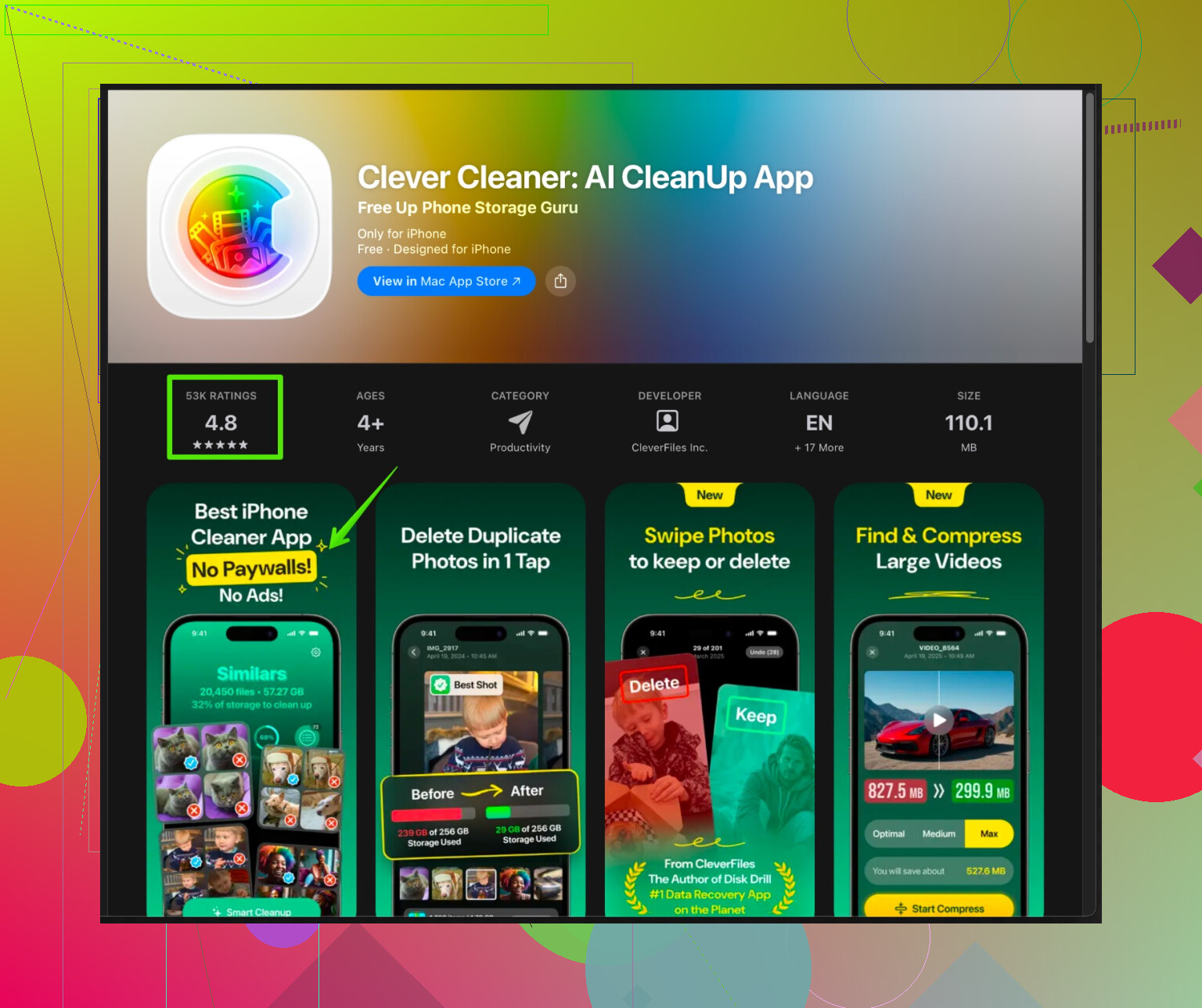
One option you can try is the Clever Cleaner App for iPhone. It helps find duplicate and similar photos, large files, and cleans contacts to free space without messing with app settings.
You can get it here:
Clever Cleaner storage manager for iPhoneIt focuses on media and junk, not your app-specific settings, so risk to your saved app data is low.
-
Last resort per‑app
If one app shows “Documents & Data” of, say, 5–10 GB and you do not have an in‑app clear option, you face a tradeoff:
• Keep all data, live with bloat
or
• Delete the app from iPhone Storage, reinstall, log back in, reconfigure onceBefore you do this:
• Check if the app uses cloud sync or an account
• Screenshot your settings pages so you can restore them after reinstall
iOS does not provide a global “clear cache” button for each app in Settings, so you have to mix these methods. Start with in‑app options, iPhone Storage tools, Messages, and photos. Then decide on deleting and reinstalling only the worst offenders.
207 Likes
iOS is kinda stingy about this, so @kakeru is mostly right, but there are a few extra angles you can try before nuking apps from orbit.
I’ll break it up by what actually happens behind the scenes and what you can realistically do:
1. Understand what you can’t do
There is no system-level “Clear cache” like Android. If an app did not build a “clear cache / reset downloads / manage storage” button into its own settings, you cannot surgically remove only the junk from outside the app. iOS sandboxes apps and doesn’t expose those knobs.
So yeah, if you were hoping for “one hidden toggle in Settings that fixes everything,” that’s just not a thing.
2. Push apps to self-clean
A trick that sometimes works, especially with media or social apps:
- Fill storage almost to the brim (install a big game, shoot a long 4K video, whatever).
- Then open the bloated app and actually use it a bit.
Some apps detect low storage and auto-purge old cached files or temporary downloads to stay alive. It’s inconsistent, but I’ve seen YouTube, Netflix, and some browsers quietly drop cached stuff when space is tight, without losing logins or settings.
Not perfect, but it can trim a few hundred MB to a couple GB in some cases.
3. Force the app to “rotate” its cache
A lot of apps grow huge because you’ve accumulated years of viewed content:
-
Browsers: Safari, Chrome, Firefox, etc.
• In Safari: Settings > Safari > Clear History and Website Data
This does delete cookies and website data, but keeps the app, bookmarks, and general settings.
For third‑party browsers, look inside the app for things like “Site data,” “Offline pages,” “Downloads.” -
Streaming apps: Netflix, Prime Video, etc.
Even if they already have “Delete all downloads,” you can also:
• Temporarily disable “Download for offline” or lower video quality.
That encourages the app to keep fewer or smaller cached files going forward so the problem doesn’t come back as fast.
This isn’t contradicting @kakeru, but I think they slightly underplayed how much ongoing behavior (like lowering quality, turning off auto-downloads) can prevent bloat from returning.
4. Use “reset-like” options that don’t kill your account
Some apps have “soft reset” features that wipe local cruft but not your account:
Look for options such as:
- “Reset local data”
- “Remove offline content”
- “Sign out of this device” then sign back in
- “Clear downloaded media”
Often:
- Your settings tied to the account remain in the cloud.
- Local cache (previews, temp files, thumbnails, partial downloads) gets regenerated only as needed.
Yes, you might have to re-tweak a couple toggles, but that is still less annoying than delete + full reinstall.
5. Lean harder on system offload + backup strategy
I slightly disagree with the idea that offload is only useful when the app size is big. Offloading can help you be less scared of deleting and reinstalling:
- Make an iCloud or Finder backup first if you’re really paranoid.
- Offload a few big apps you rarely use.
That gets your overall space to a safer level. - Now, for the truly bloated offenders, you can delete/reinstall with less stress, knowing:
• You have a backup.
• Their accounts and prefs are usually server-side anyway.
It’s not “clear data without reinstall,” but it changes the emotional cost and risk, which is half the battle.
6. Target “hidden” storage hogs linked to apps
Even if you won’t delete the apps themselves, you can attack stuff they feed on:
-
Mail:
• Settings > Mail > Accounts > turn off old accounts you don’t use.
• Or set Mail to sync fewer days of messages.
This quietly cuts a lot of downloaded attachments. -
Notes / Voice Memos / Files:
These can store giant attachments that sit there forever. Deleting big items here reduces data for those apps without deleting the app itself. -
In-app “saved” stuff:
For example, some PDF readers, office apps, or scanners stash every doc since 2017. Move older stuff to iCloud Drive or a computer, then remove it from the phone inside the app.
You keep settings and structure, you just prune payloads.
7. Let a cleaner handle media bloat
You said multiple apps are taking up space, but a huge chunk on most iPhones is actually photos, videos, and duplicate junk that other apps reference.
If you clear that, many apps will suddenly look “lighter” because they aren’t holding onto as many thumbnails and cached previews.
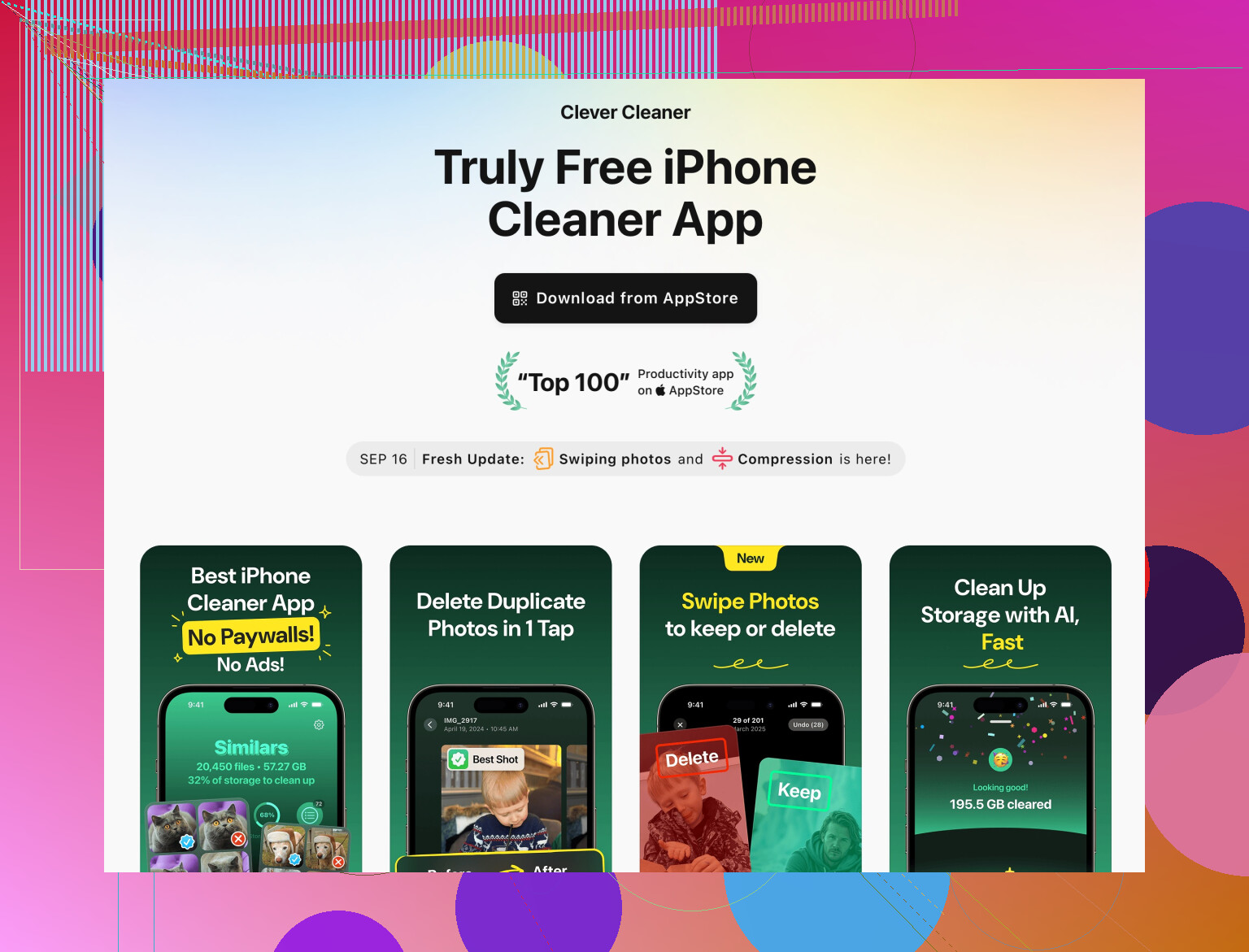
This is where something like the Clever Cleaner App actually helps in a non-gimmicky way. It’s aimed at:
- Finding duplicate or similar photos
- Spotting super large videos and files
- Cleaning up messy contacts
So you’re not messing with each app’s data directly, but you’re removing the heaviest stuff that apps typically latch onto.
If you want to check it out, this is a solid place to start:
free up iPhone space with an intelligent storage cleaner
That kind of tool won’t magically empty an app’s internal database, but it will claw back a ton of space so you don’t feel forced to delete the apps themselves.
8. When you finally have to nuke an app
If one app is sitting at something ridiculous like 10+ GB of “Documents & Data” and has no clean-up option, you’re basically cornered. To make it safer:
- Confirm it uses an account / cloud sync.
- Screenshot any settings screens that matter to you.
- Make sure Photos / Files generated by the app are backed up somewhere.
- Then delete and reinstall.
It’s annoying, but for some poorly designed apps, that is literally the only way to reclaim space.
TL;DR:
You can’t truly clear app data on iPhone without some risk unless the app’s dev gave you a “clear cache” or “manage storage” button. Use in-app tools first, let apps self-clean by enabling fewer offline features, prune media and attachments, and consider using something like Clever Cleaner App to free general storage so you’re not forced into risky deletes.
You’ve already got solid advice from @viaggiatoresolare and @kakeru on the hard truth: iOS will not let you fully purge an app’s local data from the system side without either (a) using a clear‑cache option built into the app or (b) deleting/reinstalling. I’ll skip repeating their steps and poke at a few different angles.
1. Target “partial resets” inside each app
Instead of thinking “clear all data,” look for surgical options that apps sometimes hide:
-
Browsers
Inside Chrome / Firefox / Edge, you can usually clear:- Cached images & files
- Offline pages
- Site data for specific domains
That often dumps gigabytes but keeps the app, bookmarks, and general prefs. You might lose logins for some sites, but not app-level settings.
-
Map & navigation apps
Many keep offline regions: delete older offline maps, traffic logs or “downloaded areas” without touching your favorites or account. -
Document / scanner apps
Move old PDFs and scans to iCloud Drive or a computer, then delete them from inside the app. The app database shrinks, but your settings stay.
This is where I slightly disagree with the “delete & reinstall is the only real fix” vibe. With apps that store mostly files (docs, maps, media), careful pruning inside the app can get you 70 to 90 percent of the benefit.
2. Use iCloud and syncing to make “nuking” safer
When you do hit an app that simply will not slim down:
- Confirm it syncs via iCloud or its own account.
- In iCloud settings, check if that app has “Use iCloud” toggled on.
- For games, see if progress is tied to Game Center or the publisher account.
If the data is cloud based, deleting the local app is more like flushing a cache. On reinstall, you log in and your stuff returns. The annoyance is re-downloading and a bit of setup, but your important data usually survives.
3. Watch out for hidden “shared” storage
Some storage is sort of “behind” apps:
-
Files app
Large ZIPs, videos, or app-specific folders inside Files count as Documents & Data for those apps. Offload or delete those files there first. -
Mail & attachments
Reducing how many days Mail syncs or manually deleting giant attachments in the Mail app cuts space that looks like it belongs to Mail without uninstalling it.
These are not obvious in the per-app screens, but they directly affect that Documents & Data number.
4. Clever Cleaner App: useful, but not magic
Since you asked about clearing app data without losing settings, tools like the Clever Cleaner App are relevant, but in a different way than people often expect.
What it is good for
- Finding duplicate photos, near-duplicate shots, and bursts that clog your library
- Spotting very large videos and files
- Cleaning messy contacts and some obvious junk
All of that indirectly helps with app bloat because:
- Fewer photos and videos reduce thumbnails, caches and media references that other apps build.
- Free space gives apps room to auto-purge temp files without crashing.
Pros
- Frees a lot of space without touching each app’s internal database
- Low risk to app-specific settings since it focuses on media and obvious junk
- Faster than manual cleanup of thousands of photos and videos
Cons
- It will not go inside a specific third-party app’s sandbox and clear its private cache
- You must review deletions carefully to avoid losing media you still want
- Real benefit depends on how messy your photo and file libraries already are
So the Clever Cleaner App is best seen as a “system pressure relief valve,” not a literal “clear this app’s Documents & Data” button.
5. How this differs from what’s already said
- Where @kakeru is right is that iOS has no universal cache-clear switch.
- Where @viaggiatoresolare adds nuance is with system and behavior tweaks.
To complement both: focus on app-internal file pruning, move as much as possible to cloud or Files, and use a cleaner tool to collapse your global media footprint. Then you reserve the painful delete/reinstall option for only the truly hopeless storage hogs.
Alternative: use Offload Unused Apps. Steps: Settings, App Store, toggel Offload Unused Apps. Or Settings, General, iPhone Storage, pick an app, Offload App. iOS removes the app executable, keeps your data and settings. Reintsall later by tapping the icon. Space freed equals App Size, not Documents & Data. Example: Instagram App Size 250 MB, data 1.2 GB. Offload frees 250 MB fast. Good for rarely used hogs without risking saves. If storage drops low, iOS auto offloads those apps again. This stays simple and safe.