My iPhone storage is almost full, and I’m not sure what’s safe to delete. I’ve removed a few photos and apps, but the “System Data” and other junk files still seem to take up a lot of space. What’s the best way to clear iPhone junk files and free up storage without losing anything important?
Check the storage breakdown before you start deleting random stuff. Go to Settings > General > iPhone Storage and see what’s actually eating the space.
I had the same thing happen after a trip. I thought there would be some kind of “junk files” folder to clean out, like on a PC, but iPhones don’t really expose storage that way. For me, the problem was mostly photos and videos, not some hidden pile of system trash.
The biggest wins were pretty basic:
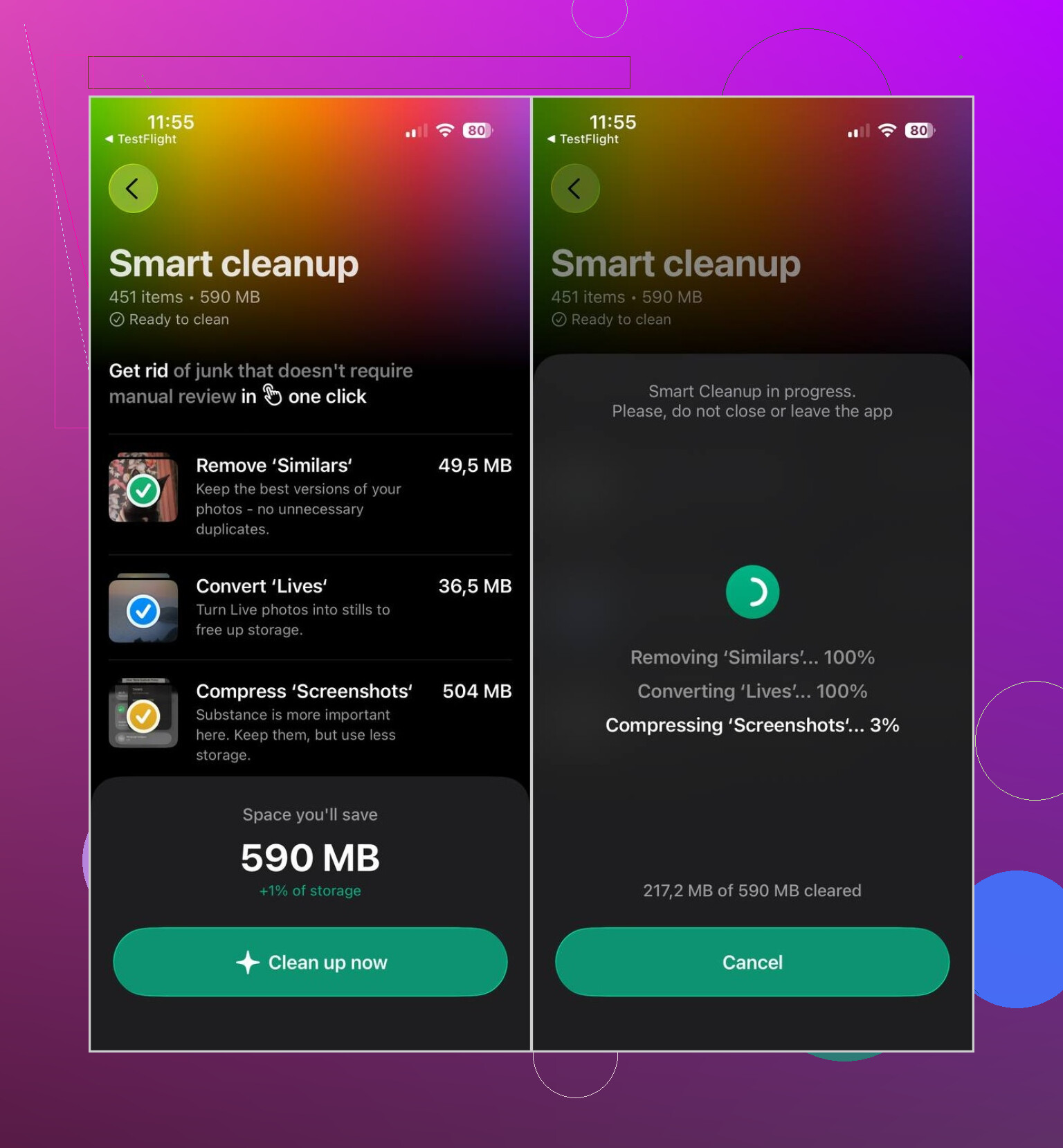
- Clean up photos and videos first. Apple Photos can catch exact duplicates, but not much beyond that. I used Clever Cleaner because it also spots similar photos, screenshots, large videos, and Live Photos. It runs locally, doesn’t have ads, and the free version was enough for normal cleanup. After deleting stuff, make sure you empty Recently Deleted, otherwise the space won’t come back right away.
- Delete apps you don’t use anymore. If you might want the app data later, use Offload App instead.
- Clear browser data in Safari or Chrome. Also check apps like Telegram or Spotify, since they can hold onto cache files and downloads.
- Open the Files app and check Downloads. That folder can quietly collect old PDFs, ZIPs, and random files you forgot existed.
- If Messages is taking up a lot of storage, look for old conversations with big photo or video attachments and remove the ones you don’t need.
Just don’t expect an App Store cleaner to wipe out iOS system files or hidden app caches. Apple doesn’t give those apps that kind of access. So if something claims it can “clean all junk files,” I’d treat that pretty skeptically.
Most of the real space usually comes from photos, videos, downloaded files, app caches you can manually clear, and apps you no longer use. Start with the iPhone Storage screen and work from whatever category is largest.
18 Likes
Restart the phone after clearing anything large, then give it a little time on Wi-Fi and charging before judging the storage screen again. iOS is weird about this. “System Data” can look huge right after deleting videos, app data, or message attachments because the phone hasn’t finished reindexing and cleaning temporary stuff yet.
I agree with the point above that cleaner apps can help with photos and videos, but they are not really “junk file cleaners” in the PC sense. If System Data is the scary number, the boring fixes usually work better: restart, install any pending iOS update if you have enough space, clear big offline downloads inside apps, and delete old iMessage attachments from the iPhone Storage page. Streaming apps are worth checking manually too, because Netflix, YouTube, Spotify, Podcasts, Maps, and similar apps can hide a lot under downloaded content.
If System Data is still ridiculous after that, the cleaner but annoying option is an encrypted backup to a computer, erase the phone, then restore. That often forces iOS to rebuild the storage layout without dragging every temporary file along. I wouldn’t do that as step one, though. It is a hassle, and if most of your space is photos, videos, or app downloads, you’ll just end up back in the same spot.

A phone full of offline stuff is easy to fix; a phone full because iCloud Photos is syncing can bite you if you delete too fast. Before clearing photos, check Settings > your name > iCloud > Photos and see whether iCloud Photos is on. If it is, deleting photos from the phone usually deletes them from iCloud and your other Apple devices too, so don’t treat it like a separate backup. In that case, turn on Optimize iPhone Storage first, then remove obvious junk from Recently Deleted, Messages attachments, and app downloads. I agree with the others that “System Data” is usually not something a cleaner app can directly scrub, but the iCloud/photo setup is the place people accidentally lose stuff while trying to free space.
Don’t start deleting from random app folders or turning iCloud switches off when the phone is already nearly full. That is when people make the biggest mess, because iOS may still be syncing, indexing, or trying to make local copies of things in the background.
The fastest safe move is to create breathing room first, even if it is temporary. Delete or offload one large app you can easily reinstall, like a game, then restart the phone. Once you have a few GB free, the Storage screen tends to behave better and you can make less panicked choices. Trying to clean a phone with a few hundred MB free is miserable because every action is slow and iOS may not immediately show the space you recovered.
I agree with the others that “System Data” is usually the wrong target. Treat it more like a symptom than a folder you can empty. The parts you can control are things like downloaded maps, offline music, podcast episodes, mail attachments, saved videos inside social apps, and old Files downloads. A lot of apps hide their cleanup button inside the app itself, not in iPhone Storage. For example, deleting a streaming app can remove its downloads, but if you still use the app, it is cleaner to remove the downloads from inside that app first.
I would be more skeptical of anything that claims it will clean iOS system junk with one tap. Apps like Clever Cleaner can be useful for finding photo clutter, especially similar shots and big videos, but they are not magic access to iOS internals. Use that kind of app as a sorting tool for your own media, not as a system repair tool.
If the phone is still full after the obvious stuff is gone, check whether you have an old iPhone backup stored on the phone through Finder/iTunes sync leftovers or giant message threads with attachments. Messages can be sneaky because one group chat with years of videos can look less obvious than a big app. After deleting attachments, empty Recently Deleted where applicable, restart, then wait a bit before trusting the number. iPhone storage cleanup is annoyingly delayed sometimes.
If your System Data is stuck in the tens of GB and won’t budge, the backup-and-restore that @waldgeist called a last resort is usually the only thing that actually works, so don’t waste a week poking at caches first. Everything else in this thread is fine for normal cleanup, but a genuinely stuck System Data number rarely responds to restarts.