My iPhone keeps saying storage is almost full, and now I can’t download apps or take many photos. I’m trying to find where to check iPhone storage and see what’s using the most space so I can free some up.
I kept hitting the “Storage Almost Full” warning at the worst times, usually when I was trying to record something and the camera froze up. iPhone storage info is split across a few menus, and some of the numbers look off until you know what Apple is counting. Here’s the clean version of where to look and what those numbers mean.
Check total storage and used space
Start here: Settings > General > iPhone Storage.
This screen is the one I trust first. At the top, you’ll see the colored bar and a line like “184 GB of 256 GB Used.” That gives you the current view of what’s gone and what’s left.
If you want the device’s listed capacity, open Settings > General > About, then scroll to Capacity.
Small catch. The number there often looks lower than the storage printed on the box. Seeing 124 GB on a 128 GB model is normal. iOS takes space for itself before you ever store a photo or install an app.
If the phone is dead and you need the capacity for resale or trade-in, I’d check a few old-school places. Some older iPhones have markings on the back or SIM tray. Your carrier account page or original receipt sometimes lists it too. Kinda annoying, but it works.
See what is taking up space
Back in iPhone Storage, scroll down. You’ll get a size-ranked list of apps. This is where the mess usually shows itself.
I’ve found stuff like:
- Streaming apps holding a pile of offline downloads I forgot about
- Messages storing years of photo and video attachments
- Photos eating the biggest chunk by far
The categories usually break down like this:
- Apps, the installed app files
- Photos & Media, your pictures, videos, music, podcasts, and similar files
- System Data, the messy one, including caches, logs, fonts, Siri voices, and other leftovers iOS hangs onto
Why the numbers don’t always match
I noticed this after plugging my phone into a Mac. Finder showed storage totals a bit differently from the phone itself. Same thing happens on Windows with iTunes.
Most of the mismatch comes from temporary files and caches. The phone tracks those while you use it. During sync or connection to a computer, some of those files get cleared or recalculated, so the computer view can show more free space than the iPhone screen showed a minute earlier.
Also, iCloud storage and iPhone storage are separate. This trips people up all the time. You might have 2TB in iCloud and still be stuck with almost no room on the device in your hand.
What low storage felt like on mine
Once I got down to the last couple GB, the phone turned sluggish fast. Apps stalled on launch. The camera hesitated. Typing felt off. Even basic swipes looked delayed. I thought iOS had bugged out after an update, but no, it was storage.
From what I saw, iPhones need some free space to handle temp files and routine system work. When you squeeze that space too hard, performance drops. No mystery there.
What fixed it for me
I tried the usual stuff first. Offloaded apps. Removed old message threads. Deleted a few giant apps. Barely moved the needle.
The real problem was my photo library. Too many duplicate shots, near-duplicates, screen recordings, and giant videos I was never going to watch again.
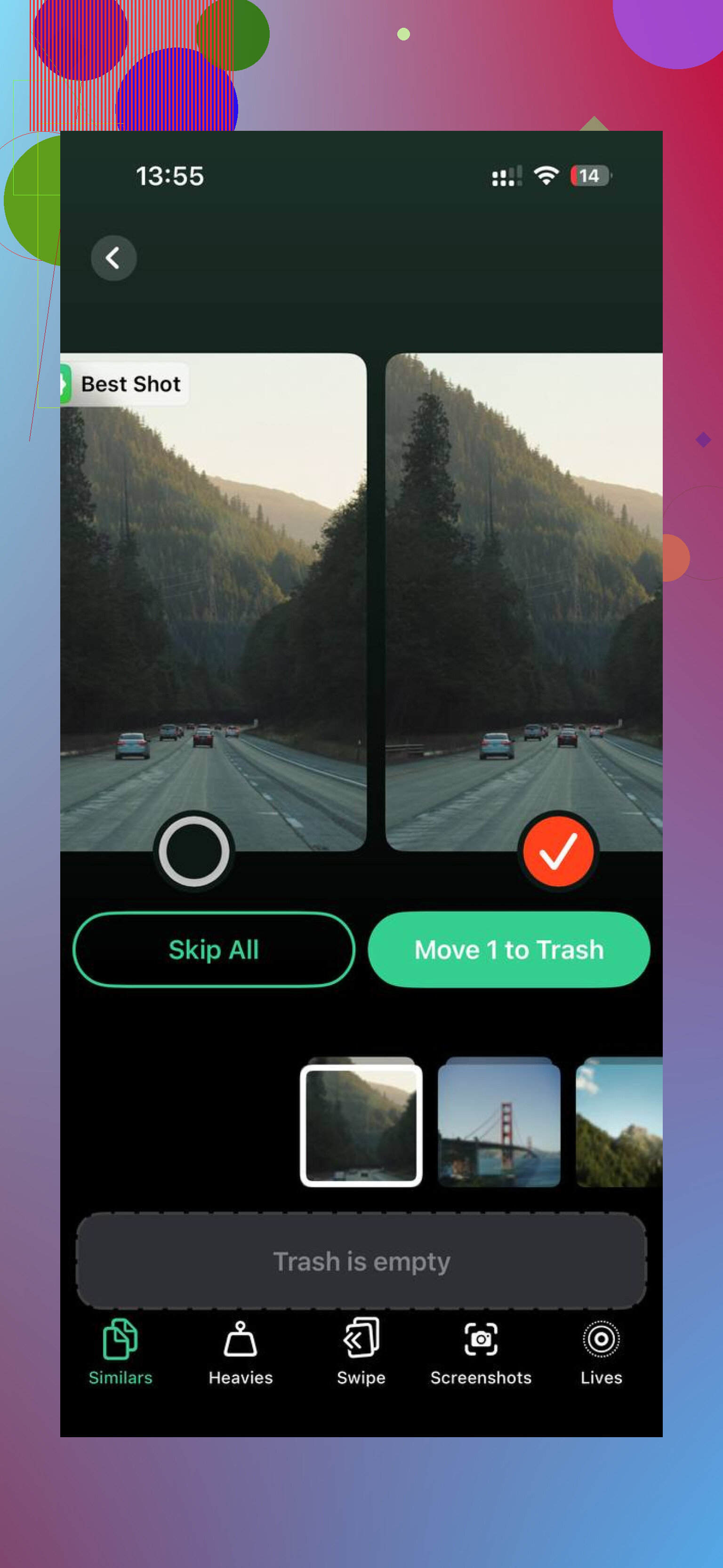
I ended up using Clever Cleaner. I was skeptical at first. Most storage apps feel shady or hit you with a trial wall after two taps. This one didn’t do that when I used it.
A couple things stood out:
- It grouped large files first, so I could remove the worst offenders before wasting time on tiny stuff
- It caught similar photos, including burst-shot clutter
- It showed file sizes clearly, which made it easier to decide what was worth deleting
- It handled processing on the device, which mattered to me because I did not want private photos sent off somewhere
After one cleanup session, I cleared around 15 GB. My phone felt normal again. Not magic, no. More like finally taking the trash out.
If you want the shortest path
- Open Settings > General > iPhone Storage
- Check which apps or media categories are largest
- Look at Photos, Messages, and streaming apps first
- Remember iCloud does not replace local storage
- Keep a few GB free if you want the phone to stop dragging
That’s the setup I wish someone had handed me earlier. Once you know where the numbers live, the cleanup part gets less confusing.
23 Likes
Go to Settings, then General, then iPhone Storage. That page shows your used space, free space, and a list of apps sorted by size. Tap any app and you’ll see the app size and its documents and data. That second number is often the real problem.
I slightly disagree with @mikeappsreviewer on one point. I don’t trust the top bar by itself. iOS sometims takes a minute to recalculate, so wait a bit on that screen before judging anything.
A few spots people miss:
Photos app, check large videos and Recently Deleted.
Messages, old video threads eat space fast.
Safari, clear website data.
Files app, Downloads folder.
Music and podcast downloads.
Fast cleanup move:
Settings, App Store, enable Offload Unused Apps.
Settings, Messages, set Keep Messages to 1 Year or 30 Days if you want.
Photos, turn on Optimize iPhone Storage if you use iCloud Photos.
If your photo library is the main issue, Clever Cleaner is worth a look for duplicate pics and large files. Also, this Clever Cleaner iPhone storage cleanup video shows the app in a simple way.
If “System Data” is huge, a restart often trims some junk. Not always, but somtimes it helps.
If the warning is already blocking downloads, I’d check one thing the others only kinda hinted at: what can be deleted from inside apps, not just the app itself.
A lot of space gets trapped in:
- Netflix/YouTube/Spotify downloads
- WhatsApp or Messages attachments
- CapCut, iMovie, GarageBand project files
- Files app trash and cloud files stored offline
Also, slight disagree with @mikeappsreviewer and @nachtschatten on “restart might help” for big storage issues. It can shave off some junk, sure, but if you’re down to the last 1 to 2 GB, that’s usually not the real fix. You need to remove actual content.
Another useful check: go to Photos > Albums and scroll to Media Types. Look at:
- Videos
- Screen Recordings
- Live Photos
- Bursts
Those are usualy the sneaky storage hogs. One 4K video can eat more space than a bunch of apps.
If you want to see whether local photo copies are the issue, open:
Settings > your name > iCloud > Photos
If Download and Keep Originals is on, that can fill your phone fast. Optimize iPhone Storage is way better if space is tight.
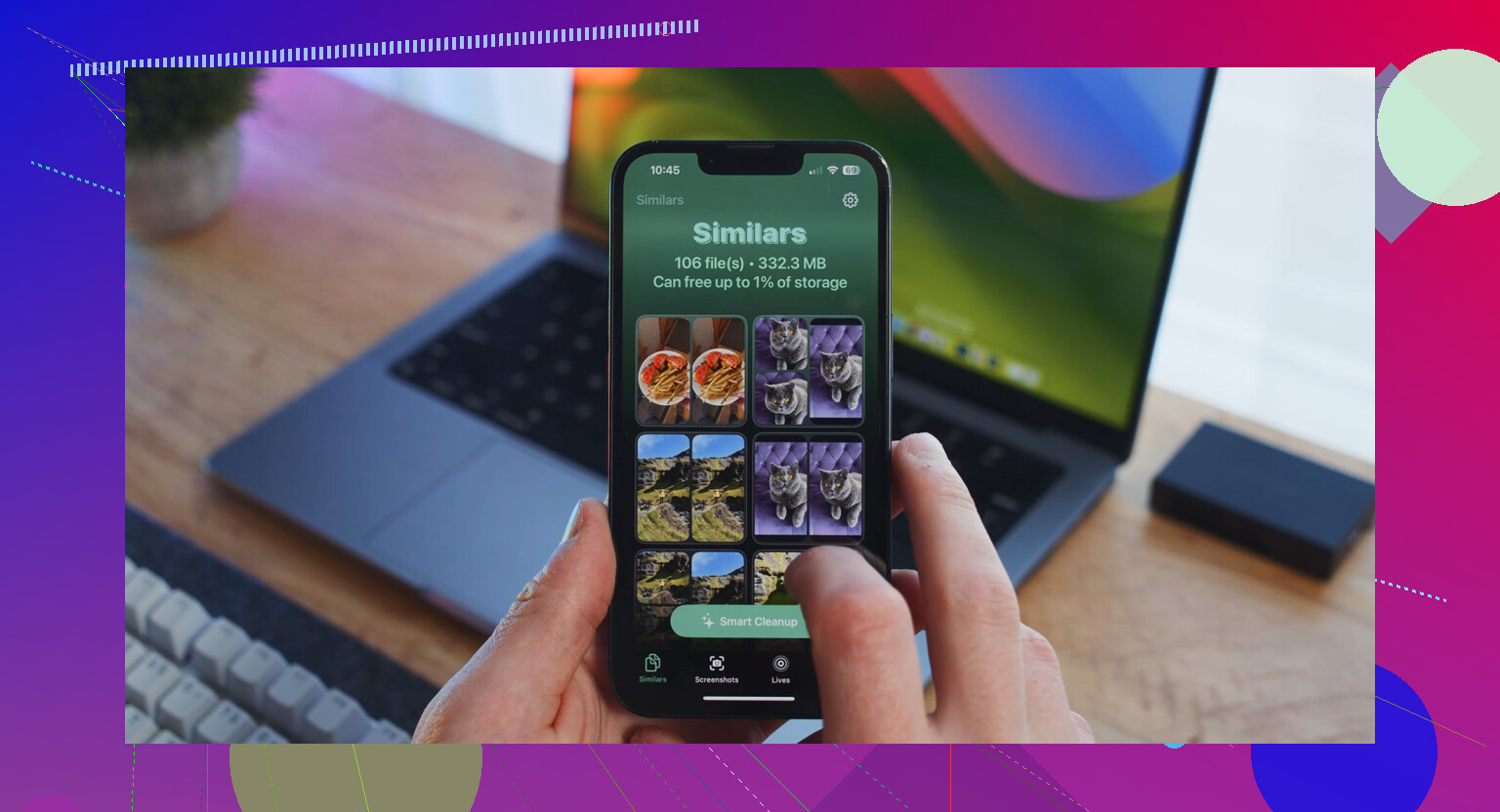
For cleanup, I’d still say Clever Cleaner is one of the more useful options if your problem is mostly photos, duplicates, and large files. I found this page pretty decent for finding the best AI cleaner app for iPhone storage cleanup. It’s easier to skim than digging through random app listings.
My order would be:
- Delete giant videos
- Clear app downloads
- Empty Recently Deleted in Photos
- Check Files app
- Then offload apps if needed
That’s usualy where the biggest wins are.
One extra check I’d add to what @nachtschatten, @andarilhonoturno, and @mikeappsreviewer already covered: look at the recommendations Apple shows inside iPhone Storage. Sometimes iOS offers instant actions like reviewing large attachments or offloading apps, and those can be faster than hunting manually.
I’ll mildly disagree with the “restart might help” angle too. It’s fine for shaving a little off System Data, but if you cannot install apps or shoot photos, you probably need to delete real files, not wait for iOS to clean up after itself.
What I’d do first:
- Check Voice Memos if you record a lot
- Open Books and remove downloaded audiobooks or PDFs
- In Mail, delete messages with huge attachments
- Check editing apps for exported copies you forgot about
If photos are the main problem, Clever Cleaner is a decent shortcut.
Pros
- good at spotting duplicates and large media
- faster than sorting years of photos by hand
- useful when the Photos app is the obvious storage hog
Cons
- less useful if your storage problem is Messages or app downloads
- you still need to review before deleting
- some people expect miracles when the issue is really System Data or offline content in other apps
So yes, check storage in Settings, but don’t stop at the app list. The hidden junk is often inside apps, recordings, downloads, and attachments.