I’m trying to free up space and fix some lag on my iPhone, but I don’t want to do a factory reset or erase all content. I’ve tried closing apps, offloading some, and deleting browser data, but the system storage and cached data still seem huge. What are the real ways to safely clear cache on an iPhone without wiping the whole phone, and are there any hidden settings or steps I might be missing?
Short answer, you cannot wipe “system” cache on iPhone like on Android, but you can claw back space and kill a lot of junk.
Here is what actually helps, step by step.
-
Check what eats space
• Settings > General > iPhone Storage
• Wait 1–2 minutes. Let it load.
• Look at big apps like Photos, Messages, TikTok, Instagram, Spotify, games. These hide most of the cache. -
Safari cache is only a small part
You said you cleared browser data already. That helps a bit, but Safari is rarely the main problem. System and social apps hold more. -
Clear app “cache” the Apple way
iOS does not give a real “clear cache” button for most apps. The options you have:• Offload app
Settings > General > iPhone Storage > pick app > Offload App.
This removes the app itself but keeps documents and data.
Reinstall it from the Home Screen icon.
This sometimes shrinks the app size but not always.• Delete and reinstall
For apps with huge Documents & Data, this is the only reliable fix.
Good targets:- Instagram, Facebook, TikTok
- Snapchat
- Spotify, YouTube, Netflix if they store offline content
Steps: hold app icon > Remove App > Delete App, then reinstall from App Store.
Expect to log in again, so make sure you know passwords.
-
Photos and videos
This makes a huge dent.• Settings > Photos
- Disable “Download and Keep Originals” if it is on
- Enable “Optimize iPhone Storage”
This keeps smaller versions on the phone and stores full versions in iCloud. Needs enough iCloud space though.
• Remove big videos
Photos > Albums > scroll to Media Types > Videos.
Sort by size in the top-right if you see the option. Delete the largest ones first.
Then go to Recently Deleted and empty it, or it still holds space for 30 days. -
Messages and attachments
Messages can eat several GB quietly.• Settings > General > iPhone Storage > Messages
Check:- Photos
- Videos
- GIFs and Stickers
- “Other”
Tap each, delete the largest first.
• Auto-delete old messages
Settings > Messages > Keep Messages > set to 1 Year or 30 Days.
-
WhatsApp, Telegram and other chat apps
These apps store tons of media.For WhatsApp:
- WhatsApp > Settings > Storage and Data > Manage Storage
- Delete large items and group media you do not need.
For Telegram or others, look for “Data and Storage” or “Storage Usage” in the app settings and clear cached media.
-
Free RAM and reduce lag without reset
• Restart the phone
Hold Volume Up + Side button, slide to power off, wait 15–20 seconds, turn it back on.
This clears temporary stuff and sometimes fixes lag.• Disable some background processes
Settings > General > Background App Refresh > turn off for apps you rarely use.
• Remove widgets you do not use.
• Reduce motion
Settings > Accessibility > Motion > Reduce Motion ON. -
System data (System / System Data in Storage)
This one is the annoying part. It goes up and down. You cannot fully clear it without a restore, but you can push it lower.Try:
• Restart the phone after a big cleanup.
• Delete large apps like video editors or VPNs that generate logs, then reinstall.
• Make sure iOS is up to date. Settings > General > Software Update.
• If System Data is huge, like 20–40 GB, backup to iCloud or computer, then use “Erase All Content and Settings” and restore from backup. You said you want to avoid that, but it is the only strong fix for extreme System Data bloat. -
Use an assistant app to find junk more easily
Since iOS blocks apps from directly deleting other apps’ caches, they work by helping you see what to delete faster.
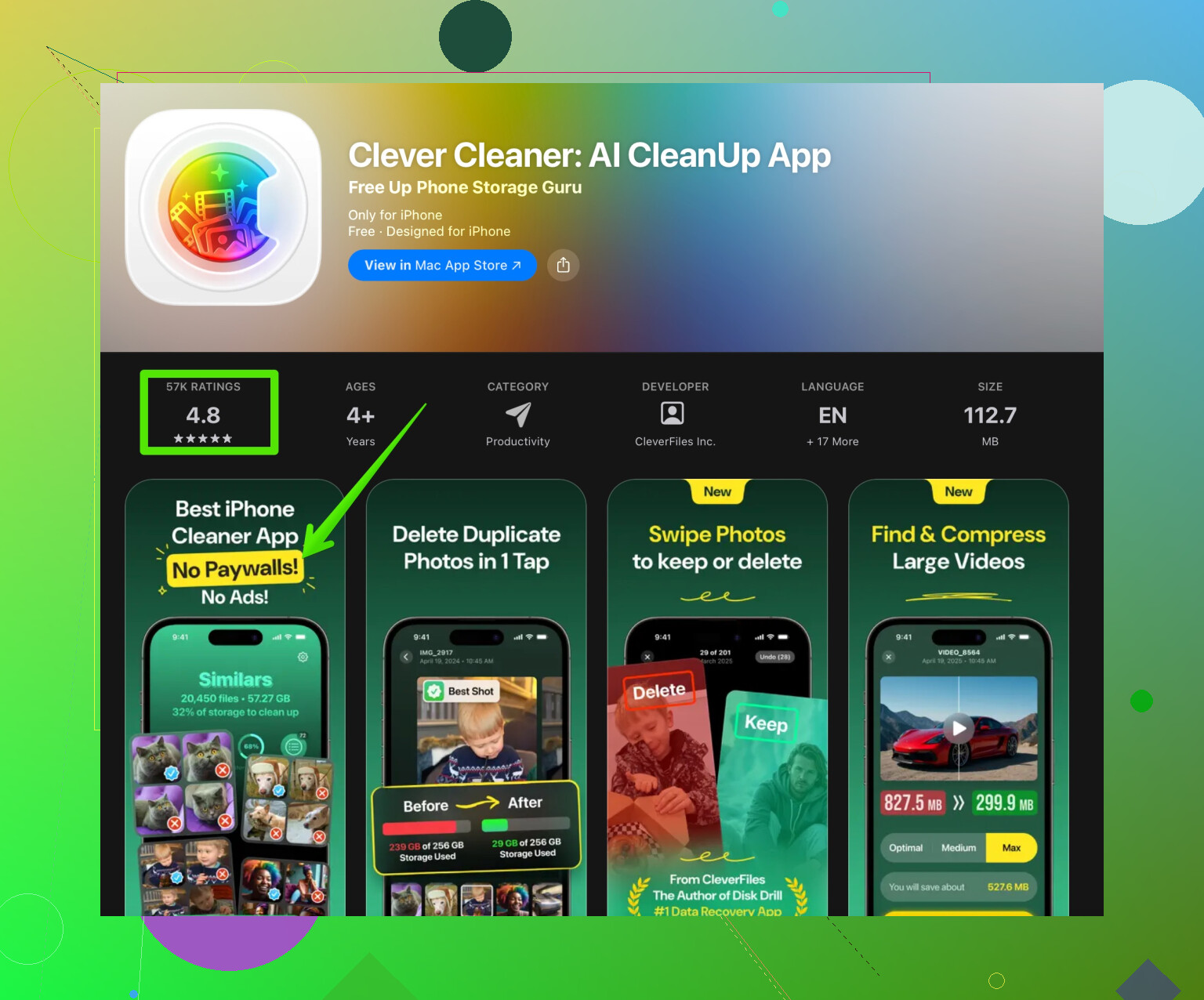
A popular one is Clever Cleaner App. It helps you:
• Find duplicate and similar photos.
• Sort and remove big videos.
• Clean up useless screenshots and blurred shots.
• Organize contacts, merge duplicates, remove empty contacts.For a direct link, try something like
smart iPhone cleanup with Clever CleanerIt will not override Apple system limits, but it saves time when you need to clear hundreds of photos or contacts.
-
Quick routine you can repeat monthly
• Restart the phone.
• Clean Photos and Videos with a tool or manually.
• Clear heavy chat app storage.
• Delete and reinstall 2–3 worst offenders from iPhone Storage list.
• Check free space again in Settings > General > iPhone Storage.
If you give your iOS version and how big System Data is, people can suggest more targeted steps.
14 Likes
Short version: you can’t nuke “System” cache on iOS without a full reset, but you can squeeze it and fix lag by forcing iOS to reindex / recalc stuff, plus trimming junk it doesn’t expose clearly.
@viajantedoceu covered most of the obvious stuff already, so I’ll skip repeating the same tap-this / tap-that steps and add a few things that actually moved the needle for me.
1. Force iOS to recalc storage & system data
Sometimes “System” looks huge because it’s misreported.
- Plug iPhone into a computer with Finder (macOS) or iTunes (Windows).
- Let it sit for a few minutes while it does a backup or at least finishes “Syncing” / “Backing up”.
- Then check storage again in Settings > General > iPhone Storage.
More than once I’ve seen System Data drop several GB after a full backup + sync. It’s not magic, it just makes iOS clean up snapshots and indexes.
2. Kill Spotlight / Siri junk & reindex
This helped lag for me more than pure storage tricks:
- Go to Settings > Siri & Search.
- Temporarily turn off “Show in Search” and “Show Content in Search” for heavy apps (Photos, Messages, big social apps).
- Reboot the phone.
- Re‑enable only for apps where search really matters.
This reduces how much data Spotlight keeps indexed and can smooth things out, especially on older phones.
3. Stop iCloud Drive / app sync from bloating “System”
Some “System” space is actually sync caches:
- Settings > Apple ID > iCloud > iCloud Drive
Turn off for apps you never actually use with iCloud. A lot of random apps store temp files there. - Same for Notes, Voice Memos, etc. If you do not need them syncing, disable and restart.
I slightly disagree with the idea that only a full erase helps when System Data is huge. Sometimes pruning iCloud sync and doing a computer backup shrinks it by quite a bit, enough that you don’t have to wipe.
4. Check mail accounts & downloads
Mail app can hide a lot of cached attachments that show up under System or “Other”:
- Settings > Mail > Accounts > pick each account
Temporarily remove email accounts you don’t really use anymore. - Re-add only your main accounts.
After removal, restart. This clears local mail caches.
If you use a separate mail app (Gmail, Outlook), open its settings and look for “Clear cache” / “Download size” / “Sync period” and trim it.
5. Turn off automatic downloads that keep refilling cache
Even if you clear stuff, some settings just fill it back up:
- Settings > App Store
- Turn off “App Downloads” and “Automatic Updates” over cellular.
- Disable “In-App Content” if you see it.
- Settings > TV / Music / Podcasts
Turn off auto-downloads and limit or delete old episodes.
This does not clear existing cache but stops it from ballooning again in a week.
6. Use a cleaner app, but for photos/duplicates only
You can’t get a real “Clear System Cache” app on iOS. Apple straight up doesn’t allow that. Where cleaner apps do help is mass photo cleanup and duplicate files.
The Clever Cleaner App is decent specifically for:
- Finding duplicate and similar photos
- Spotting giant videos
- Removing screenshots, blurred pics, and junk albums
If you want to try it, here is a direct link:
smart iPhone cleanup with Clever Cleaner
It will not magically wipe System Data, but deleting 5–10 GB of redundant photos and videos often matters more than fighting the last 1–2 GB of “System”.
7. When lag is worse than the storage problem
Performance lag is not only about free GB:
- Turn off Background App Refresh for almost everything except chat and maps.
- Cut down on heavy Home Screen widgets (news, photos, big weather widgets).
- Settings > Accessibility > Motion > Reduce Motion ON.
- If you use a Live / Dynamic wallpaper, try a still image instead.
Those changes can speed things up even if System Data refuses to shrink much.
8. More readable version of your topic for people finding this later
How do I actually clear cache on iPhone without resetting it?
I want to free up storage space and fix lag on my iPhone without a factory reset or erasing all content. I’ve already tried closing apps, offloading apps, and deleting browser data, but the system storage and cache still look bloated and my iPhone feels slow. I’m looking for practical ways to reduce cache, shrink System Data, and improve performance that do not involve wiping the device.
If you post your iPhone model, iOS version, and how big “System Data” is (screenshot of the iPhone Storage screen), people can tell you whether you’re in “normal Apple nonsense” territory or “ok, something is actually wrong” land.