I lost my TV remote right before the game, and now I can’t use my TV. I’ve already checked the couch, table, and nearby rooms, but it’s nowhere to be found. I need help figuring out how to use the TV without the remote so I don’t miss the football game.
I lose my TV remote at the worst time. Almost always right before a game. It used to mean digging through couch cushions while kickoff was already happening. Now I skip the scavenger hunt and use my phone.
If your TV is a smart TV, there’s a good shot you don’t need the original remote at all. Your phone and TV on the same Wi‑Fi usually does the job. I’ve done this to change channels, open streaming apps, fix volume, pause playback, and type into those awful TV search boxes without losing my mind.
For iPhone
TVRem is the one I’d try first:
More info here:
TVRem – Universal Remote turns your iPhone into a full Smart TV
What I did was simple. Install it. Put the iPhone and TV on the same Wi‑Fi. Let the app scan. When the TV shows the pairing prompt, confirm it. Done. After tha,t the phone works like a normal remote.
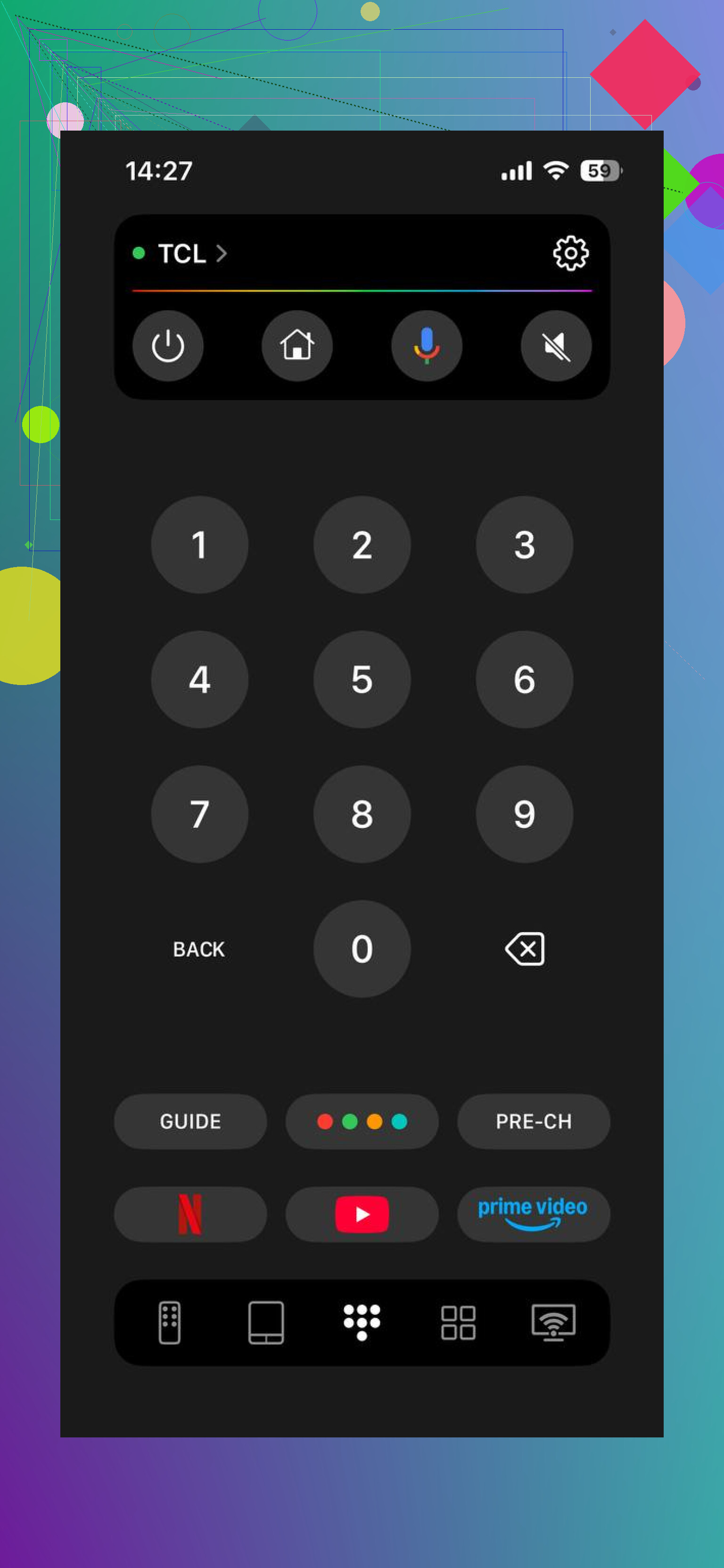
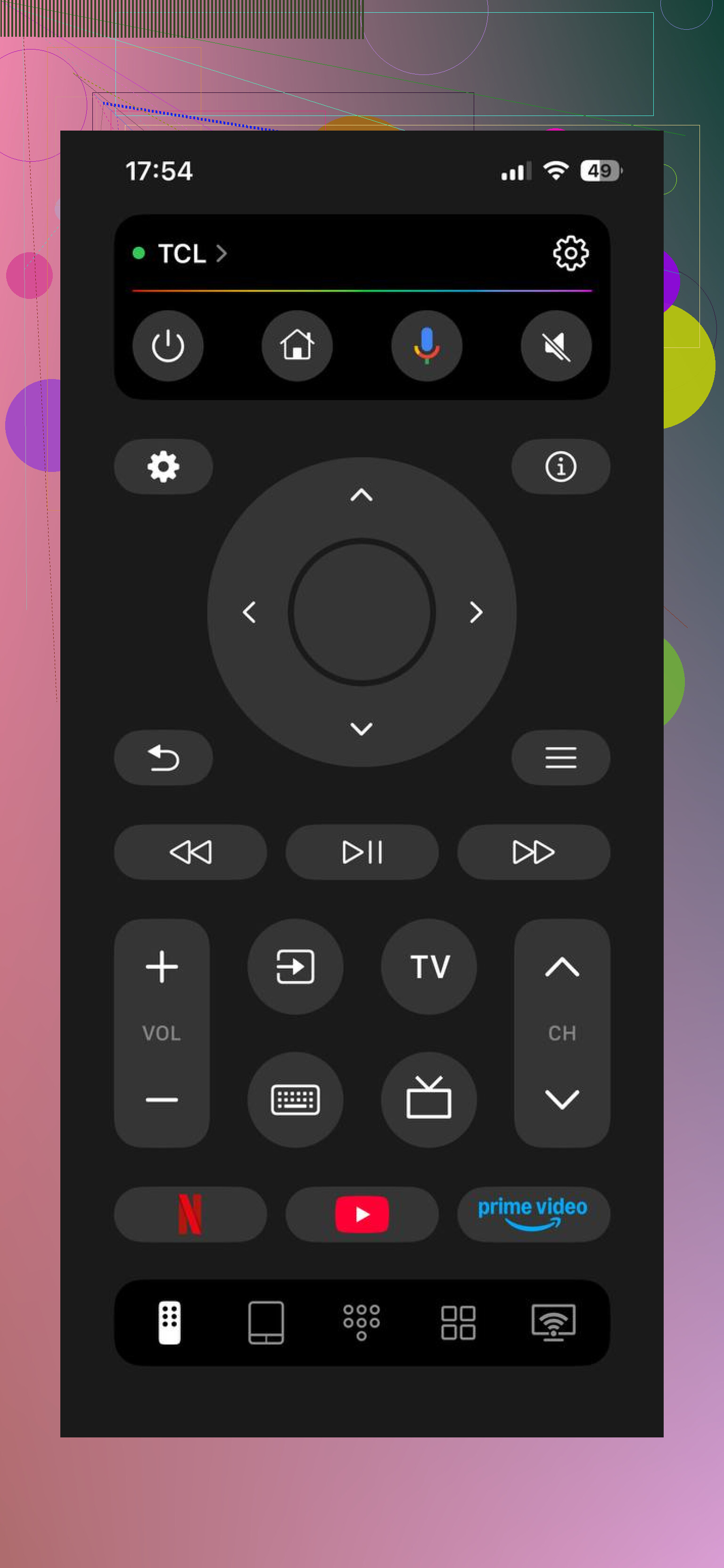
What you get once it connects:
- Channel and input switching, useful if you need to jump straight to a sports feed
- App launching for stuff like YouTube, Netflix, or your sports app
- Volume, playback, and menu control
- Phone keyboard input, which is way faster than pecking letters with arrow keys
- Touchpad controls for smoother menu movement
From what I saw, it supports the common stuff, Samsung, LG, Roku, Fire TV, Android TV, and Google TV. So if you’re staring at a random living room TV and don’t even know the model, it still has a fair shot.
For Android
Universal TV Remote Control by Codematics works in the same general way. Same Wi‑Fi, scan for the TV, pair it, use the phone as the remote.
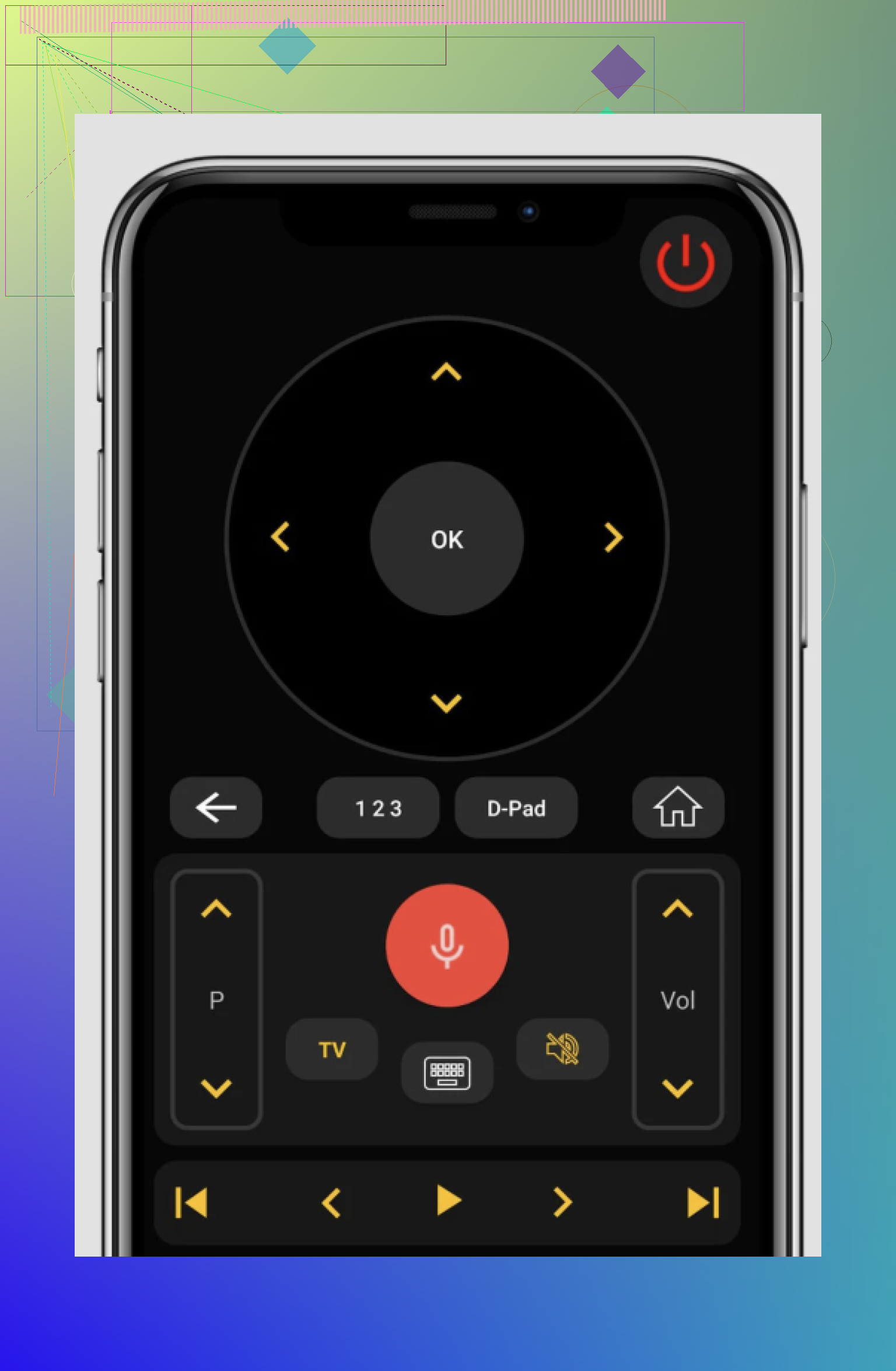
What it covers:
- Standard navigation controls, either D-pad style or touchpad style
- Fast app access
- Volume and playback controls
- Keyboard entry for search bars and login screens
I’ve seen people use it when the original remote was missing, dead, or smashed by a toddler. Same end result, the TV still works.
What matters
Most smart TVs already support remote control over Wi‑Fi. So losing the physical remote usually isn’t the disaster it used to be.
You need three things:
- Your phone and TV on the same Wi‑Fi network
- A remote app, TVRem on iPhone or Universal TV Remote Control by Codematics on Android
- The pairing confirmation on the TV, if it asks for one
After setup, your phone handles the full job. Not only channel changes. Apps too. Menus too. Search too.
So if the remote vanishes right before football starts, don’t waste ten minutes flipping blankets and checking under the dog. Open the app, pair the TV, and get the match back on in about a minute.
6 Likes
Skip the WiFi app route first if kickoff is close. @mikeappsreviewer covered that part well, but pairing sometimes needs an on-screen prompt, which is useless if your TV is stuck on the wrong input.
Try these in order:
-
Use the TV’s physical buttons.
Most TVs still have them. Check the bottom center, back right edge, or under the logo. You need Power, Input, Channel, Volume. On Samsung and LG, a small joystick button is common. -
Use your cable or streaming box remote.
Xfinity, Spectrum, DirecTV, Roku, Fire Stick, Apple TV remotes often control TV power, volume, and input if they were set up before. This saves time. -
HDMI-CEC.
If a console or streaming stick is plugged in, turning it on sometimes wakes the TV and switches input. PS5, Xbox, Roku, Fire Stick, Apple TV all do this on many sets. -
TV manufacturer app.
Brand apps often work better than generic ones. Roku, Samsung SmartThings, LG ThinQ, Google TV. -
Last resort, buy a cheap universal remote.
Big box stores, drug stores, even grocery stores stock them. Setup takes like 5 mins if youre lucky.
If your goal is football fast, the physical button method is usualy the fastest.
If the game is about to start, I’d do one thing nobody ever mentions until way too late: bypass the TV menus entirely.
If you already have a cable box, Roku, Fire Stick, Apple TV, Xbox, or PS5 hooked up, just use that device as the “main” thing and stop worrying about the TV remote for now. A lot of people get stuck thinking “I need the TV remote first,” but sometimes you really don’t.
A few fast options that complement what @mikeappsreviewer and @himmelsjager said:
- If your stream is on a console, plug headphones into the controller if the TV audio is being annoying.
- If your cable box has a mobile app, some providers let you change channels from the app even if the TV remote is gone.
- If you have a smart speaker linked to the TV, try voice commands like “turn on TV,” “open ESPN,” or “switch to HDMI 1.” This works better than people expect, assuming you set it up before.
- If the TV was left on the right input already, don’t turn it off. Just control the connected device and leave the TV alone.
- If you have another remote in the house from the same brand, sometimes basic functions work half-decent by accident. Not elegant, but football doesn’t care about elegance.
I’ll slightly disagree with the “just use the phone app first” advice from @mikeappsreviewer. It’s great when it works, but if your TV got disconnected from Wi-Fi or is sitting on the wrong input, it can turn into a whole side quest lol.
Also check if your TV has a control app via game console ecosystems. Xbox media remote functions, Apple TV Control Center on iPhone, stuff like that. Not exactly the same as a universal app.
Worst case, if kickoff is in 20 mins, borrow a remote from a bedroom TV if it’s the same manufacturer. I’ve done janky stuff like that before and it actualy worked.
One angle nobody’s mentioned enough: if the TV remote is gone, you may not need to control the TV at all if your football source can be moved elsewhere.
Fastest non-remote workaround:
- Cast or AirPlay the game from your phone directly to the TV if the TV already supports it.
- If not, watch through a console browser or sports app on the connected device you already use.
- If your TV has auto-input memory, unplugging and replugging the active HDMI device sometimes makes it reclaim the screen.
I slightly disagree with going universal-remote shopping immediately. That helps later, but for a game that’s starting now, “reuse what’s already authenticated” usually wins.
On the phone-app idea from @mikeappsreviewer, plus the practical button-first advice from @himmelsjager and the device-first angle from @cacadordeestrelas, the missing piece is this: check whether your router has a device list. If you can see the TV online there, a phone remote app has a much better chance. If the TV is offline, don’t waste time fighting app discovery.
As for the recommended product title ', pros are convenience and no extra hardware. Cons are obvious too: empty title, unclear compatibility, and if pairing needs on-screen approval, it’s dead in the water.