My TV remote stopped working, and I’m trying to use my phone as a TV remote with voice control instead. I’m not sure which app or settings I need for my smart TV, so I’d appreciate help getting it connected and working reliably.
Once voice control is working, using your phone as the TV remote feels way less annoying. Searching is the big win, since you don’t have to peck out a movie title with the arrow buttons.
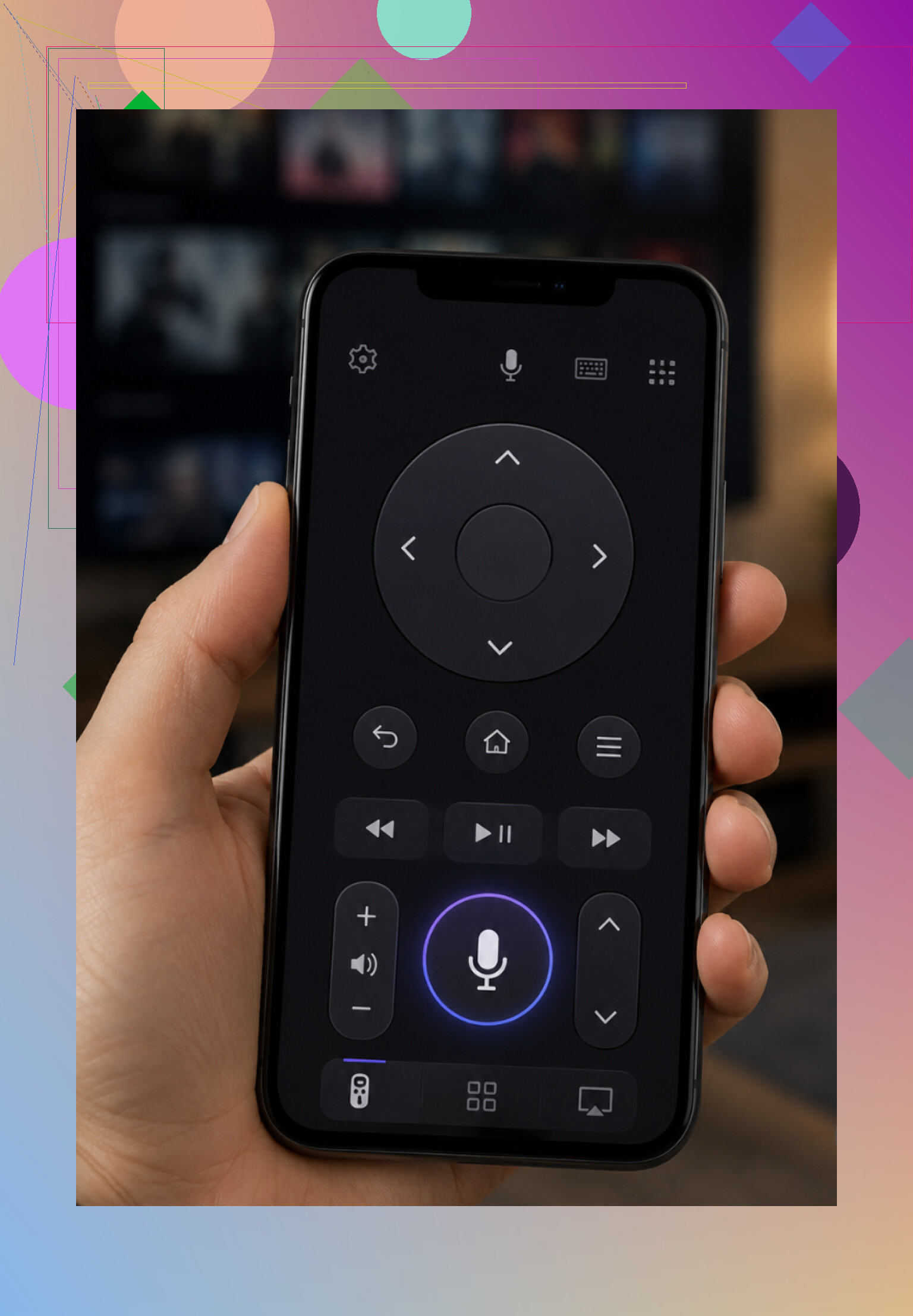
Most of the main TV platforms already have this built into their own remote apps. Usually you just connect the app to the TV, tap the mic button, and say what you want.
Roku’s app has voice search, so you can say a movie, actor, show, or channel and have it pull up on the TV. The Fire TV app uses Alexa voice search, which works for stuff like “play [title]” or general searching. On iPhone, the Apple TV Remote in Control Center ties into Siri for voice commands. Samsung SmartThings and LG ThinQ can also do voice input after the TV is linked, depending on the model. Samsung uses Bixby, and newer LG TVs use LG’s assistant features.
The one thing that trips people up: your phone and TV usually need to be on the same Wi-Fi network, or the app won’t see the TV at all.
If you don’t want a separate app for every TV brand, TVRem is another option.
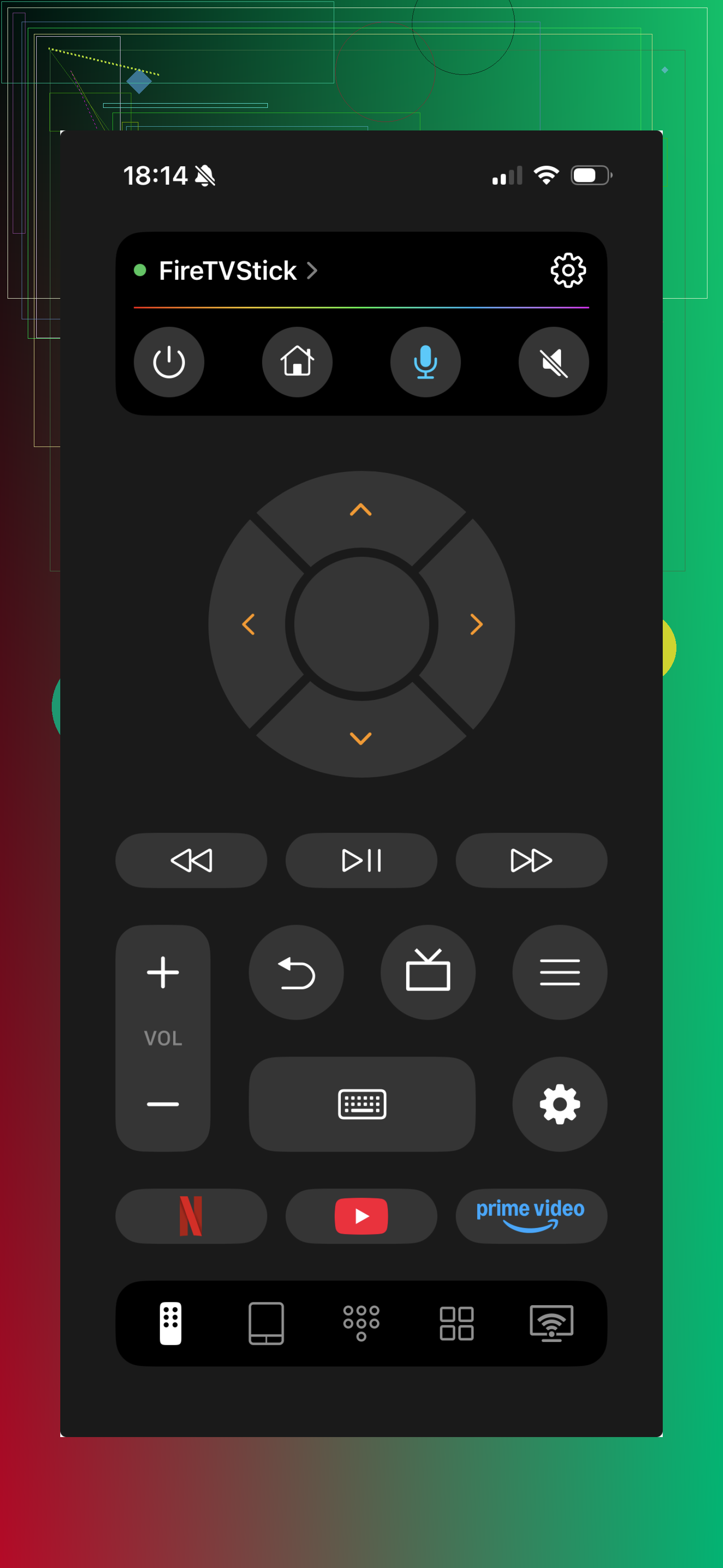
TVRem supports Samsung, LG, Roku, Fire TV, Android/Google TV, and Apple TV. For supported TVs, it can work with Google Assistant or Alexa for hands-free control. And even when full voice control isn’t available, you can still use your phone’s voice typing instead of dealing with the TV’s on-screen keyboard. That helps a lot for searches, passwords, and logins. It also has no subscription and is rated 4.8 from a couple thousand reviews.
If you want voice control without grabbing your phone, that’s usually handled through a smart speaker or the TV ecosystem itself. With Google Assistant or Google Home, Android TV, Google TV, or Chromecast can respond to things like “Hey Google, play [show] on the TV.” With Alexa, Fire TV and Alexa-compatible TVs can handle commands like “Alexa, turn on the TV” or “play [title]” from an Echo or the Alexa app.
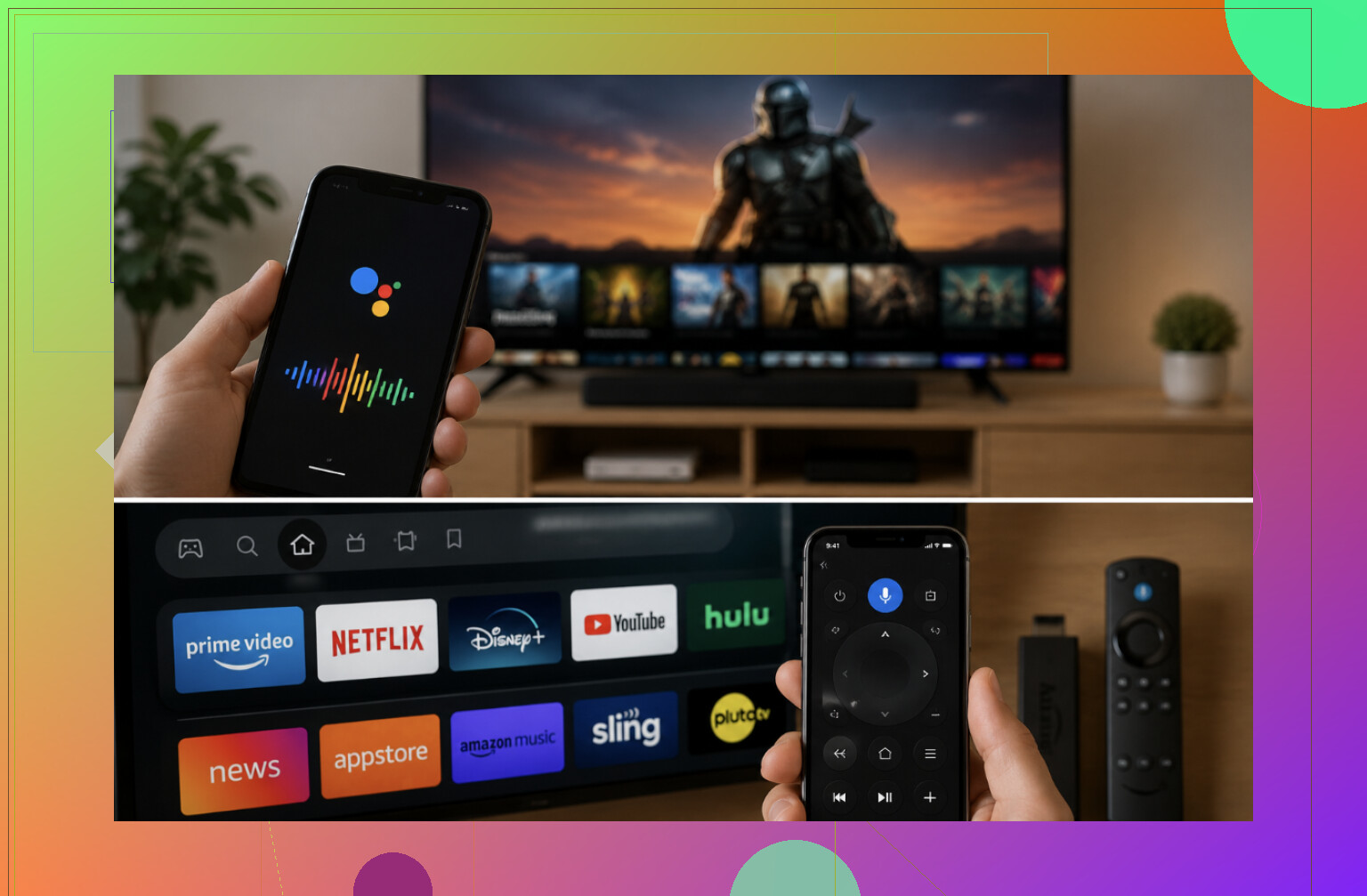
Just keep expectations realistic. A phone can’t magically add voice control to an old non-smart TV. You need a smart TV or a streaming device on Wi-Fi that supports voice commands. If the TV is older, adding a Roku, Fire TV Stick, Chromecast, or similar device is usually the easiest way to get those features.
What are you using now: Roku, Fire TV, Chromecast/Google TV, Apple TV, or the TV’s built-in smart system? That’ll determine the exact setup.
5 Likes
If your phone is on guest Wi-Fi, a VPN, or a different router than the TV, the remote app may pair once and then act broken. Mike’s right about same Wi-Fi, but I’d check network isolation first because voice control won’t matter until the phone can reliably see the TV.
If the TV is not already on your Wi-Fi and signed into its smart system, the phone remote probably won’t save you yet. Most phone remote apps do not work like the old plastic remote. They usually control the TV over the network, so the TV has to be awake, connected, and willing to accept pairing first.
That’s the annoying catch people run into after the original remote dies. If the TV is sitting at a setup screen, has forgotten Wi-Fi, or needs you to approve a pairing code on the TV screen, your phone can’t always get past that by itself.
Before chasing voice control, I’d do this in order:
-
Find the physical buttons on the TV
A lot of TVs hide them under the bottom edge, behind the logo, or on the back right side. You may only get power, volume, and input, but sometimes there is a little joystick button that can move through menus. Use that to get the TV onto Wi-Fi if possible. -
Try Ethernet if the TV has a port
This is the easiest workaround if Wi-Fi setup is the problem. Plug the TV directly into the router with an Ethernet cable, then open the matching app on your phone. Once the app sees the TV, you can usually finish setup from the phone. -
Use the official app first
Universal remote apps can be fine, but for the first pairing I would use the TV platform’s own app if you know what it is. Roku app for Roku, Fire TV app for Fire TV, Google Home or Google TV app for Chromecast/Google TV, SmartThings for Samsung, ThinQ for LG, Apple TV Remote for Apple TV. After it is paired and working, then a universal app makes more sense if you want one app for several TVs. -
Look for the pairing prompt on the TV
Some apps will show a code on the TV or ask you to approve the phone. If your broken remote is the only way to press OK, you may still be stuck. This is where the physical TV buttons, a USB keyboard, or a cheap replacement remote can be the fastest fix.
I agree with @sterrenkijker about the network issue. Guest Wi-Fi is a common trap. Same Wi-Fi name is not always enough either. Some routers isolate wireless devices from each other, especially on guest networks or mesh systems. If the app sees the TV sometimes and then loses it, that is where I’d look.
For voice control, set your expectations a little lower than the ads make it sound. The mic in the phone app is usually best for searching and launching shows. “Search for The Bear” or “open YouTube” is the kind of thing it handles well. Full remote replacement by voice, like changing every setting or navigating every app, depends heavily on the TV and the app you are inside. Netflix, YouTube, Prime Video, Hulu, and the TV home screen may all behave a little differently.
There is another small gotcha: turning the TV on from the phone. Some TVs allow “wake over Wi-Fi” or “mobile device power on,” but it may be disabled by default. If the TV is fully off, the phone app might not find it until you press the physical power button. Look in the TV settings later for something like mobile power on, quick start, network standby, wake on LAN, or IP control. The name changes by brand.
If you have a streaming stick plugged into the TV, I’d probably control that instead of fighting the TV’s built-in system. A Roku, Fire TV Stick, Chromecast with Google TV, or Apple TV often has a better phone app and better voice search than the TV itself. Then you only need the TV set to the correct HDMI input. HDMI-CEC may even let the streaming device control power and volume, if the TV supports it and CEC is turned on.
If you’re completely locked out because the TV is off Wi-Fi and you can’t approve anything, the boring answer may be the correct one: buy a cheap replacement remote for that exact TV model, get it connected, then use the phone after that. A phone remote is great once the TV is already reachable. It is not always great as the rescue tool when the original remote is dead.
Check whether the old remote is really dead before you build the whole setup around the phone. Point the remote at your phone camera, press a button, and look on the phone screen for a faint blinking light from the end of the remote. If you see it blinking, the remote may be sending IR and the problem could be the TV sensor, a stuck button, weak batteries, or something blocking the receiver. If there’s no blink, try fresh batteries and clean the battery contacts before giving up on it.
If you still want the phone route, I agree with the others that the official app is usually the least painful way in. The catch is that “voice remote” usually means voice search, not total voice control of every TV menu. Saying “open YouTube” or searching for a show may work. Saying “turn off motion smoothing and switch HDMI 2 to game mode” probably will not.
A cheaper fallback people forget is a basic IR universal remote or an exact replacement remote. It’s not as slick as phone voice control, but it solves the ugly first step: power, input, OK, back, and Wi-Fi setup. Once the TV is connected and paired, then the phone app becomes useful. Without that, you can waste an hour installing apps that all hit the same wall.
If you have an Android phone with a built-in IR blaster, that’s the exception. Some phones can act like an old-school remote without Wi-Fi. Most iPhones and many newer Android phones do not have that hardware, so an app alone won’t send infrared commands.
Be careful with random “universal TV remote” apps too. Some are fine, but plenty are mostly ads, subscriptions, or require permissions that feel excessive for changing channels. Start with Roku, Fire TV, Google TV, SmartThings, LG ThinQ, or Apple TV Remote depending on what you actually have. Once the official option works, then it makes sense to try a third-party app if you want something cleaner or more all-in-one.