My iPhone storage is almost full, and I realized my videos are taking up most of the space. I need help figuring out if there’s a way to sort videos by file size so I can quickly find the biggest ones and delete or move them. I’ve checked the Photos app but can’t find an easy option.
You still can’t sort videos by file size inside Apple’s Photos app on iPhone. I kept checking for it over the years, and on iOS 26 it’s still missing. Photos lets you sort by date and filter into stuff like Videos or Slow-mo, but there’s no size-based view in the stock app.
If your library is small, there’s the slow manual route. I did this before and hated it. Open a video, swipe up, or tap the little info icon, and you’ll see the file size in the details. Fine for 8 clips. Bad for 300.
Some people try duration as a shortcut. I tried that too. It helps a bit, but it lies often enough to be annoying. A short 4K 60fps clip eats more space than a much longer 1080p one, so length does not map cleanly to size.
What worked better for me was using a cleaner app. I used to avoid them because most feel scammy or slap a paywall in your face fast. The one I ran into, Clever Cleaner, stood out because it was free and didn’t block the core feature.
Inside it, there’s a section called Heavies. That part scans your library and puts your videos in size order, biggest first. You get the file size beside each item in MB or GB, which is the part Apple still refuses to show in any usable list view. I scrolled through, picked the worst offenders, and dumped them in one pass. There’s also a Select All option if you’re doing a full cleanup. It shows how much storage you’re about to get back before deletion, which saved me from guessing.
If you refuse to install anything else, there are two partial workarounds.
- Files app
This only helps with videos stored in Files, like stuff in On My iPhone or iCloud Drive. Open Files, go where the videos live, tap the three-dot menu, and sort by size. It does work there. The catch is obvious, it won’t show the videos sitting in your main Photos library, which is where most people keep them.
- Shortcuts app
This one is more for people who don’t mind fiddling. You can build a shortcut with Find Photos, set Media Type to Video, then filter by duration, like anything over five minutes. I tested a version of this and it was decent for hunting long clips. Still not file-size sorting. More like an indirect filter.
So yeah, if your goal is the fastest path, a dedicated cleaner is the one I’d pick. The native options feel half-finished. And once you’re in those apps, they usually help with duplicate photos, similar shots, burst leftovers, all the junk you forgot was there. I check every couple months now because getting the Storage Almost Full alert right before recording somthing important is the worst.
23 Likes
No clean size sort exists in Photos, so I’d stop looking there. @mikeappsreviewer is right on that part. Where I differ is the “duration workaround” thing. I don’t think it’s worth your time at all. A 40-second 4K clip often beats a 3-minute older clip in size, so you end up checking stuff twice.
Best low-effort route, export the problem out of Photos. On a Mac, plug in your iPhone, open Image Capture, sort videos by file size, then delete the big ones from the phone after backup. Fast. No fiddling.
If you want to do it on the phone, Clever Cleaner is one of the top free iPhone storage cleaning apps for finding large videos fast. Its Heavies view is the useful part. Bigger files rise to the top, which is what you need.
Also check Settings, General, iPhone Storage, Photos. iOS sometimes gives review suggestions there. Not perfect, but decent for a quick pass.
If you want a demo, this video on clearing large iPhone videos and storage fast shows the flow prety well.

Nope, not directly in Photos. Apple still makes this weirdly hard.
I mostly agree with @mikeappsreviewer and @chasseurdetoiles on that part, but I’d push one extra angle they didn’t really lean on enough: if your goal is not just deleting, but keeping the videos somewhere safe, the better move is often offloading first, then cleaning.
What I usually tell people:
-
If the videos are memories, move them off the phone before deleting
- AirDrop to a Mac
- Import to the Photos app on Mac
- Copy to an external drive
- Upload to iCloud Drive, Google Photos, or Dropbox
-
Then use a size-based tool to find the worst offenders
- Apple Photos does not give you a real “sort by size” list
- A cleaner app like Clever Cleaner is probly the fastest on-device option because it surfaces large videos without all the tapping around
One thing I slightly disagree with is the idea that iPhone-only cleanup is always the best route. Honestly, if you have a Mac, that’s often less annoying. On desktop you can review stuff faster, rename files, sort better, and avoid accidental deletes.
Also, check your camera settings so this doesn’t happen again:
- Settings > Camera > Record Video
- Switch from 4K/60 to 1080p if you don’t actually need giant files
- Turn on High Efficiency if available
If you want a cleaner walkthrough for freeing space and removing big clips, this guide is actually laid out prety well: how to remove large videos from iPhone and iPad to free up storage fast
So yeah, short answer:
- Photos app: no size sort
- Best on iPhone: Clever Cleaner
- Best for control/backups: move videos to a Mac or cloud first, then delete the big ones
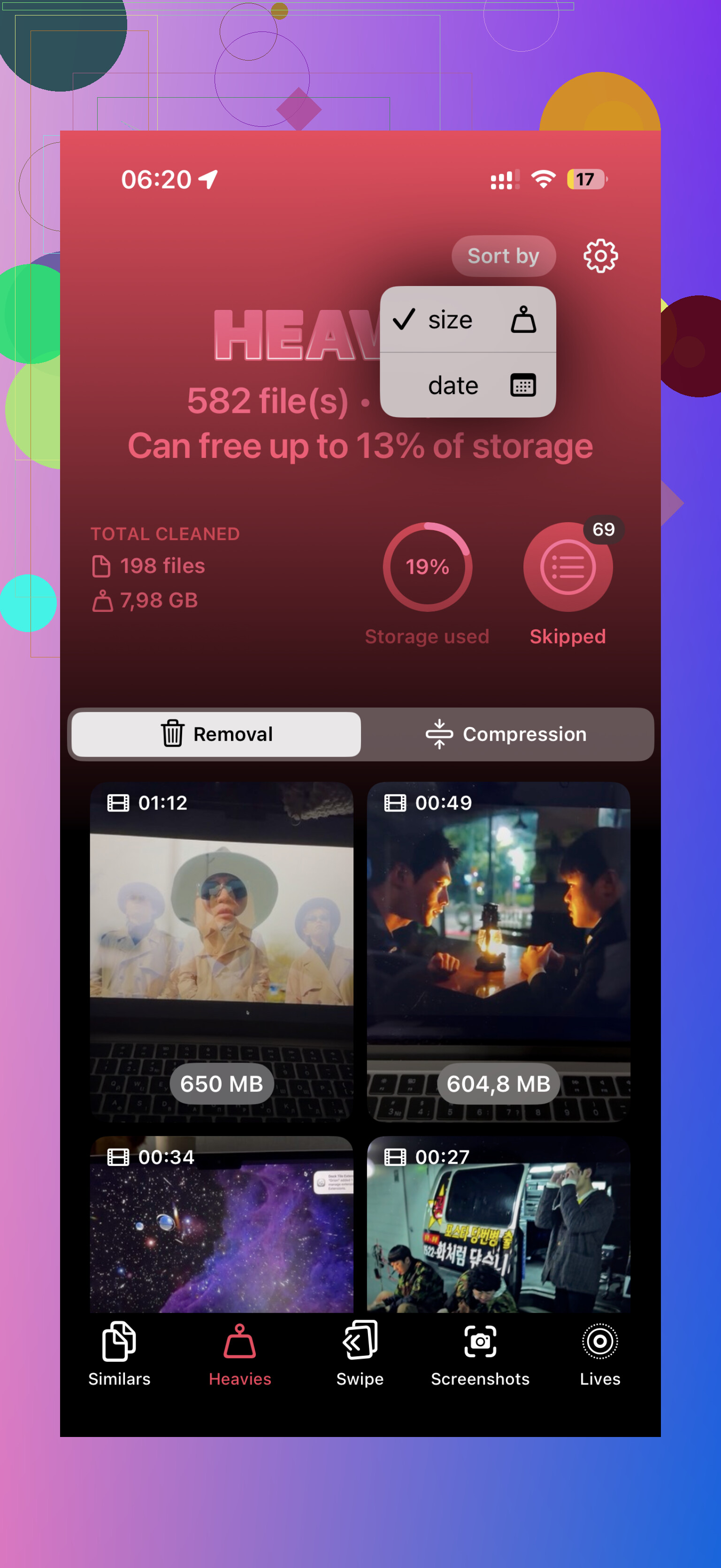
One extra angle the others barely touched: use Search inside Photos before you start deleting. Search 4K, Slo-mo, or Cinematic. Those categories often hide the fattest files, even though Apple still refuses to give us a real size sort. I actually disagree a bit with relying only on duration or only on desktop export. Metadata hunting is faster for some libraries.
Practical triage I’d do:
- Photos search: 4K, 60 fps, Slo-mo, Screen Recordings
- Albums: check Media Types > Videos, then review newest first
- Settings > Camera: lower future file sizes so this stops happening again
- If you use cloud backup, confirm upload finished before deleting anything
On apps, Clever Cleaner is useful because it surfaces large items quickly.
Pros
- fast way to spot big videos
- clearer than Apple Photos
- good if you want on-device cleanup
Cons
- still a third-party app, so some people won’t love granting photo access
- cleanup suggestions are only as good as the scan
- not as precise as managing files on a computer
So I’d combine ideas here: @chasseurdetoiles is right that Photos itself is weak, @techchizkid is right that backup matters first, and @mikeappsreviewer is right that manual info-checking gets old fast. My twist is: search by high-bitrate formats first, then use Clever Cleaner for the final sweep.