Accidentally deleted an important MP4 file from my computer and need to recover it. Tried searching my recycle bin, but it’s not there. Looking for effective ways or tools to restore the video. Has anyone successfully retrieved lost MP4 files before? Any tips or software suggestions would be appreciated.
Ever Had an MP4 Go Missing From Your SD Card? Here’s What Actually Works
So, you’re just chilling after a weekend trip, pop your SD card into your laptop to check out that epic MP4 you shot…and nothing. The video’s gone. Disappeared like a pizza box at a game night. If that sounds familiar, don’t freak out—losing files on memory cards is a classic tech problem, but recovery isn’t impossible. Let’s deep-dive into how you can try to revive your lost MP4, with a pinch of real-life anecdotes and a smidge of digital wisdom.
The “No Nonsense” List of Steps That Really Matter
- Stop Using the SD Card Immediately.
Any writing or new data could overwrite the lost MP4 and make it unrecoverable. - Plug the Card Into a Reliable Reader.
Not all readers are equal—some $2 USB dongles just botch the connection. If you can, use the built-in laptop slot or a branded reader. - Fire Up File Recovery Software.
Stuff like Recuva, PhotoRec, or EaseUS Data Recovery can scan SD cards for lost files. A lot of these are “freemium”; they’ll sometimes let you see what can be saved before you click pay. - Scan and Cross Your Fingers.
Recovery software takes a while—let it run, don’t interrupt for “quick results.” Sometimes your MP4 will show up with a weird name. Preview it where possible! - Save Recovered Files to Your Computer, Not the SD Card.
Don’t overwrite the crime scene!
Personal Anecdote: When My Nephew Erased My Hiking Video
Back in 2021, my nephew got his greasy mitts on my camera “to see the dogs.” Next thing I know? SD card gets corrupted. Panic googling begins. Downloaded Recuva, ran a deep scan for about an hour—and there was my hiking video, chilling in limbo with a .avi extension but still playable. Moral of the story: never trust toddlers with anything that has a file system.
Reasons Why MP4s Pull a Houdini Act
- Some SD cards just suck—especially unnamed brands you snag for $4 online.
- Interrupting a file transfer? Classic way to flip your card from hero to zero.
- Power glitches when recording.
- Removing SD without ejecting. (Yes, I’m looking at you.)
The Underlying Tech (If You’re Curious)
Memory cards don’t actually “destroy” deleted or lost files instantly—they just stamp those sectors as “okay to overwrite.” Recovery tools are basically digital detectives piecing together what’s left. But if you keep saving new stuff on the card, the old file will be shredded and scattered like confetti—game over.
Sometimes You Gotta Call It—MP4 Not Found
Got nothing from all the tools?
- Check the hidden Recycle Bin folder (especially in Windows).
- Double-check your camera’s “recover” mode (some have it).
- If the card is physically damaged (cracks/heat/warp), professional data recovery is pricey and rarely worth it unless it’s footage of your grandmother’s last jam session.
TL;DR—The Lightning Round
- Use recovery tools.
- Don’t use the card again until you try to recover.
- Get a better card next time, and back up your stuff sooner than later.
So yeah, losing an MP4 on your SD card is annoying, but not always the end. File recovery tools are your best bet, but prevention (better cards, regular backups, safe removals) is your real wingman here. If you’re one of those people who obsessively ejects their devices—congrats, you’re winning this game. If not, well, welcome to the party.
7 Likes
So, you nuked an MP4 and it did the ol’ vanishing act EVEN from the Recycle Bin? Been there, and honestly it feels like Windows just personally insulted your intelligence. You’ve probably seen @mikeappsreviewer drop a solid tutorial for SD card drama, but here’s the twist—SD recovery is actually easier than computer hard drive recoveries, and sometimes what works for one doesn’t play as nice for the other.
Let’s talk real-deal PC deleted file recovery:
-
First, stop saving anything new to your drive. Seriously, every meme you download or cat video you edit after the accidental delete is basically smashing your chances of recover the OG MP4. Windows doesn’t “delete”—it just earmarks the space for future use. Overwrite = bye-bye video.
-
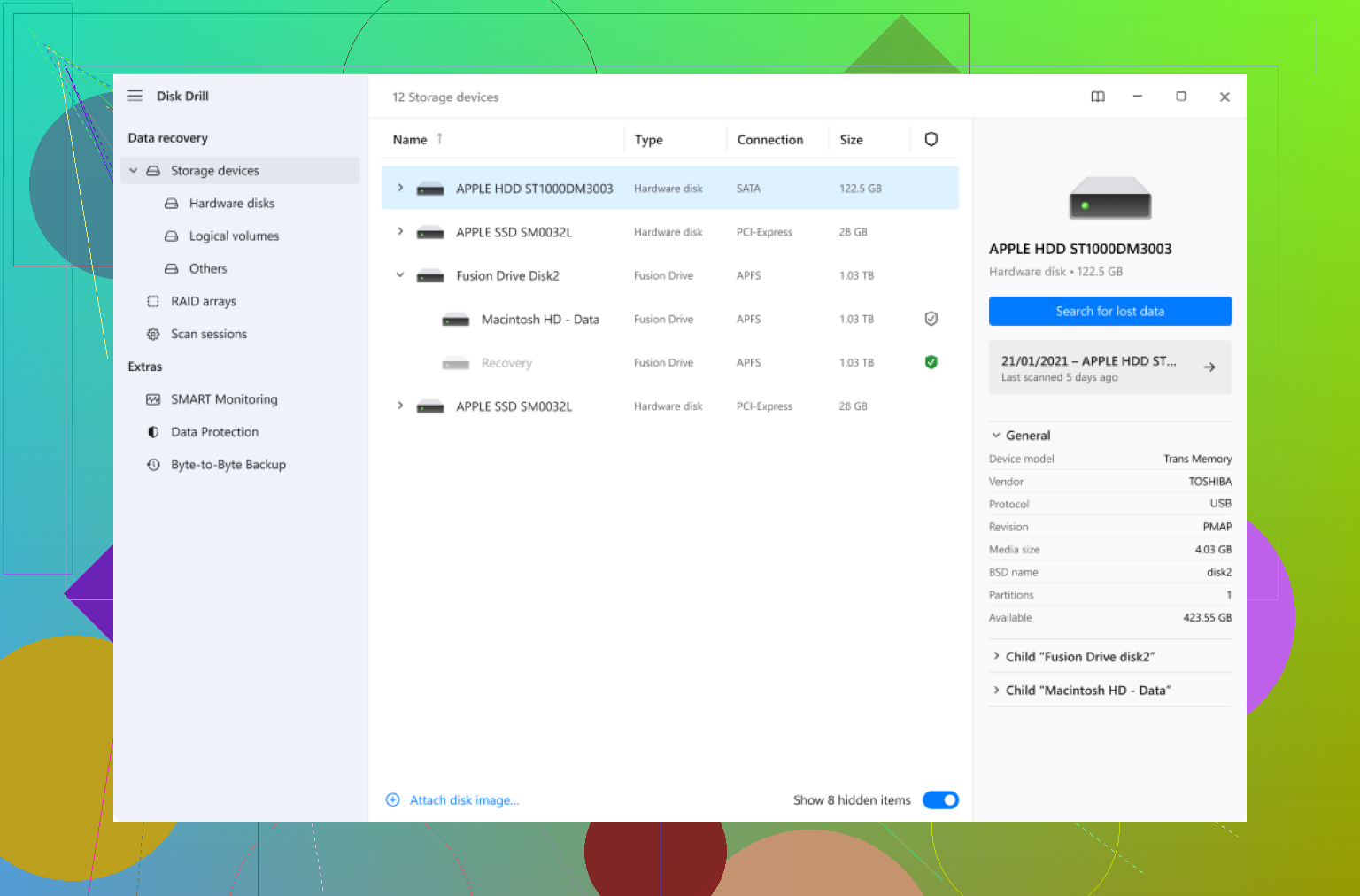
File recovery programs. Some folks ride or die for Recuva, but I’ve had some files only show up with DiskDrill—plus, the interface is less dated and it’s got a cleaner deep scan. It can handle NTFS, FAT, even those weird partition problems. Definitely worth checking out if you want to recover important files from your PC fast. A lot of these have free previews so you can see if your MP4’s even findable before going pro. (Just don’t install them on the same drive you’re trying to recover from.)
-
Check cloud backups or auto-syncs. You’d be shocked how often Google Drive or OneDrive has your back, backing up “Videos” in the background. Same goes for Time Machine if you’re on a Mac.
-
File History or Shadow Copies (Windows). Not exactly “easy,” but dig in there if you’ve ever set up File History. Right-click on the folder it lived in, choose “Restore previous versions.” Might get lucky.
Now, a gentle disagreement with @mikeappsreviewer: SD card steps are awesome, but on a hard drive you HAVE to be much more careful with installs and usage post-delete. New installs can absolutely trash your file for good.
Last resort? If your drive is dying (clicks, weird noises) or you care more about the MP4 than your wallet, pro recovery is an option, but it’s often as much as a replacement device and still not always foolproof.
TL;DR: Immediately stop using that drive, try DiskDrill, and see if cloud/backup had your back. Most of us have been burned by a hasty delete—if you have to blame someone, blame those mysterious “system processes” nobody understands!
Honestly, at this point most advice tends to rehash the “use file recovery tools, don’t write new data, pray to the tech gods” classic routine (and yeah, both @mikeappsreviewer and @waldgeist nailed a lot of those nuances already). But here’s what doesn’t get said enough: sometimes those so-called magic bullet apps like Recuva or PhotoRec just don’t cut it, especially when you’ve wiped a file on your main drive instead of an SD card. (At least SDs don’t have Windows constantly writing random junk in the background!)
Here’s a spin you might not have tried: rebuilding your file allocation tables with something like TestDisk, IF you have a whole lost partition or notice other missing files in addition to your MP4. It’s a bit more technical and has a clunky interface, but it sometimes recovers the logical structure if your drive got weirdly corrupted instead of just “deleted.” Just don’t expect miracles if you’ve been using the drive heavily since the deletion—every browser cache or Windows log is a potential nail in the coffin.
Also, worth echoing: don’t install recovery programs like DiskDrill on the same drive you’re rescuing from. People skip this and accidentally nuke recoverable data every. single. time. I know it sounds like splitting hairs, but if you still haven’t written much to the disk, using something like restore lost videos fast can give you a decent shot, especially since DiskDrill handles MP4 previews better than most old-school tools.
Oh, and one more route—dig around in your email attachments, messaging apps, or old exported playlists. I once found a “lost forever” MP4 because it automatically got uploaded to WhatsApp. Not all wins are technical.
Last little (mildly spicy) disagreement: neither cloud sync nor File History truly catches everything unless you set up explicit folder watching. Don’t bet your saved game on that coming through unless you know it was enabled before the disaster.
TL;DR: You’ve probably covered 90% of realistic options already. Stubborn files sometimes surface with “pro” tools like DiskDrill or by poking the partition table directly, but results aren’t guaranteed. Next time, set up something like auto-sync for “Videos” and spare yourself this pain.