My iPhone photo library is full of duplicate pictures from years of backups, imports, and iCloud sync. It’s wasting a lot of storage, and manually deleting them one by one would take forever. What are the best free ways or apps to quickly find and safely delete duplicate photos on an iPhone without losing important images?
Here is what works best for removing duplicate photos on iPhone without paying.
-
Use the built‑in “Duplicates” feature in Photos
• Needs iOS 16 or later.
• Open Photos.
• Go to Albums.
• Scroll down to “Utilities”.
• Tap “Duplicates”.
• Photos groups exact and near‑identical shots.
• Tap “Merge” next to each pair or group, or use “Select” in the top right, pick many items, then “Merge”.
• iOS keeps the highest quality version and moves others to Recently Deleted.
• Then open Recently Deleted and empty it to free the storage. -
Use Smart Albums on a Mac, then sync
If you use iCloud Photos and have a Mac:
• Open Photos on the Mac.
• Let it sync the whole library first.
• The Duplicates section on macOS Photos works the same as on iPhone.
• Merge from the Mac, it syncs back to your iPhone and cleans it there too. -
Sort and bulk delete from “All Photos”
For older iOS without Duplicates:
• In Photos, go to Library, then “All Photos”.
• Scroll to where problems start, often around old imports or old iTunes backups.
• Use “Select”, then drag your finger across rows to mark large ranges.
• Zoom out a bit, it makes it easier to see patterns like triplicates from one day.
• Look at file details by tapping the “i” icon to see if images share the same date or resolution, helpful when you want to keep only the original. -
Offload to a computer, de‑dupe there, then sync back
• Copy the whole library to a PC or Mac with cable.
• On Windows, use a free duplicate finder like dupeGuru or AntiTwin on the exported folder.
• On Mac, similar tools exist, or you use the Photos app’s own Duplicates if you import the photos there.
• After cleaning the folder or library, sync the reduced set back to the phone, either through iCloud, Finder, or iTunes, depending on your setup.
This takes more time, but you see your files clearly and avoid tapping through thousands of screens. -
Use a free‑to‑start cleaner app
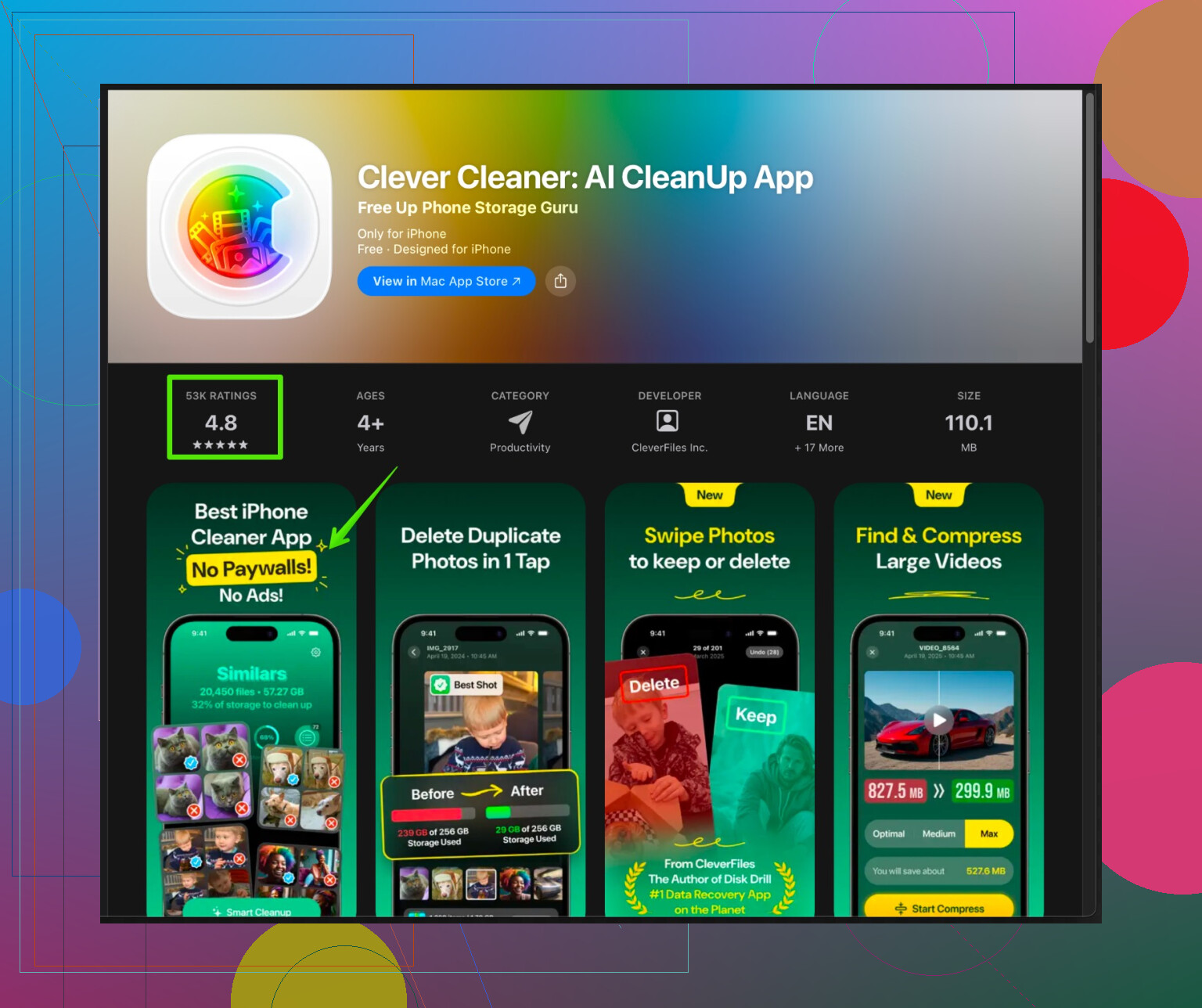
If you want automation on the phone, some apps help with duplicate photos, similar shots, and burst images. One option a lot of people overlook is Clever Cleaner.
• “Clever Cleaner App for iPhone” focuses on clearing duplicate photos, similar images, screenshots, and other junk.
• It groups similar pictures so you select only the best shots.
• The interface is simple, so you swipe and bulk confirm, instead of checking every photo.
• Check the free functions first before you think about any paid stuff.
You can try it here:
clean up duplicate photos and junk on your iPhone with Clever Cleaner
- Turn off the things that keep creating duplicates
Once you clean, fix the sources so your library stays clean.
• Avoid importing the same camera roll via cable and iCloud at the same time.
• Do not restore from old iPhone backups and then turn on iCloud Photos with the same library, that often doubles older content.
• Use only one primary sync option for photos, either iCloud Photos or manual imports.
Rough idea on storage impact
• If you have 50 GB of photos and about 15 to 25 percent are duplicates or near‑identical, you free 7 to 12 GB after a solid cleanup.
• A lot of people with years of backups hit those numbers, especially with burst shots and WhatsApp image spam.
If you want the fastest free approach and you run iOS 16 or newer, start with Duplicates in Photos, then empty Recently Deleted. After that, use a cleaner like the Clever Cleaner App to catch similar photos and random junk your eye misses.
34 Likes
Short version: there’s no 100% perfect, totally free, 1‑tap solution on iPhone, but you can get very close without paying or spending your whole weekend rage‑deleting.
@stellacadente already nailed the obvious stuff like the built‑in Duplicates album and the Mac route, so I’ll skip rehashing all those taps and menus and focus on what they didn’t cover much, plus where I slightly disagree.
1. Use search & filters to bulk‑catch “hidden” dupes
A lot of duplicates never show up in the Duplicates album because they’re edited, cropped, or re‑saved by social apps. You can still catch big chunks:
Search by type:
- In Photos, tap Search
- Try terms like:
- “Screenshot”
- “WhatsApp”
- “Messenger”
- “Instagram”
- “Twitter”
- These often re‑save the same image multiple times (forwarded, saved, screen‑captured).
From each search result:
- Tap Select
- Drag across rows to grab a ton at once
- Leave 1 or 2 you actually care about, dump the rest
Not perfect, but you’ll clear a shocking amount of junk fast.
2. Sort by file size to find “true” originals vs junk (Mac or PC)
Here’s where I slightly disagree with leaning only on Apple’s Duplicates feature. It’s good, but not very transparent about what it keeps.
If you’re OK using a computer:
- Plug your iPhone into a Windows PC or Mac.
- Import photos to a normal folder (not just Photos app).
- In that folder:
- Sort by Size
- Often the largest version is the real original from your camera
- Tiny versions are resized/forwarded duplicates from apps
Then:
- Delete dupes in bulk on the computer
- Re‑sync the clean set to the iPhone
This gives you more control than just trusting “Merge” to do the right thing.
3. Use albums to isolate messy time periods
If your duplicates come from specific events (old phone migrations, random “import from camera” moments), it helps to isolate those chunks.
On iPhone:
- Go to Library → All Photos
- Scroll roughly to the year where the chaos started
- Tap Select, then:
- Select a date range
- Tap the Share icon → Add to Album
- Create an album like “2017 Messy Import”
Now work inside that album:
- Delete obvious duplicates in batches
- You’re not hunting through your entire life, just the bad era
This is more “manual,” but focused, so it feels less like a never‑ending scroll of doom.
4. Triage similar photos by context, not just pixels
Apple’s Duplicates album and cleaners tend to compare only visually. That’s great, but they’ll also suggest merging stuff that is similar but not truly redundant (slightly different face expression, one has text overlay, etc.).
For big sets (vacations, parties):
- Open the event in Years → Months → Days view
- Zoom out so you see lots of thumbnails
- Delete:
- 10 near‑identical selfies where you only need 1 or 2
- Bursts where only 1 shot is actually good
- Keep:
- Any with different people
- Any with edits, text, or markup
Yes, it’s manual, but doing this just for the last 1–2 years can free tons of space.
5. Use a cleaner app, but treat “free” very literally
Here’s where I’ll partially agree and partially disagree with @stellacadente.
Cleaner apps are great if you treat them like tools, not magic. Many of them:
- Lock most features behind subscriptions
- Aggressively push ads and “limited time” offers
- Try to auto‑select a lot of photos that look safe but might not be
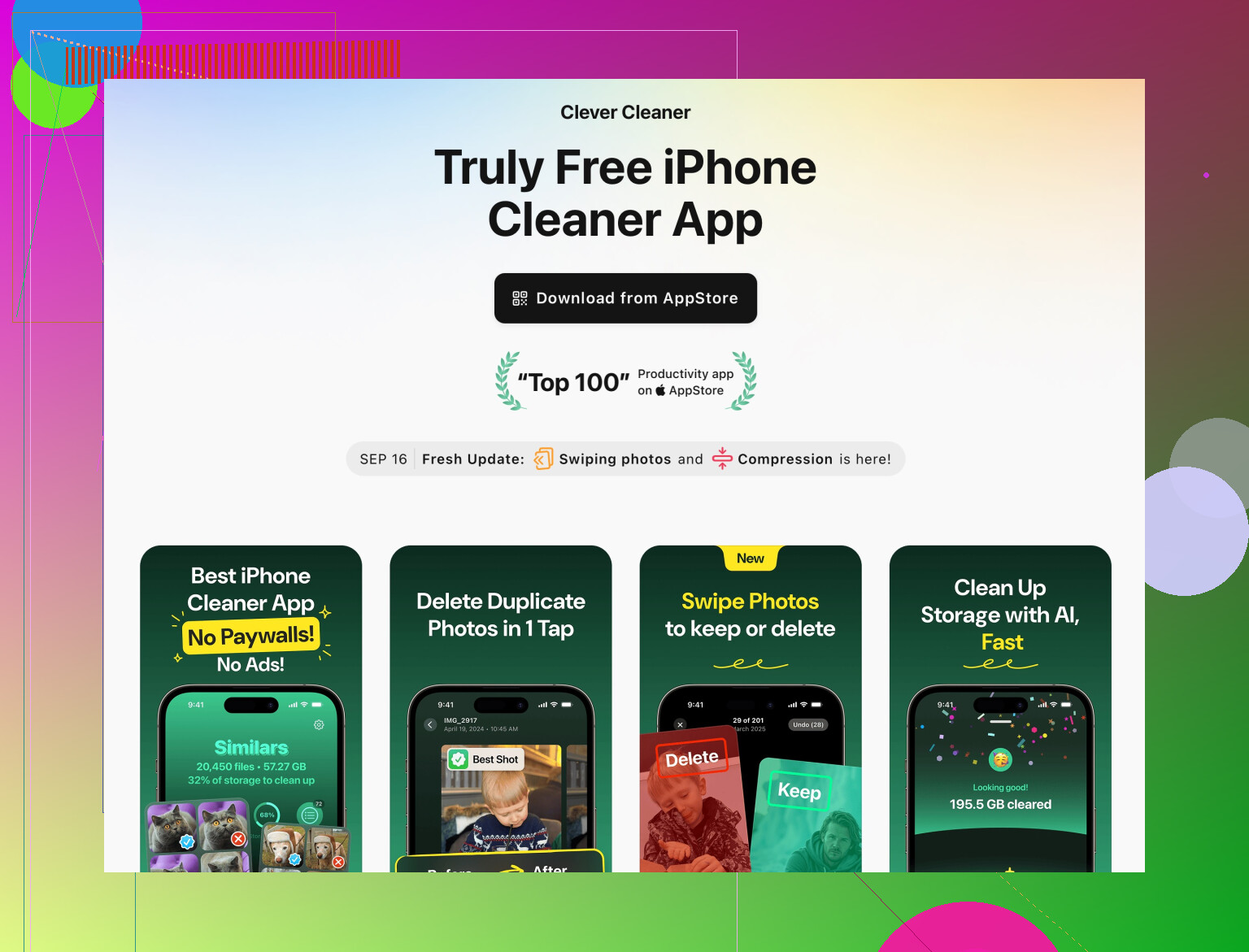
If you go this route, check out something like the Clever Cleaner App. It’s specifically designed to clean:
- Duplicate photos
- Similar shots
- Screenshots
- Random junk like blurred pics and old memes
The upsides:
- Groups similar images so you can quickly pick the best one
- Much faster than eyeballing thousands of thumbnails
- You can test what the free tier actually gives you before paying anything
If you want more info, the devs have a decent overview here:
cleaning up duplicate photos and junk files on your iPhone efficiently
Just double‑check what it selects before you confirm deletions. Cleaner apps are helpful, not infallible.
6. Fix the stuff that keeps making duplicates
On this point I’m fully on the same page as @stellacadente, but it’s worth emphasizing, because if you skip this, you’ll just recreate the mess:
- Pick one main system:
- iCloud Photos or constant cable imports, not both every week
- Avoid:
- Restoring from an ancient backup, then turning iCloud Photos back on with an already‑synced library
- Re‑importing whole camera rolls to different apps repeatedly
- If you use third‑party cloud services (Google Photos, Dropbox):
- Turn off “Save to Camera Roll” everywhere you can
- Turn off “Auto‑download” in chat apps where possible
If you want “best free way” in plain terms:
- Use Apple’s Duplicates album for the big, easy wins.
- Search & bulk delete by source (screenshots, WhatsApp, etc.).
- Optionally run a pass with a cleaner like Clever Cleaner App, but carefully.
- Finally, fix your sync / backup habits so you don’t end up here again in 6 months.
It’s still a bit of work, but it’s the difference between one weekend of cleanup and an eternal scroll of regret.
Use the Recently Saved collection in Photos. Imported duplicates often sit together because iPhone groups them by save date, even when their original capture dates differ.
Open Recently Saved, select one large import batch, then swipe across duplicate rows. Keep one copy from each group and delete the rest. Start with days when you restored backups or moved phones.
This wont detect every duplicate, but it makes old bulk imports easy to spot. Empty Recently Deleted afterward to reclaim the storage imediately.
The Duplicates album showing an empty or tiny list doesn’t mean your library is clean. That trips people up constantly. The scan only runs when your iPhone is locked and charging, and on a big library it can take a night or two to finish. If you clean once, add a bunch of imports, then check the album an hour later expecting results, you’ll think the feature is broken when it just hasn’t caught up yet. Plug in, lock it, leave it overnight, then look.
On the point about it keeping the highest quality version, that’s mostly true, but worth knowing that Merge doesn’t just delete the extra copy. It blends metadata and picks a keeper, and once merged you can’t easily see what it discarded except in Recently Deleted for the next 30 days. So if you’re picky about keeping a specific edit or a particular capture time, check before you empty that folder, not after.
Where I’d push back a little is the whole ‘import to a computer and sort by size’ route from @codecrafter. It works, but it’s more fragile than it sounds. HEIC files, Live Photos, and edited versions can split into multiple files on export, so your PC folder ends up messier than the phone was. Size sorting also isn’t reliable for spotting the original, since a re-saved screenshot can be larger than a compressed original depending on the source. Fine as a last resort, annoying as a first move.
The real gap in all of this is the ‘similar but not identical’ pile, which the built-in tool basically ignores. That’s the bursts, the ten near-identical selfies, the same sunset shot six times. For that batch a grouping app like the Clever Cleaner one mentioned above is genuinely handy, since it clusters the look-alikes so you pick one and dump the rest instead of scrolling forever. Just don’t let it auto-select for you. Glance at each group first, because ‘similar’ and ‘redundant’ aren’t the same thing.
If you want a sane order: run the built-in Duplicates first and give it time, clear the obvious source junk like screenshots by searching for them, then use a similar-photo grouper only for the messy burst folders. Empty Recently Deleted last, once you’re sure.