My USB drive suddenly stopped opening after I moved important work files and family photos onto it, and now it says the drive is corrupted and needs to be formatted. I really need help with USB data recovery because I can’t afford to lose these files. What’s the safest way to recover data from a corrupted flash drive without making things worse?
I ran into this once with a thumb drive full of photos, and the first mistake I almost made was trying to ‘fix’ it right away.
Don’t do anything to the USB yet. Leave it alone for a minute. Skip formatting. Skip CHKDSK. Don’t copy new stuff onto it. Every write makes recovery harder, and sometimes it turns a recoverable mess into a dead end.
What I’d check first:
- Plug it into a different USB port.
- Test it on another computer.
- See if the drive shows up in Disk Management on Windows or Disk Utility on Mac.
- Write down any error text you see, especially stuff like “You need to format the disk before you can use it.”
If your system still sees the device at all, I’d go straight to file recovery instead of trying random repair tools.
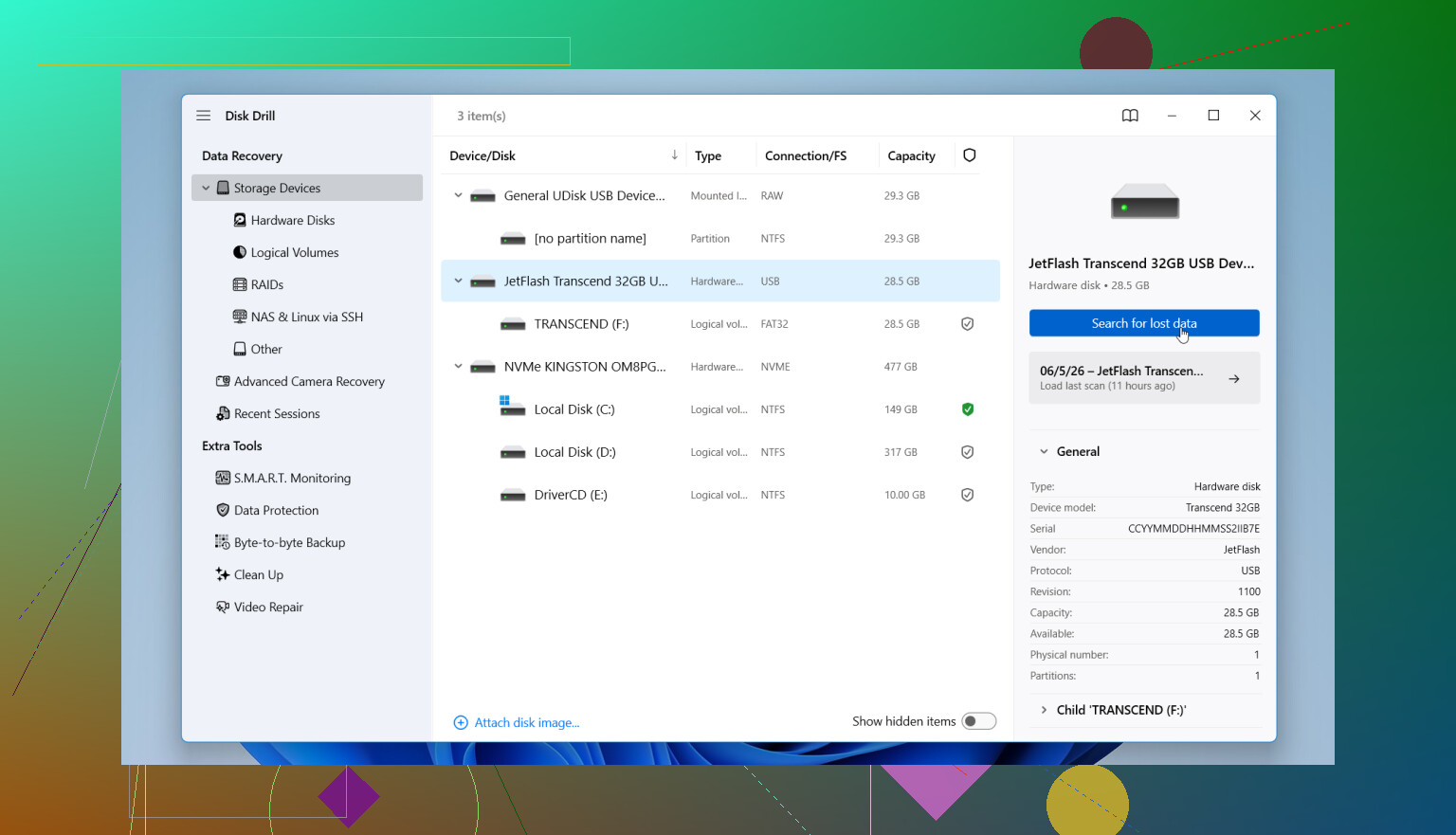
I had decent results with Disk Drill when Windows could detect the USB but refused to read the file system. It scanned the drive anyway and pulled out files I thought were gone.
What I’d do, step by step:
- Install Disk Drill on your main drive or another healthy disk, not on the damaged USB.
- Plug in the USB and open Disk Drill.
- Pick the USB from the device list.
- Start the scan and let it finish, even if it feels slow.
- Preview what it finds so you know the files are intact.
- Recover everything to a different drive. Do not save recovered files back onto the bad USB.
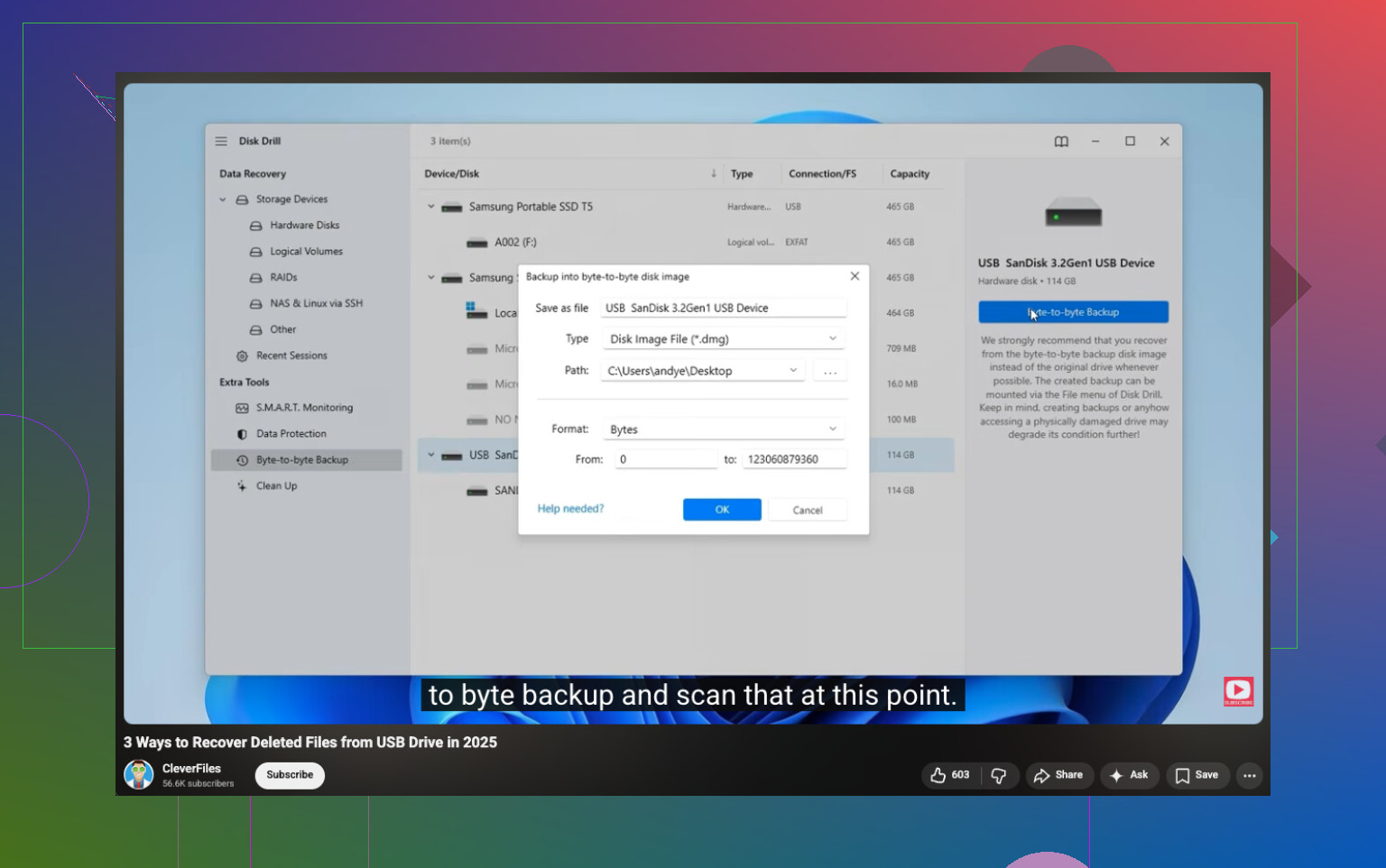
If the files matter a lot, I’d be more cautious and make a byte-for-byte backup image first inside Disk Drill, then scan the image instead of the original USB. I’ve done this with flaky drives, and it felt safer because I wasn’t hammering the same failing device over and over.
After your data is out, then deal with the USB itself. Reformat it if you want to test whether it still has any life left. Recovery first, repair later.
19 Likes
If the USB shows the wrong size, asks to format, or disappears during reads, I’d treat it like failing hardware first, file system issue second. That’s where I slightly disagree with @mikeappsreviewer. Scanning the stick over and over is risky if the flash memory or controller is unstable.
My order would be:
-
Check Disk Management.
If it shows “No Media,” stop. Software recovery usually won’t help. That points to controller failure. -
If it shows a normal capacity, make an image first.
Use Disk Drill’s byte-to-byte backup, or any disk imaging tool you trust. Work from the image, not the USB. Less stress on the drive. -
If the USB mounts on Linux, copy data with rsync or ddrescue.
Linux sometimes reads damaged USB file systems better than Windows. A live USB helps if your main PC is acting weird too. -
If the drive gets hot, disconnects, or reconnects by itself, stop DIY attempts.
That often means physical failure. A lab is expensive, but family photos are harder to replace than money. Sad but true. -
After imaging, run recovery on the image.
Disk Drill is fine for this. Save recovered files to your PC or an external HDD, never back to the same stick.
Also, skip “repair” tools until after recovery. CHKDSK sometimes removes folder structure and turns a bad day into a worse one.
For a simple USB data recovery guide, this video is worth a look:
USB data recovery steps for corrupted flash drives
If you post what Disk Management says, RAW, Unallocated, No Media, wrong size, people here can narrow it down fast.
I mostly agree with @mikeappsreviewer and @chasseurdetoiles, but I’d add one thing people skip way too often: check whether the files were ever actually written correctly in the first place. A lot of cheap USB sticks fake capacity, so you copy 50 GB, Windows says “done,” and half the data was never real. Brutal, but it happens alot.
If the USB still shows a normal size, I’d recover first with Disk Drill, but I would sort the recovered files by type and preview a bunch of the photos/docs before celebrating. Sometimes recovery “works” and the files are just broken junk.
Also, if this is mission-critical stuff, stop unplugging/replugging it 20 times. Flash drives can get worse fast. If the stick is detected inconsistently, clone/image it once, then work from that copy. That’s where I lean closer to @chasseurdetoiles.
One more angle: try reading SMART or USB health info with a tool like ChipGenius or USBDeview if Windows sees the controller. Not always useful, but sometimes it tells you the drive is basicly dying.
For anyone comparing options, this thread on best recovery tools for a corrupted USB drive is worth checking too.
If Disk Management says RAW, that’s usually recoverable. If it says No Media, that’s a much worse sign.
I’d split this into two possibilities that the others only touched lightly: corruption versus counterfeit flash.
If the USB was cheap or no-name, there’s a real chance it reported more space than it actually had. In that case, “recovery” can only save the portion that was genuinely written. That’s why I slightly disagree with the idea that a good scan always means the data was there to begin with.
Quick sanity checks:
- Look at file dates and sizes in any recovery results
- Open a bunch of photos from different folders, not just one
- Check whether larger videos or archives are zeroed out or partially broken
- Test the stick later with a capacity verifier only after recovery attempts are done
On tools, Disk Drill is a reasonable choice if the drive is still detected consistently.
Pros:
- easy preview
- can recover from RAW/corrupted file systems
- backup image option is useful
- beginner-friendly
Cons:
- deep scans can take a while
- recovered filenames/folders are not always perfect
- not magic if the controller is failing
- free recovery limits depend on platform/version
I’m with @chasseurdetoiles on avoiding repair first, and with @reveurdenuit on not writing anything new. @mikeappsreviewer made a good point about fake-capacity sticks, and honestly that gets missed a lot.
One extra thing: if the USB contains irreplaceable photos, stop testing it on every device in the house. Pick one stable machine, one careful attempt, ideally one image, then recover from that. Too much “just trying stuff” is what kills borderline drives.