My iPhone photos app is a mess with tons of duplicates from iCloud sync, AirDrop, and edits I’ve saved as new images. I’m running low on storage and it’s hard to sort real memories from copies. What’s the best way or tool to safely find and remove duplicate photos on an iPhone without accidentally deleting important shots?
Short version that works and does not waste your time.
- Use the built in Duplicates folder first
iOS 16 or later:
• Photos app
• Albums tab
• Scroll down to Utilities
• Tap Duplicates
You will see pairs or groups like “2 copies”.
Tap Merge on each, or use Select in the top right, select many, then Merge.
iOS keeps the highest quality version, plus metadata like Favorites and albums.
This clears a lot fast.
If you do not see Duplicates, leave the phone plugged in and on Wi‑Fi. The Photos indexer runs in the background and it sometimes takes hours or days to show up.
-
Sort recent edits and bursts
• Albums → scroll to Media Types
• Check Live Photos, Bursts, and Screenshots.
Often there are tons of throwaway shots.
Use Select, then drag your finger to multi select rows, then delete.
This works faster than tapping one by one. -
Deal with iCloud “mirror” issues
If you use iCloud Photos:
• Settings → Your Name → iCloud → Photos
• Turn on iCloud Photos
• Turn on Optimize iPhone Storage
This keeps full‑res in iCloud and lighter versions on device, so storage gets relief.
Do not toggle iCloud Photos on and off all the time, that tends to create extra copies on other devices.
- For heavy mess, use an app
If you have thousands of dupes from AirDrop and edits, the Photos Duplicates tab misses some, like similar but not identical shots.
A dedicated cleaner helps, because it groups:
• Exact duplicate photos
• Similar photos from burst or spammy screenshots
• Big video files
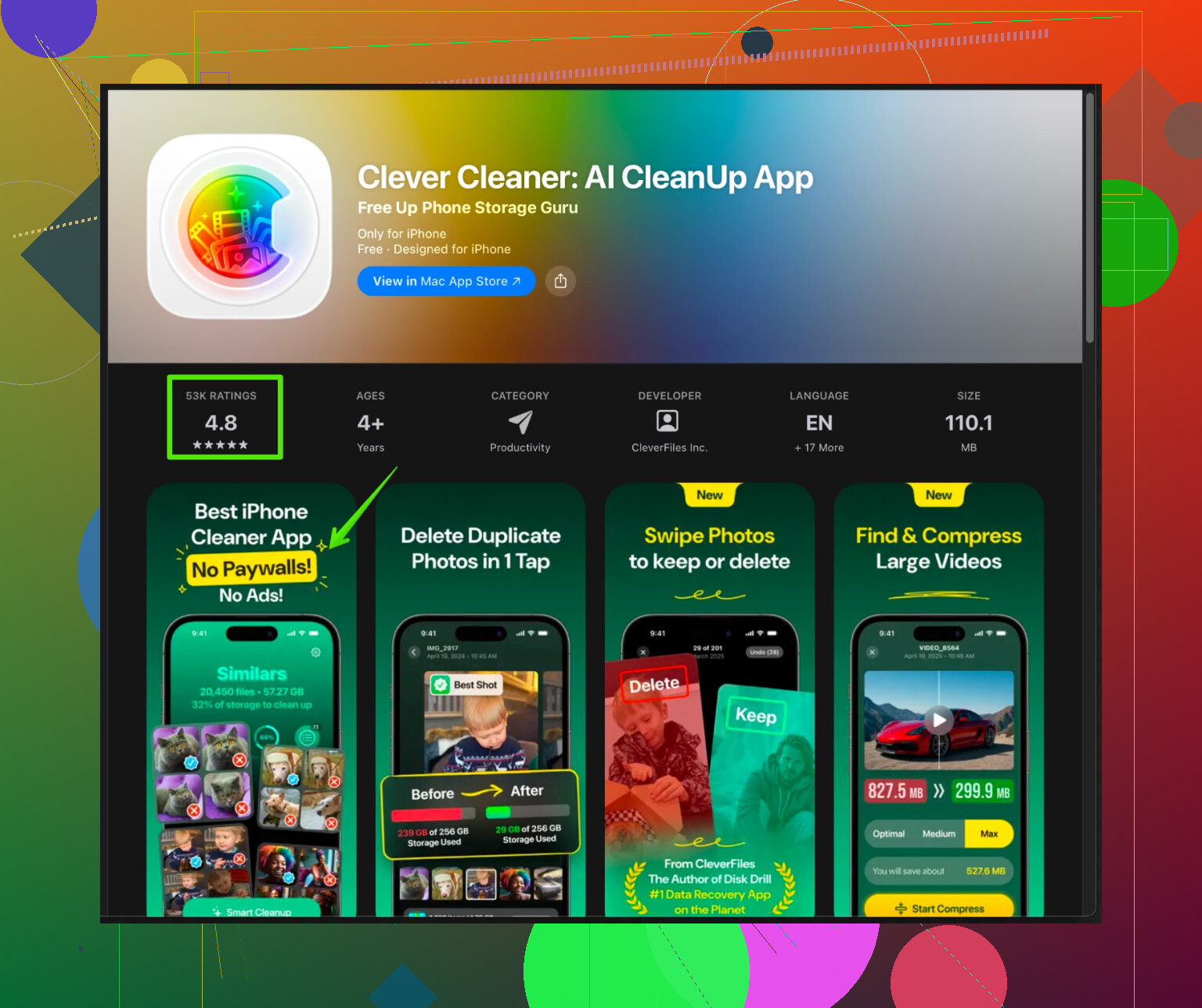
One option that works well on iPhone is Clever Cleaner App.
It sorts junk photos, similar selfies, and large videos. It lets you review before delete, so you do not wipe real memories by accident.
You can grab it here:
Clean up duplicate and junk photos on your iPhone with Clever Cleaner
It offers:
• Smart scan for duplicate and similar photos
• Grouping by date and similarity
• Quick select for the worst shots in a group, like blurry or dark ones
• Large file finder for videos and Live Photos
• Contact cleanup if your address book is also messy
- Do a quick backup before a big purge
Even if it feels boring, do this once:
• Connect iPhone to a computer
• Use Finder on macOS or iTunes on Windows
• Make an encrypted backup
Then if you regret a mass delete, you restore.
- Little habits to avoid future chaos
• After trips or events, open Recents, sort through the last week, delete the trash.
• When you edit a photo, use Done, not Save as New, unless you need both versions.
• When someone AirDrops you a ton of memes, delete the useless ones right away.
If you run Photos Duplicates, then a pass with Clever Cleaner App, you usually free multiple GB. I cleared about 9 GB on a 256 GB phone with this combo in under 30 minutes, and my Photos feed went from chaos to something I can scroll without getting annoyed.
32 Likes
Couple more angles you can use that don’t just repeat what @caminantenocturno already laid out:
-
Stop creating new dupes first
Before cleaning, plug the leak:- In Settings → Camera → Formats, keep “High Efficiency” on so Live Photos and vids are smaller.
- In Photos → iCloud, don’t keep turning iCloud Photos on/off across devices. That’s how you get weird duplicate streams when stuff re‑uploads.
- In most edit workflows, hit “Done” instead of “Save as New” unless you truly need both versions. That habit alone prevents a ton of future junk.
-
Use search filters to nuke obvious trash
The Duplicates album is great, but it misses “practically the same” shots. Try:- Photos → Search → type things like “Screenshot” or “WhatsApp” or “Telegram” and look at the clusters. You’ll often see the same meme or receipt 5 times.
- Use the date filter: search “July 2023” and clean an entire trip at once, keeping only 1–2 versions of each scene.
It’s boring but way more precise than blind mass deletion.
-
Sort by file size on a Mac (catches huge hogs fast)
A bit of a different approach from what was suggested:- On a Mac, open Photos (with iCloud Photos on).
- View → Sort → Sort By → Size (if available in your version; otherwise create a Smart Album where file size is greater than, say, 20 MB).
- Now you can quickly compare giant duplicates: long videos, long Live Photos, 4K stuff.
Deleting a handful of these often frees more space than killing hundreds of tiny screenshots.
-
Use a “similar photos” cleaner, not just exact duplicates
iOS Duplicates is conservative. It often ignores:- Slight crops
- Tiny edits
- Burst frames that are all almost the same
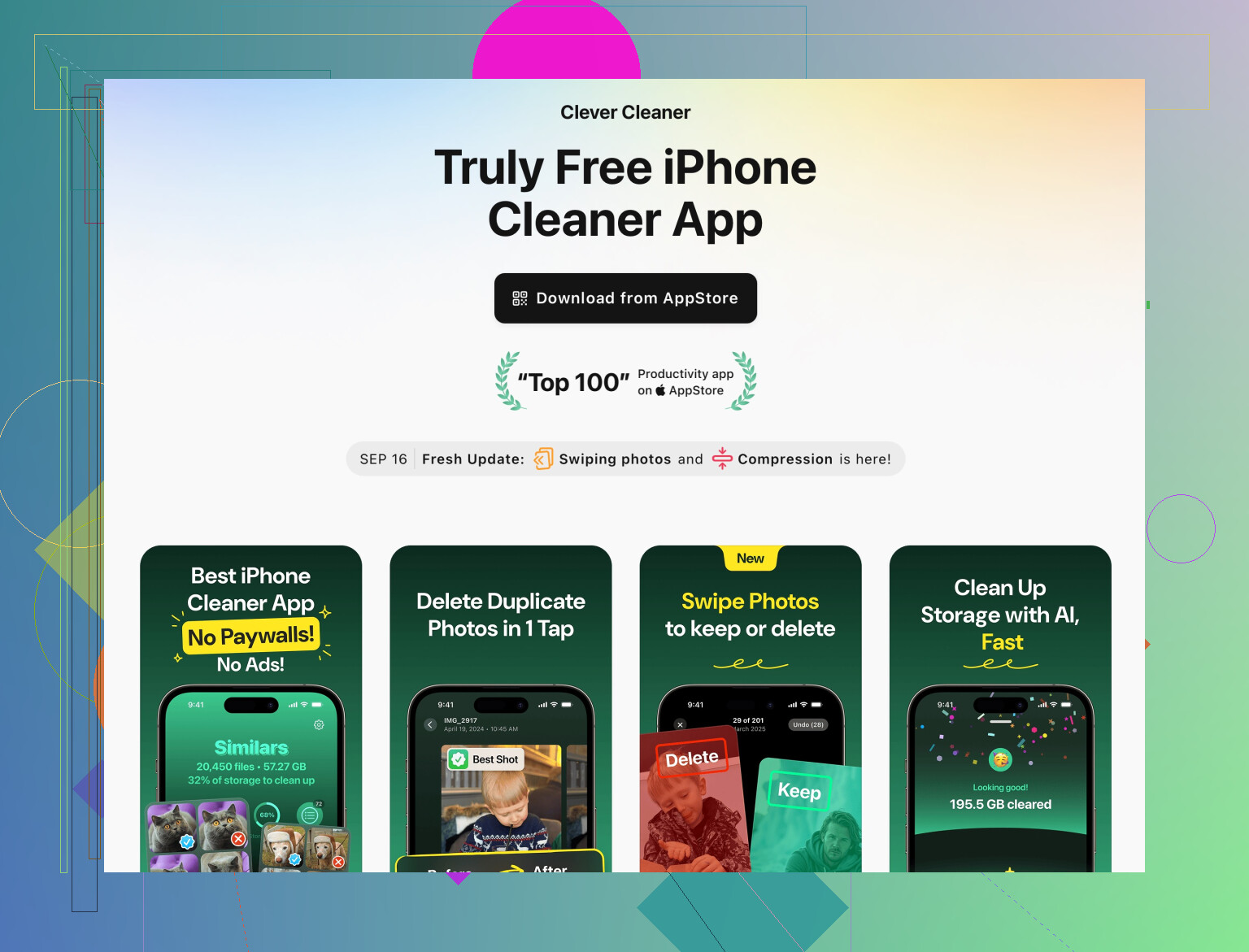
This is where a cleaner app shines. The one mentioned earlier, Clever Cleaner App, can group: - Exact dupes
- Very similar selfies and burst photos
- Large videos and Live Photos
so you can just pick the best one from each group.
If you want something easy to install and actually focused on iPhone pictures, have a look here:
clean up duplicate and junk photos on your iPhoneIt’s tuned for iOS photo clutter, lets you preview before deleting, and can help with contact cleanup and big files too. Just don’t trust any app with a fully automatic “delete all” button. Always skim the groups first so you don’t lose real memories.
-
Have a “quarantine” step instead of instant deletion
This is one thing I slightly disagree with in the typical “merge and move on” advice:- When you delete a ton at once, they sit in “Recently Deleted” for 30 days anyway.
- Use that like a safety net: do your big purge, then leave it alone for a week. If you suddenly realize something is missing, restore it from Recently Deleted.
After a week or two, go to Albums → Utilities → Recently Deleted and clear it when you’re confident.
-
Minimal ongoing routine so the mess doesn’t come back
Just 2 habits make a huge difference:- Once a week: open Photos → Recents, scroll just that week, and kill the obvious duds (blurs, 20 copies of the same screen, document scans that are bad).
- After someone AirDrops you a big batch, immediately delete what you don’t care about. Don’t let meme dumps marinate.
Do a quick backup (iCloud or encrypted computer backup) before a big first pass, then combine:
- Built‑in Duplicates
- Search/filter cleanup
- Size‑based cleanup on Mac if you have one
- A “similar photo” cleaner like Clever Cleaner App
That combo usually takes a messy library from chaos to manageable in under an hour, without nuking anything important by accident.
For a simpler reset, move your photo library to a computer with a USB cable. Create one folder per year, then keep only the photos you value. Sorting on a large screen is faster than tapping through thousands of images.
After confirming the files open correctly, delete the iPhone library and empty Recently Deleted. Then transfer only your selected photos back, or keep them archived on an external drive. This works well if you have alot of clutter and want a clean start without reviewing every duplicate group.
The thing nobody flagged clearly here: if iCloud Photos is on, deleting on your phone deletes everywhere. So @techrouter3112’s ‘wipe the iPhone library and start clean’ plan is fine only if iCloud Photos is off first, or you’ve genuinely copied everything to the computer and verified it. Do that with sync still running and you’re not clearing the phone, you’re clearing your whole library across every device. That’s the classic way people lose photos they meant to keep.
Second thing worth knowing before you get excited about freeing space: merging duplicates or mass deleting does not give you storage back right away. Everything sits in Recently Deleted for 30 days and still counts against your storage the whole time. @viajeroceleste treating that as a safety net is smart, but don’t be surprised when your free space barely moves the day you do the big purge. If you actually need room now, you have to go empty Recently Deleted manually, which throws away the safety net. Pick one.
On the built-in Duplicates folder, it’s genuinely good but slow to populate and lazy about anything that isn’t a near-exact match. Different resolution, a tiny crop, a re-saved edit, and it often shrugs. So it’s a real starting point, not the finish line.
The Clever Cleaner mention makes sense for the gap the Photos app leaves, mainly the ‘these ten burst shots are basically the same’ pile and big video hogs. I’d treat it as a way to surface candidates, not as an auto-delete button. Skim every group before you confirm, because ‘similar’ detection will occasionally lump in two photos that only look alike to an algorithm.
If you want the least risky order: turn off iCloud Photos or confirm your backup first, run the built-in Duplicates, then do a similar-photo pass, and only empty Recently Deleted once you’re sure. Boring, but you won’t be posting a ‘help I deleted everything’ thread next week.