I lost the remote to my Samsung TV and now I can’t figure out how to change channels. I need a quick way to switch channels using the buttons on the TV or another method so I can keep using it until I replace the remote.
Your Samsung remote vanished and you only need one thing, change the channel. I ran into this on my own set, and there are a few plain fixes.
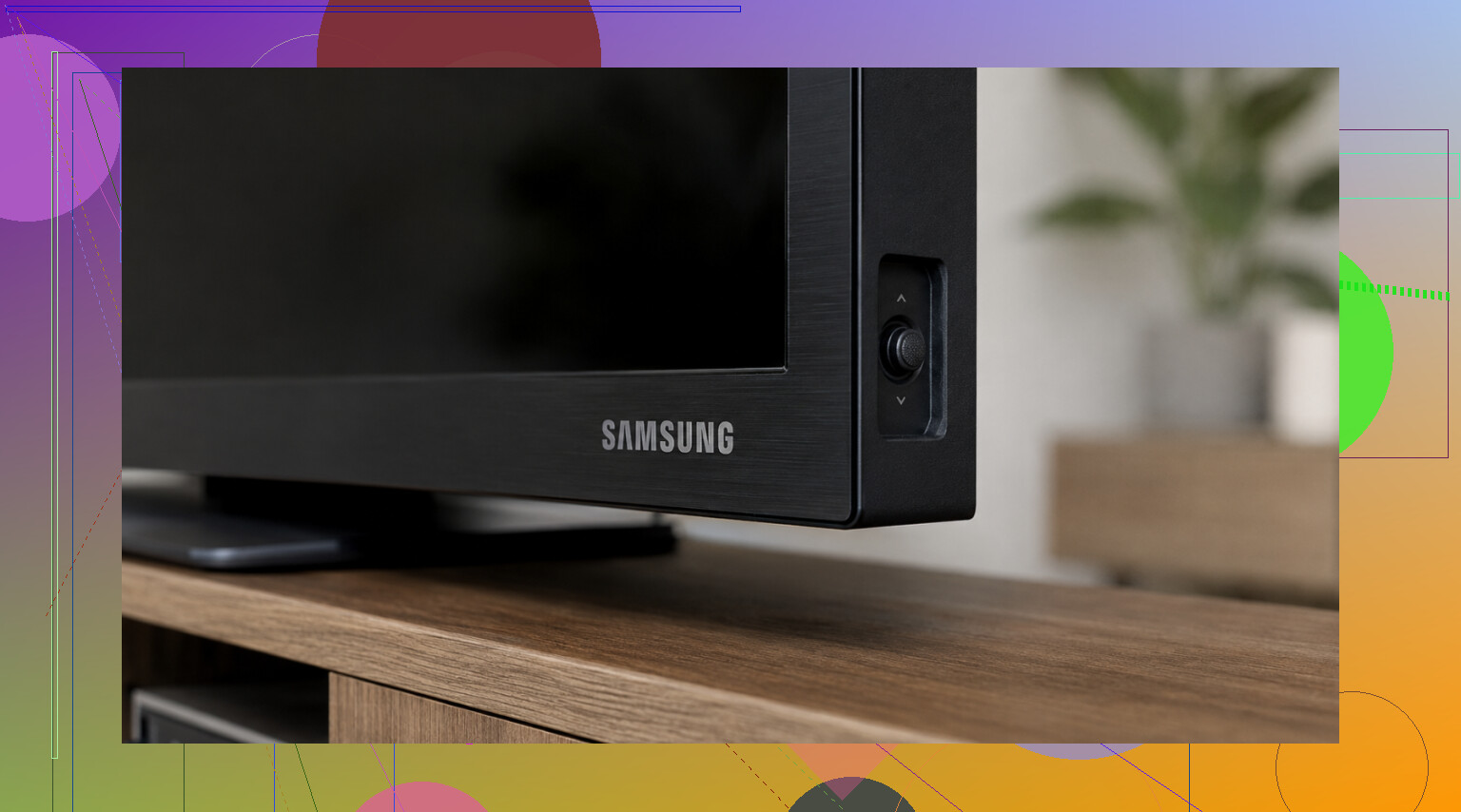
First place I’d check is the TV itself. Samsung usually hides a physical control somewhere on the frame. On newer models, it’s often a small joystick-style button. I found mine under the middle edge once, but on another set it was near the lower right side, and I’ve also seen one tucked behind the Samsung logo. Push it to bring up the menu. Nudge it up or down to move through channels.
Older Samsung TVs tend to have actual buttons instead of the little nub. Usually along the same areas, bottom center, right side, or near the logo. Samsung moves this around a lot, so if you’re not sure what your TV has, check the model number on the sticker on the back. That saved me some pointless poking around.
If your TV is a smart model and connected to Wi-Fi, your phone is the easier route.
SmartThings is the official Samsung app. Free on iPhone and Android. Once I paired it, I got channel controls and the guide on my phone screen. If it refuses to connect, the first thing to check is Wi-Fi. Your phone and the TV need to be on the same network. Most connection fails I’ve seen came from that.
TVRem Remote app for iPhone works in a similar way. It handles channel up and down, plus the guide. What stood out to me is it isn’t stuck to Samsung only. It also works with LG, Roku, Fire TV, Android TV, Google TV, and Apple TV. If your house has a pile of mismatched devices, this is easier than keeping a different app for each one.
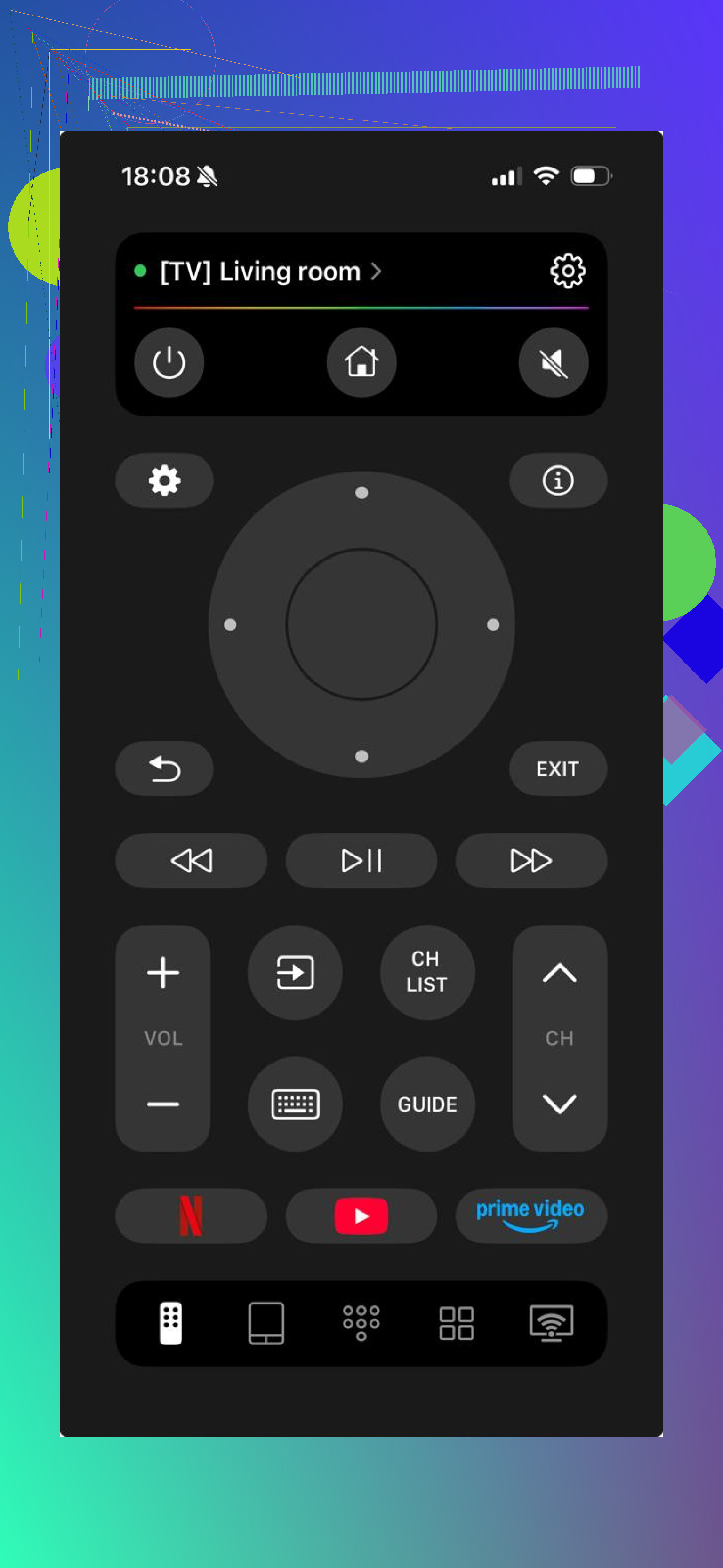
It also skips the usual junk. No subscription wall, no ad mess, and you get keyboard typing plus voice search. I noticed it’s sitting at 4.8 stars from a few thousand ratings. More details here: https://mac.eltima.com/tvrem-universal-tv-remote/
One small thing if you’re using antenna or live TV. On many Samsung sets, changing channels there means opening the channel list or guide and scrolling. It’s less like old cable boxes where you punch in numbers fast and move on.
If your Samsung is older and has no Wi-Fi, phone apps won’t help. Then you’re down to the physical buttons on the TV or grabbing a cheap universal remote.
If you know your Samsung model number, you can narrow this down fast and figure out where the hidden control sits.
15 Likes
If you need a fast fix, try your phone’s IR blaster before messing with TV menus. A lot of older Android phones from Xiaomi, Huawei, LG, HTC, and some Samsungs had one. Open the built-in remote app or install one, pick Samsung TV, then use channel up/down like a normal remote. No Wi-Fi pairing needed. Works best on older sets.
I’d also check if your cable or satellite box has its own channel controls. Many boxes let you change channels from the front panel, or through the provider app. If you watch live TV through the box, that’s easier than fighting the TV itself. @mikeappsreviewer covered the TV buttons and SmartThings part well, but I think people skip the set-top box option too often.
If you’ve got a streaming stick plugged in, some TV channels are inside those apps anyway, so changing the TV channel might not even be needed. Sounds dumb, but it trips pepole up.
Last cheap route, borrow any universal remote from another room and run Samsung code setup. Took me like 3 mins last time.
One thing I’d add to what @mikeappsreviewer and @cacadordeestrelas said: if your Samsung is stuck on the wrong input or live TV source, changing the channel may not be the real issue. A lot of people think the TV won’t switch channels, but it’s actually sitting on HDMI 1, a Roku, or some dead input. On many Samsungs, the little control button can cycle Source/Input first, then you switch back to TV or Live TV. After that, channel controls usually start making sense again.
Also, if you have Samsung TV Plus, those “channels” are basically app-based streams, so using channel up/down on the TV itself can be weird or inconsistent. That’s where I slightly disagree with the “just use the TV button” advice. Sometimes the built-in button is more annoying than useful and takes forever to nav through menus.
A couple other fast fixes:
- plug in a USB keyboard if your model supports it, sometimes you can at least navigate enough to reach Live TV
- use HDMI-CEC from another device, like a game console or streaming box remote, since some remotes can control basic TV navigation
- if you have a voice assistant already paired, try “change channel” or “open live TV”
If none of that works, the fastest temp fix is honestly a cheap replacement remote from Walmart/Target/Amazon. Not elegant, but less painfull than wrestling Samsung menus.