How Can I Cast From iPad to Chromecast?

I tried putting my iPad and Chromecast on the same Wi-Fi network, restarting both, and opening a 17-minute video in an app that normally shows a Cast button. The button never appears, and screen mirroring from Control Center only lists other options.

What should I check next to get casting working from the iPad without resetting the Chromecast completely?


I was setting up an iPad to send video to a Chromecast and found that the available instructions often treated casting and screen mirroring as the same function. I needed to separate them before deciding whether an extra app was necessary.

Decide what needs to appear on the TV

Casting sends selected media to the Chromecast. This can be a video, song, or photo, depending on the app being used. The television handles the selected content while the iPad remains available for other tasks.

Screen mirroring is different. It sends the complete iPad display to the television as it changes. Anything visible on the tablet can appear on the larger screen, including menus and app navigation.

That distinction determines the setup. If the goal is to watch content from Netflix, YouTube, Prime Video, Disney+, or another service with Chromecast support, use the casting control inside that app. No separate mirroring software is required.

Mirroring is more relevant when the full display needs to be visible. It can also be useful for local media stored on the iPad when the app holding that media does not provide its own Chromecast button. Since the iPad does not provide native Chromecast screen mirroring in the same way it supports AirPlay, this usually calls for a third-party tool such as mirroring DoCast.

Use the method that fits the content

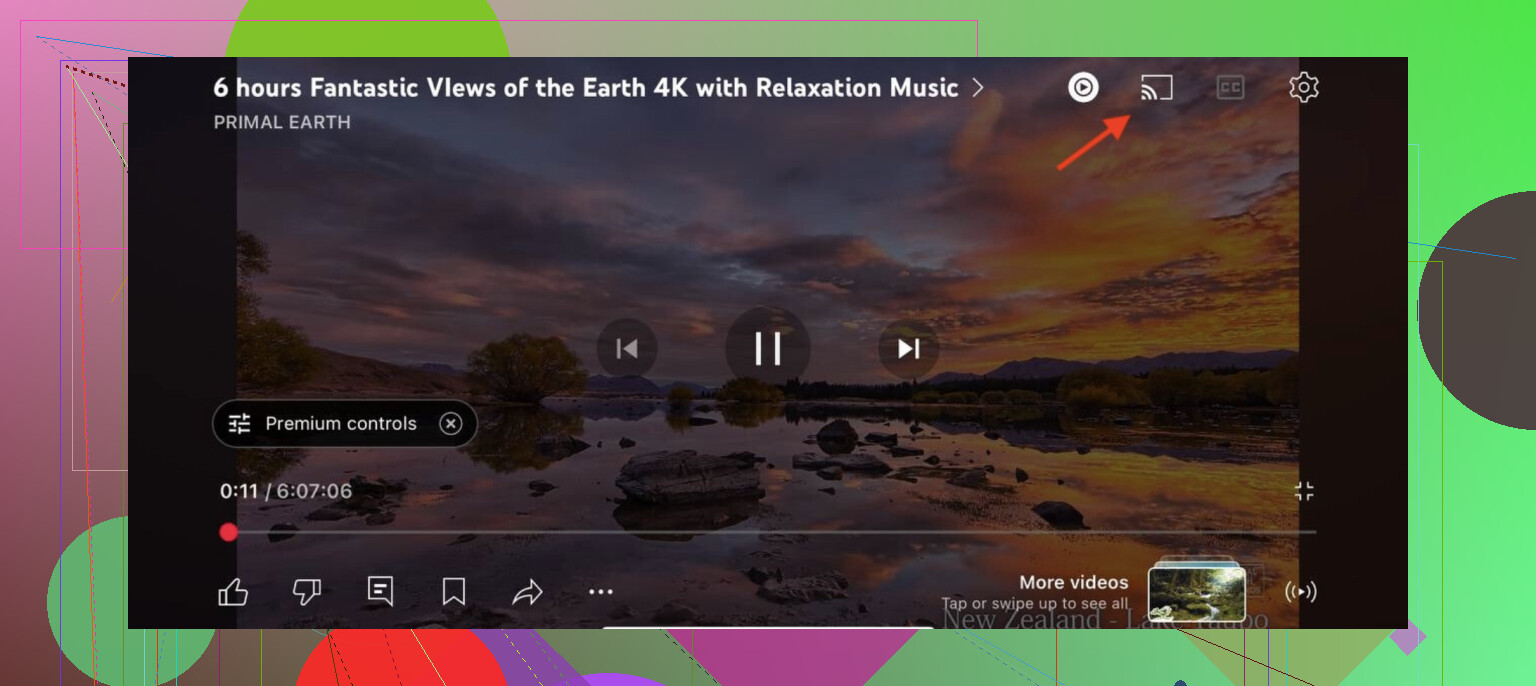
For an app with built-in Chromecast support, I first connect the iPad and Chromecast to the same Wi-Fi network. I then open the streaming app, start the selected media, and look for the Cast icon. It normally resembles a small screen with wireless signal lines in one corner.

After selecting that icon, the app shows compatible devices on the network. Choosing the Chromecast starts playback on the television. The iPad can still be used normally, though closing the streaming app completely may affect playback or remove access to its controls.

Protected streaming services should always be handled this way. Their video is commonly restricted by digital rights management, so attempting to mirror the whole iPad screen may produce a blank image, an error, or audio without usable video. The service’s own Cast control is designed to send the protected stream correctly.

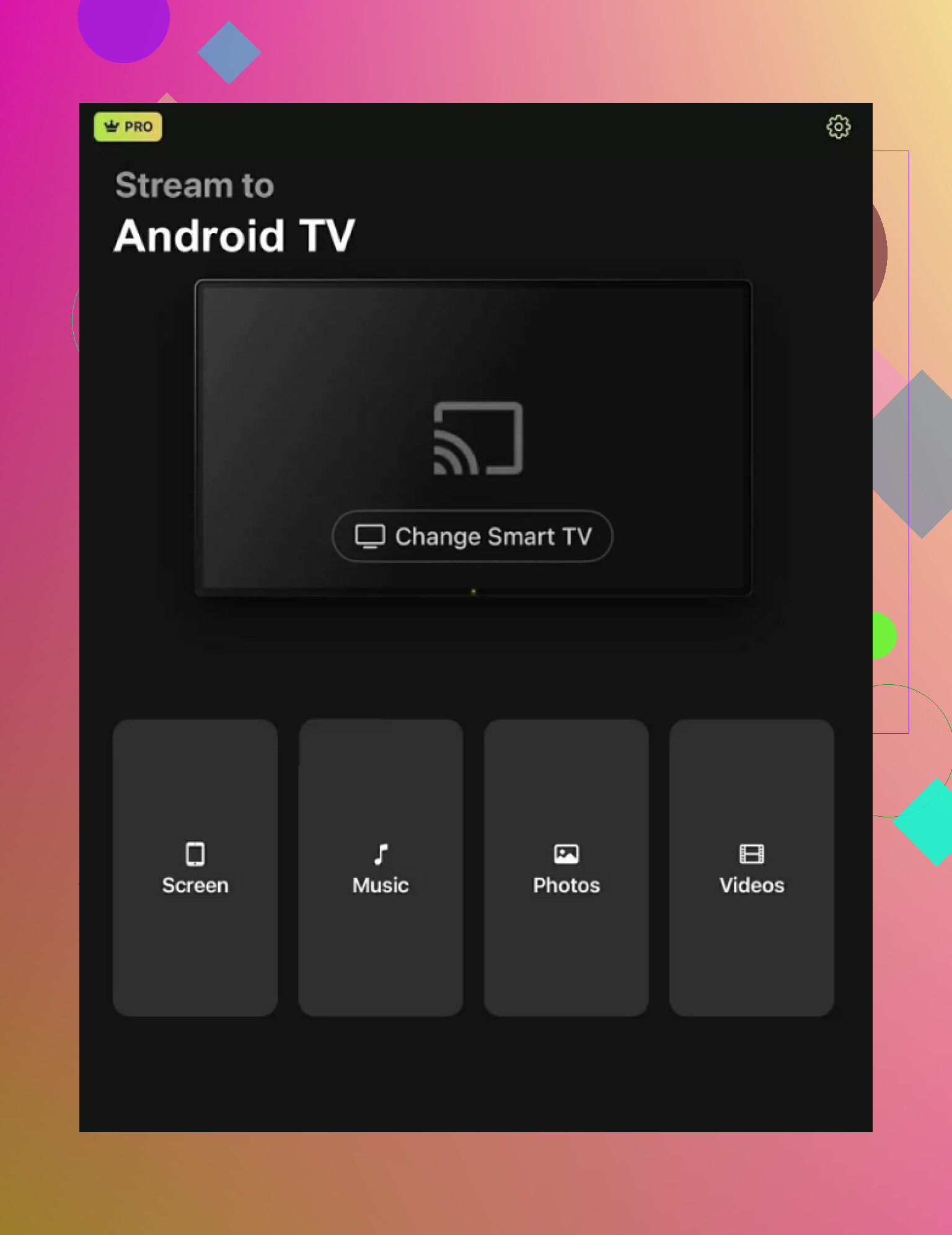
For local photos, personal videos, music, or the full iPad screen, DoCast provides a separate route. The app must be installed on the iPad before the device can send that material to Chromecast, and it is available through install DoCast.

Once installed, the app should detect a Chromecast connected to the same network. Access to the photo library is needed when casting saved photos or videos. Screen mirroring uses the iPad’s broadcast function instead, so the prompts may differ according to the selected feature.

I would grant only the permissions required for the media being sent. Photo access is reasonable for casting saved images, but it is not needed merely to identify the Chromecast. The available permission choices can also depend on the current iPad settings.

Fix discovery problems before changing apps

Most connection failures are network problems rather than app problems. The iPad and Chromecast must be on the same local Wi-Fi network. Similar network names can be misleading, especially when a router separates devices between guest, main, or isolated networks.

A VPN should be disabled during setup. VPN routing can prevent the iPad from finding devices on the local network even when both devices appear to use the same Wi-Fi connection. Router settings that block communication between wireless clients can cause the same result.

If the Chromecast does not appear, I would restart the Chromecast itself before reinstalling anything. I would then reconnect the iPad to Wi-Fi, reopen the relevant app, and check device discovery again. Restarting the router is a later step if several local devices are also missing.

The simplest test is to begin with an app that has its own Cast icon and play ordinary supported content. Confirm that casting works, then try a local photo through DoCast, and test full mirroring last. This isolates network discovery, media permissions, and mirroring as separate issues instead of changing every setting at once.
11 Likes

Check the app’s Local Network permission on the iPad: Settings > Privacy & Security > Local Network, then enable access for that app. If access was denied earlier, the Cast button may disappear even though both devices use the same Wi-Fi. Force-close and reopen the app afterward. Control Center mirroring only looks for AirPlay receivers, so the Chromecast will not appear there.

If the Cast button is missing only in that particular app, the Chromecast probably is not the problem. Open YouTube or another known Chromecast-enabled app and check whether its Cast icon appears. That is a much quicker diagnostic than repeatedly restarting everything.

If casting works there, go back to the original app and check a few app-specific possibilities:

  • Make sure the video is playing in the native app, not an embedded browser window.
  • Try a different video. Some apps restrict casting for certain live, downloaded, rented, or protected content.
  • Update the app, then sign out and back in.
  • Delete and reinstall it if the Local Network permission never appears in Settings.
  • Check whether the app still advertises Chromecast support. Developers sometimes remove or limit it without making the change obvious.

@binaryotter’s permission suggestion is the first setting I would inspect. When reinstalling, watch for the prompt asking to find devices on your local network and allow it. If that prompt is declined, the app may behave as though no Chromecast exists.

If no casting app can find the device, open Google Home and see whether the Chromecast appears online and responds. An offline or unreachable device there points back to the router setup. Guest Wi-Fi and wireless client isolation are common culprits. Being on different Wi-Fi bands usually is not a problem by itself, provided both bands belong to the same local network and the router lets devices communicate.

Control Center’s Screen Mirroring panel is not a useful Chromecast test because it searches for AirPlay targets. A third-party mirroring app can send the iPad display in some situations, but it will not restore a missing Cast button, and protected video may show a black screen. For streaming services, getting the app’s native Cast function working is still the cleaner route.

Temporarily connect both devices through the main router and bypass any guest network, range extender, or travel router. The Wi-Fi name can match while the devices are still separated in a way that blocks Chromecast discovery.

Chromecast apps find receivers through local multicast traffic. Some extenders, mesh configurations, and managed routers do a poor job passing that traffic between access points. Different Wi-Fi bands are normally harmless, as @shadow_cloud_root said, but the equipment handling those bands can still be the problem. Putting the iPad and Chromecast close to the primary router is a quick way to rule that out.

Then open Google Home first. If the Chromecast is visible and controllable there, return to the video app, confirm Local Network access is enabled, force-close it, and launch it again. If Google Home cannot see the Chromecast either, stop reinstalling the video app. The fault is almost certainly network discovery, so look for router settings named AP isolation, client isolation, multicast filtering, or wireless isolation.

I would avoid factory-resetting the Chromecast until after this test. A reset creates extra setup work and rarely fixes a router that is blocking device discovery. Control Center mirroring will not bypass the issue because it is looking for AirPlay receivers, not Chromecast devices.

Skip the mirroring-app detour entirely if what you want on the TV is that video inside a real streaming app. Mirroring won’t bring back a missing Cast button, and for anything with copy protection you get a black rectangle with sound and nothing else. So DoCast makes sense for your own camera roll clips, but it’s the wrong tool for the problem you actually wrote down.

@binaryotter has the right lead with the Local Network permission, but there’s a wrinkle worth knowing. iOS only fires that prompt the first time an app goes looking for devices on your network. If it got dismissed back then, the toggle sometimes won’t even show up under Settings until the app asks again. That’s the real reason a reinstall helps, not because it ‘refreshes’ anything magic. It forces a clean prompt. So if you do reinstall, watch the very first launch and don’t tap Don’t Allow out of habit.

The thing I’d check before touching the router at all: which app is this? A few services quietly switched to using the phone only as a remote, and some block casting on a free tier or for downloaded and rented titles. If it’s a smaller or regional app, there’s a genuine chance the developer stopped shipping the Cast SDK and the button is gone for everybody, not just your iPad.

Fastest way to sort this out is one test. Cast a normal YouTube clip. If that works, your Wi-Fi and the Chromecast are fine and you’re chasing an app issue, so stop restarting the router. If YouTube also refuses, then @the_shell’s isolation stuff is where I’d go next. No point digging through AP isolation settings until you know which side is broken.

Realistically, there is no system-wide iPad setting that makes every video castable. The Cast icon must come from the video app itself, and Safari cannot send arbitrary web video to Chromecast the way desktop Chrome sometimes can. Use the service’s native iPad app, then check its Local Network permission as @binaryotter described. If another Chromecast-enabled app can connect, the missing button is an app, account, or content restriction rather than an iPad or Chromecast fault. The video’s duration does not affect discovery, so waiting for playback or opening Control Center will not make the icon appear.

Realistically, no Cast button means that app is not offering Chromecast for that video. Test a regular online video rather than a downloaded copy, since offline playback often disables casting even when the app normally supports it. If other content in the same app casts, the restriction is tied to that specific video.