A large batch of photos, work documents, and folders suddenly disappeared from my external hard drive after I plugged it into my PC. The drive still shows used space, but the files are missing and I really need them back. I’m looking for help with external hard drive data recovery, possible causes, and the safest way to restore lost files without making things worse.
Files looking gone on an external drive does not always mean they got wiped. I’ve run into this a few times, and the usual mess was a damaged file system, a bad partition entry, or Windows losing track of the folder structure. The data was still sitting there, the drive map was the part falling apart.
First thing, stop using the drive.
Do not copy new stuff onto it. Do not format it. I would also hold off on repair tools at this stage. A lot of them write changes to the disk, and once that happens, recovery gets uglier.
What I’d check first:
- In File Explorer, turn on Hidden items. I’ve seen files show up again from something dumb like hidden attributes.
- Look at the drive’s used space. If the folders look empty but the drive still shows roughly the same used capacity, tha’ts a good sign. Usually it means the files are still there, Windows simply is not showing them properly.
- If the drive still mounts and Windows sees it, I’d skip repair for now and go straight to a recovery scan.
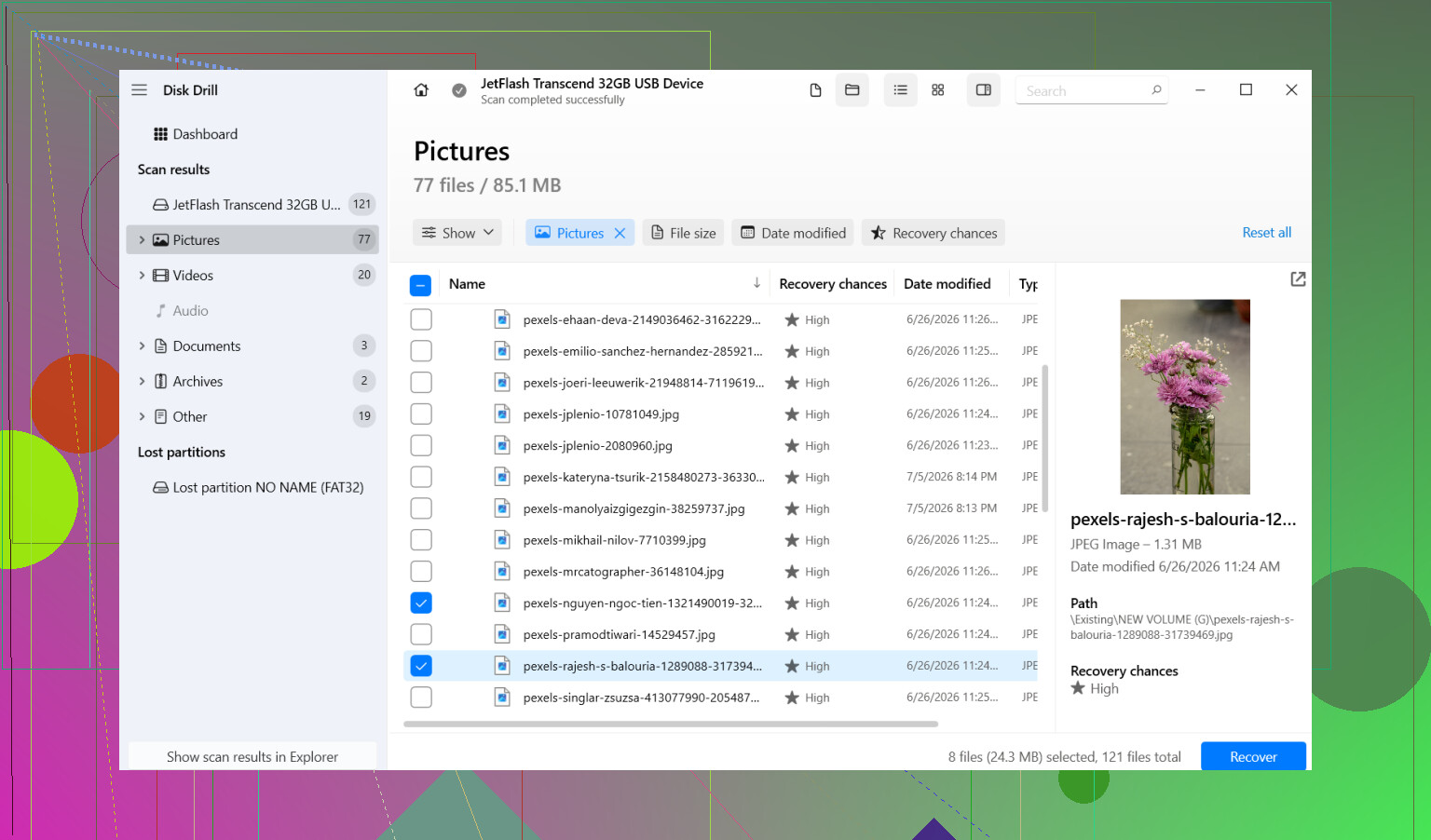
What worked for me was Disk Drill. I used it on an external drive which suddenly looked almost blank, even though it still had a few hundred GB marked as used. It pulled up the missing folders with less drama than I expected.
The steps I’d take:
- Install Disk Drill on your internal drive, or any other healthy disk. Do not install it onto the problem external drive.
- Plug in the external drive and open Disk Drill.
- Pick the affected drive and hit Search for lost data.
- Let the scan finish fully. Don’t cut it short. Afterward, sort through the results or filter by file type if you only care about stuff like photos, videos, or docs.
- Preview some files before restoring anything. I always do this becuase names alone don’t tell you much.
- Select the files or folders you want, then click Recover.
- Save the recovered data to a different drive. Never send it back to the same external drive while you’re still trying to rescue data.
After your important files are copied somewhere safe, then start dealing with the original drive.
One thing I would not do early on is run CHKDSK because search results keep pushing it. CHKDSK is for repair. Repair and recovery are not the same job. If directory entries are damaged, CHKDSK might rewrite or remove them. Good for making the file system cleaner, bad if you wanted the best shot at pulling missing files back first. My order is always recover first, repair second.
Also, if Windows throws the “you need to format this drive” message, don’t hit Format out of panic. I’ve seen that prompt pop up from file system damage alone. It does not prove the files are gone. If you format first, you make your own life harder.
I’d only skip software recovery if the drive looks physically sick. Clicking noises, grinding, random disconnects, failure to spin up, stuff like that. At that point I’d stop. Each extra read attempt can make a bad drive worse. That’s when a recovery lab starts making more sense than home tools.
This kind of failure is common after unsafe removal, power loss, or plain file system corruption. If the drive still shows up and is not making death noises, your odds are often decent. The main thing is keeping yourself from doing the wrong “fix” too early.
1 Like
If the drive still shows used space, your files are often still there. The file table got messed up, or the files were hidden, not erased. @mikeappsreviewer is right about avoiding writes to the drive. I agree with that part 100 percent.
Where I differ a bit, I would check for simple Windows weirdness before doing a long recovery scan.
Try this first.
- Plug the drive into another USB port, and if possible, another PC.
- Open Disk Management and see if the partition shows the right size and file system.
- Open Command Prompt and run:
attrib -h -r -s /s /d X:.
Replace X with your drive letter.
This removes hidden, read-only, and system attributes. Malware and bad USB removals sometimes flip those flags. I’ve seen whole folders pop back instantly after this.
Also check Event Viewer, Windows Logs, System. Look for disk or ntfs errors around the time you plugged it in. If you see repeated I/O errors, stop messing with the drive. That points more to hardware trouble.
If the files still do not show, then use recovery software. Disk Drill is a solid pick for external hard drive file recovery because it tends to rebuild folder structure better than a lot of cheap tools. Recover to a different disk, not back to the same one. Preview files first so you do not waste time pulling junk.
For search traffic terms, think of it as external hard drive file recovery, how to recover missing files from an external hard drive, and restore disappeared photos and documents from USB drive.
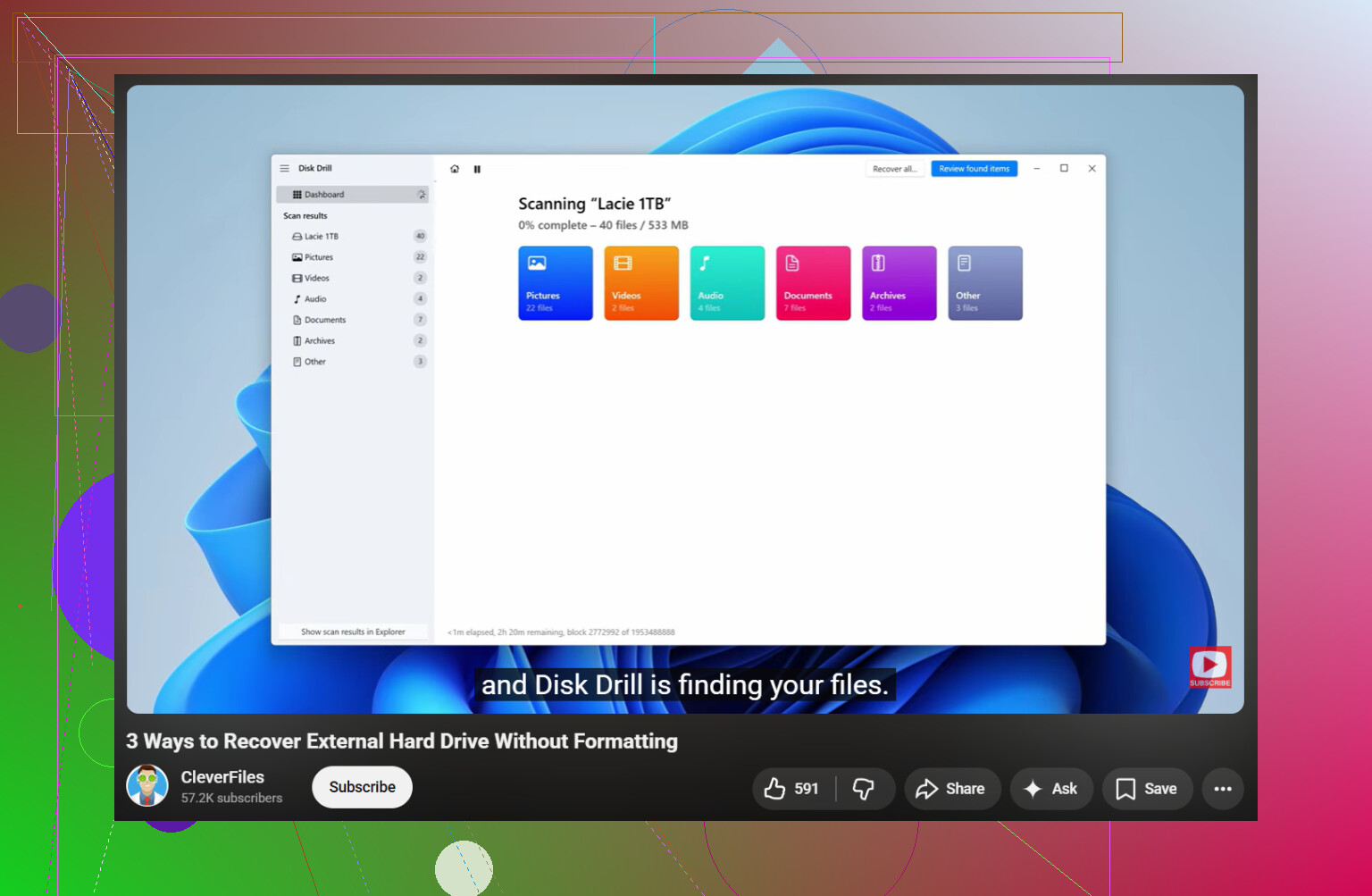
This video also covers useful checks before you do anything risky:
watch this external hard drive recovery walkthrough
If the drive clicks, disconnects, or freezes Explorer, stop. Software won’t fix a dying drive, and repeated reads make it worse. At that point, lab recovery is the safer move. Small typo here, but seriosuly, do not format it.
If the drive still shows used space, I’d treat this like a file system/index problem first, not assume the files were actually erased. @mikeappsreviewer and @sternenwanderer already covered the obvious do-not-do list pretty well, but one extra thing I’d add is this: check whether the folders got converted into junk filenames or a different parent path entirely.
I’ve seen external drives suddenly show “empty,” but the data was sitting under something like FOUND.000, broken directory names, or raw file records that Windows just wouldn’t display normally. That’s why I would not spend too long poking around manually in Explorer.
What I’d do differently:
- Check the drive’s SMART health with something read-only if possible. If health stats are bad, clone/image the drive first before scanning.
- If the drive is stable, scan it with Disk Drill and look specifically at both reconstructed files and existing folder structure, not just file type results.
- If the filenames matter for work docs, prioritize recovering by original structure instead of only grabbing “all PDFs/JPGs,” becuase that gets messy fast.
Small disagreement with the attrib suggestion: it can help, sure, but if the issue is deeper corruption, it just wastes time and gives false hope. Fine as a quick check, not where I’d focus.
Also, if this happened right after plugging into one specific PC, I’d absolutely run an antivirus scan on that computer before reconnecting anything else. Some malware loves hiding files and replacing folders with shortcuts. Old problem, still weirdly common.
For a solid external hard drive recovery walkthrough, this thread is worth reading:
how to recover missing files from a hard drive without making it worse
Short version: stop using the drive, don’t repair it yet, don’t format it, recover the important stuff to another disk first. If the drive starts clicking, freezing, or disconnecting, stop DIY stuff immediatley. That’s lab territory.