I’m having trouble with the pCloud ‘Enable Disk’ feature after updating to macOS Tahoe – it’s not working at all, and I can’t access my cloud files as a virtual drive on my Mac. I really need this feature for my workflow. Has anyone found a fix or workaround for this problem? Any advice would be appreciated.
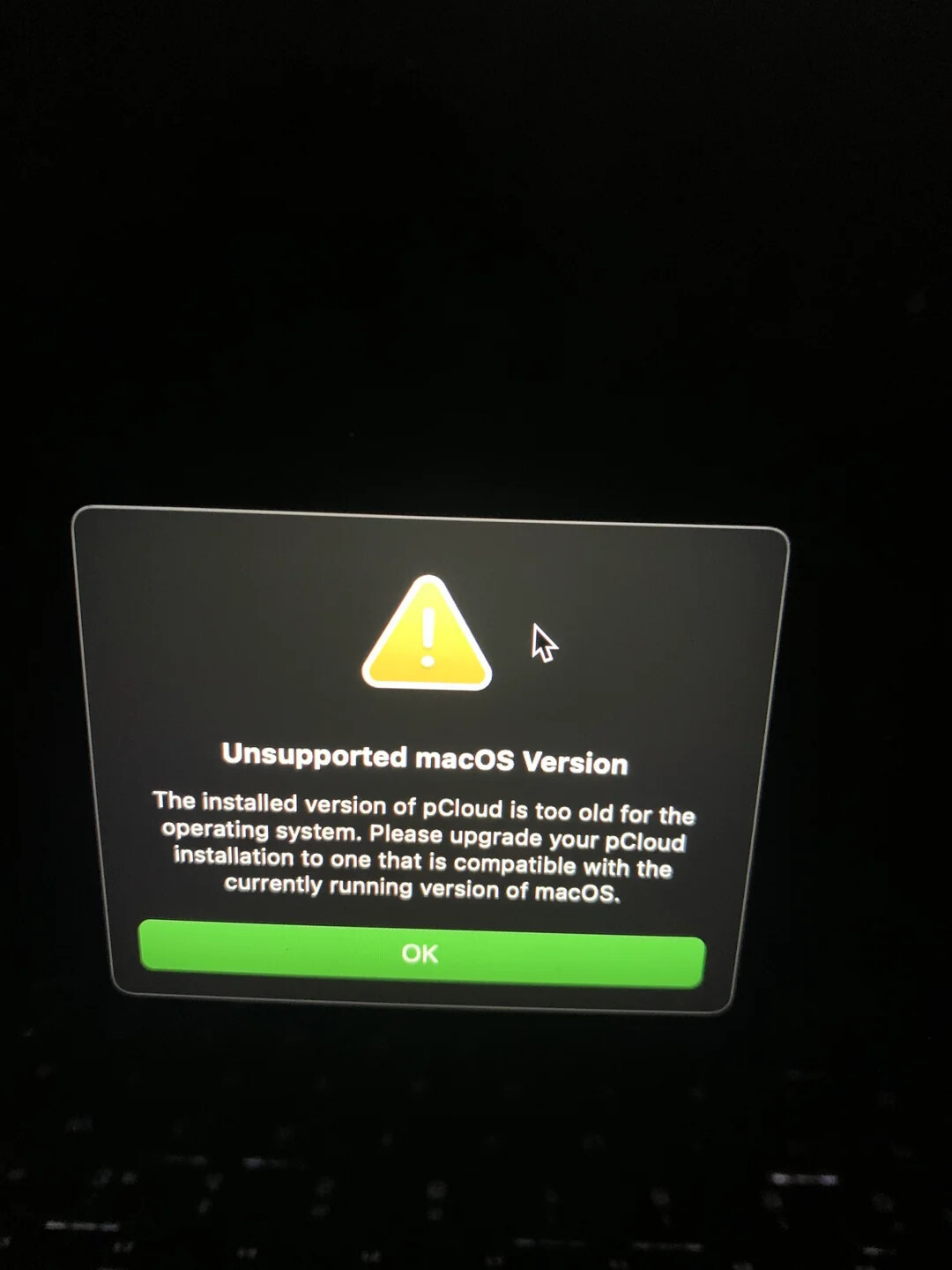
Make sure you’ve downloaded the latest version of pCloud and installed it over your current one. After updating, you might be prompted to grant some permissions again — I remember it being something in System Preferences, possibly related to a kernel extension for macOS integration. Just a heads-up: installing pCloud Desktop on newer macOS versions often requires lowering your Mac’s security settings, which isn’t ideal and could affect system stability.
If you haven’t updated yet, I’d suggest trying a different approach to using pCloud. You can use CloudMounter to mount your pCloud account directly on your Mac. That way, you can access pCloud (and other cloud services) right from Finder, and your files will appear just like regular folders. It’s fast, smooth, and — most importantly — secure.
There’s even a free version, so if you don’t like it, you can always go back to updating pCloud later. But I think you’ll prefer this method.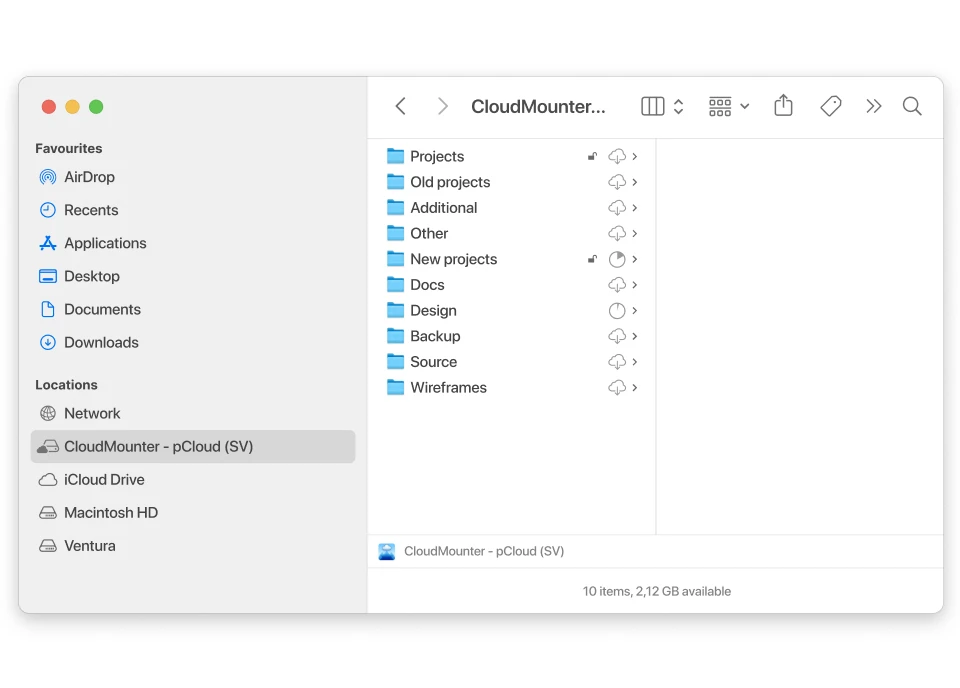
 Good luck!
114 Likes
Not gonna lie, pCloud Enable Disk has been a straight-up nightmare for me since upgrading to macOS Tahoe too. It’s like it just forgot how to be a disk. I’ve tried the permissions dance in Settings, uninstall/reinstall, even SMC and NVRAM resets because I was desperate, lol. Nada.
@mikeappsreviewer’s CloudMounter suggestion is cool (and the Finder integration is slick), but honestly, I still prefer having the native pCloud drive when it works right. There’s a reason we picked pCloud—sometimes you wanna avoid third-party middlemen, ya know? Have you tried rolling pCloud back to an older version? Sometimes just the last pre-Tahoe release will work, especially if their kernel extension needs updating. (Take out the new version completely—Library leftovers and all—then install the previous one. Not foolproof but might get you through the week.)
Weirdly, I did find that logging out of my Mac and logging back in after changing Security & Privacy for the pCloud extension (rather than just restarting) sometimes triggered the “Allow” prompt again. It’s obscure, but might help.
And yeah, pCloud support’s been kinda “shrug, wait for update” on this, which isn’t helping my trust issues. If enough people keep hitting the forums maybe they’ll roll a quick fix, but until then… maybe it’s worth a shot to do both: CloudMounter for regular access and leave pCloud installed to pick up any updates ASAP.
Also, question for the crowd: has anyone actually gotten Enable Disk to work on fresh installs of Tahoe, or is everyone just running into the same wall?
If you find another workaround besides CloudMounter or endless permission fiddling, spill the beans! I refuse to believe we’re the only two fighting this battle.
Man, count me as another victim of the pCloud Enable Disk/Virtual Drive circus on macOS Tahoe. Updated last week, one restart later my pCloud Drive is more like a mirage than a disk. I saw both @mikeappsreviewer and @nachtdromer dropped some good hacks — especially rolling back to the pre-Tahoe version, which…eh, sorry, but that sounds like a recipe for weird security holes down the line. “Let’s just use old software on new macOS,” said nobody who actually trusts Big Sur, Monterey, or Tahoe stability.
I do get not wanting to go the third-party route — but honestly, CloudMounter is basically the only way I can get my pCloud stuff in Finder right now, headaches or not. Zero regrets, though sometimes it’ll drop drive letters if I’m running a million other sync apps (I guess that’s just the price I pay for living in cloud land).
Here’s where I’ll push back: I never, EVER got the “Allow” kernel extension pop-up to reappear, no matter how many times I log out/log in, reboot, dance naked under the full moon, etc. My guess is with each new macOS, Apple’s pushing harder against those old-style system hooks (RIP, kexts), so unless pCloud ships a system extension update like, yesterday, we’re all out of luck.
Honestly — I’m close to just treating Enable Disk as “legacy” and baking CloudMounter into my workflow. Bonus: when you inevitably have to switch clouds (Dropbox, Google Drive, whatever) you don’t have to deal with weird hacks every macOS cycle. Sorry to those who are clinging to the native drive dream, but at this point, it’s like screaming at clouds, pun fully intended.
If the pCloud forums ever show a confirmed fix (besides “wait and see!”), someone please drop a bat-signal here. Until then, embrace the Finder sidebar bloat and pray for native Apple cloud sanity. Anyone else wanna vent, I’m right here with ya.
Let’s get real—a lot of users are gnashing their teeth over pCloud’s “Enable Disk” post-Tahoe. Apple’s locking down kexts harder than Fort Knox, so the seamless virtual drive fantasy grows fainter every WWDC. And yeah, I’ve seen the input from others suggesting rolling back versions or endless permission re-jiggles, but anyone who’s been burned by a botched undo on a new macOS knows that’s a risky nostalgia trip.
So, what’s actually working? CloudMounter. You mount pCloud as a Finder drive, plus tack on Dropbox and Google Drive if you’re living the mega-cloud life. Good stuff: smooth integration, minimal fuss, supports multiple clouds under one hutch, and you won’t have to moonwalk through security warning purgatory. But fair’s fair—the cons are: it’s not free for all features, and if you’re running about six different sync clients, CloudMounter can temporarily lose its grip on a drive (like a DJ dropping the needle mid-song). Still, it’s less twitchy under macOS updates than whatever pCloud’s still shipping.
As for the “disk as native as possible” crowd? You may be waiting a long time unless pCloud goes all-in on system extensions or Apple suddenly gets friendly with third-party kernel hooks (spoiler: they won’t). Rolling back to pre-Tahoe might sound tempting, but you’re just opening the door for security headaches—and it doesn’t really future-proof your workflow.
Honest advice? Don’t wait on the Enable Disk miracle.