I bought an iPhone with less storage than I probably needed, and now I’m running out of space because of photos, videos, apps, and iCloud backups. Is there any way to upgrade the internal iPhone storage after purchase, or are my only options iCloud, external storage, or trading it in for a higher-capacity model?
Short answer: you can’t upgrade an iPhone’s built-in storage after buying it. If you bought 128GB, it stays 128GB.
You may run into repair shops or random guides saying they can swap the storage chip for a bigger one. I’d avoid that completely. It’s not a normal repair. It means micro-soldering the memory chip, messing with firmware, and taking on a real chance of killing the phone. Even if the swap works, the warranty is gone, and Apple is not going to treat it like a standard device later.
The better move is squeezing more out of the storage you already have. Start with Settings > General > iPhone Storage. Don’t guess. That screen shows what’s actually taking up space, and it’s usually photos, videos, Messages attachments, or a few huge apps.
If apps are eating storage, try Offload Apps before deleting anything important. It removes the app itself but keeps its documents and data, so if you reinstall it later, you can usually pick up where you left off.
Messages is another place people forget about. Old chats can hold years of videos, GIFs, screenshots, and random junk. If you don’t need all of that forever, set Messages to keep history for 30 days or 1 year instead of forever. That keeps it from building up again.
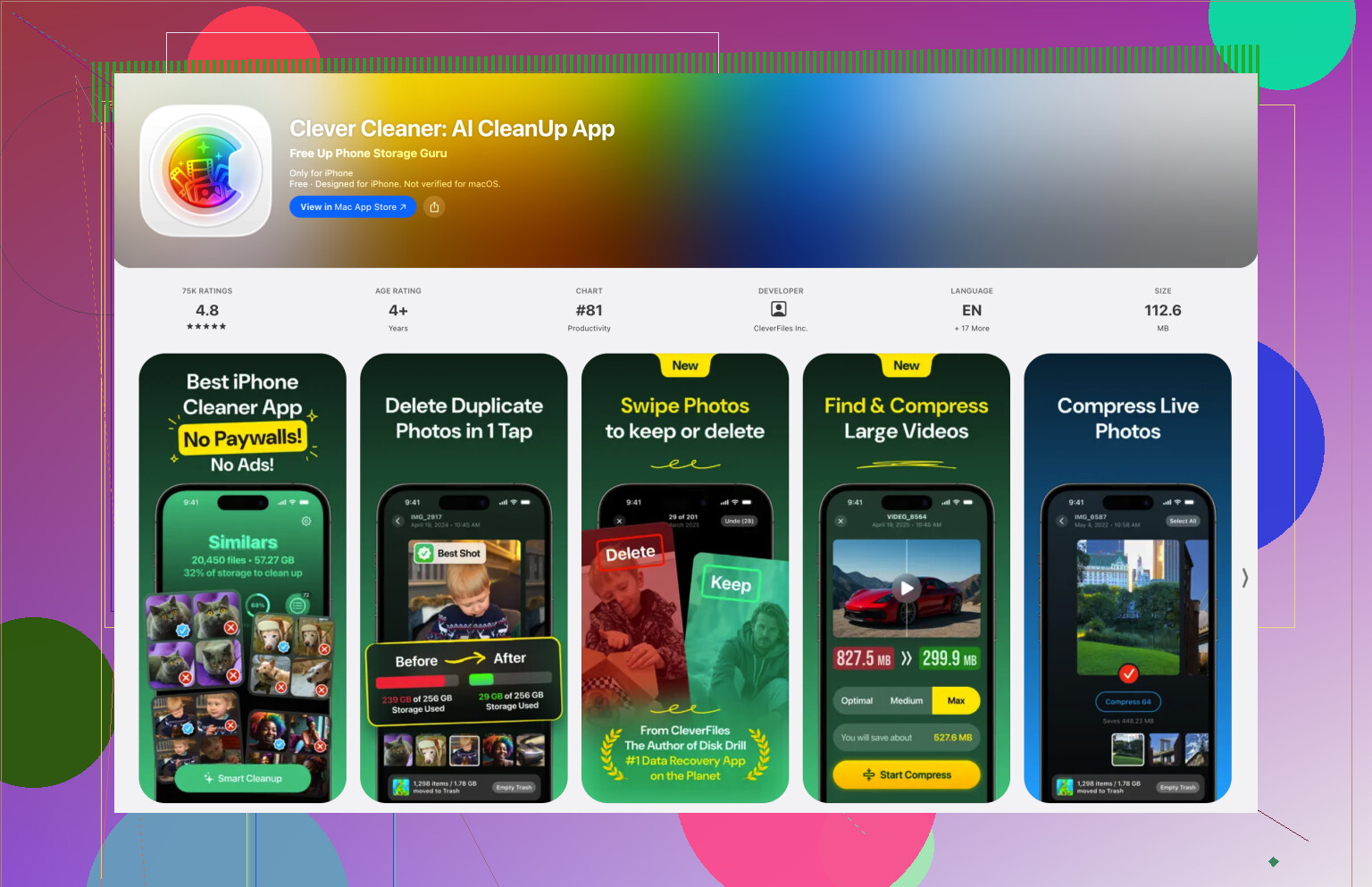
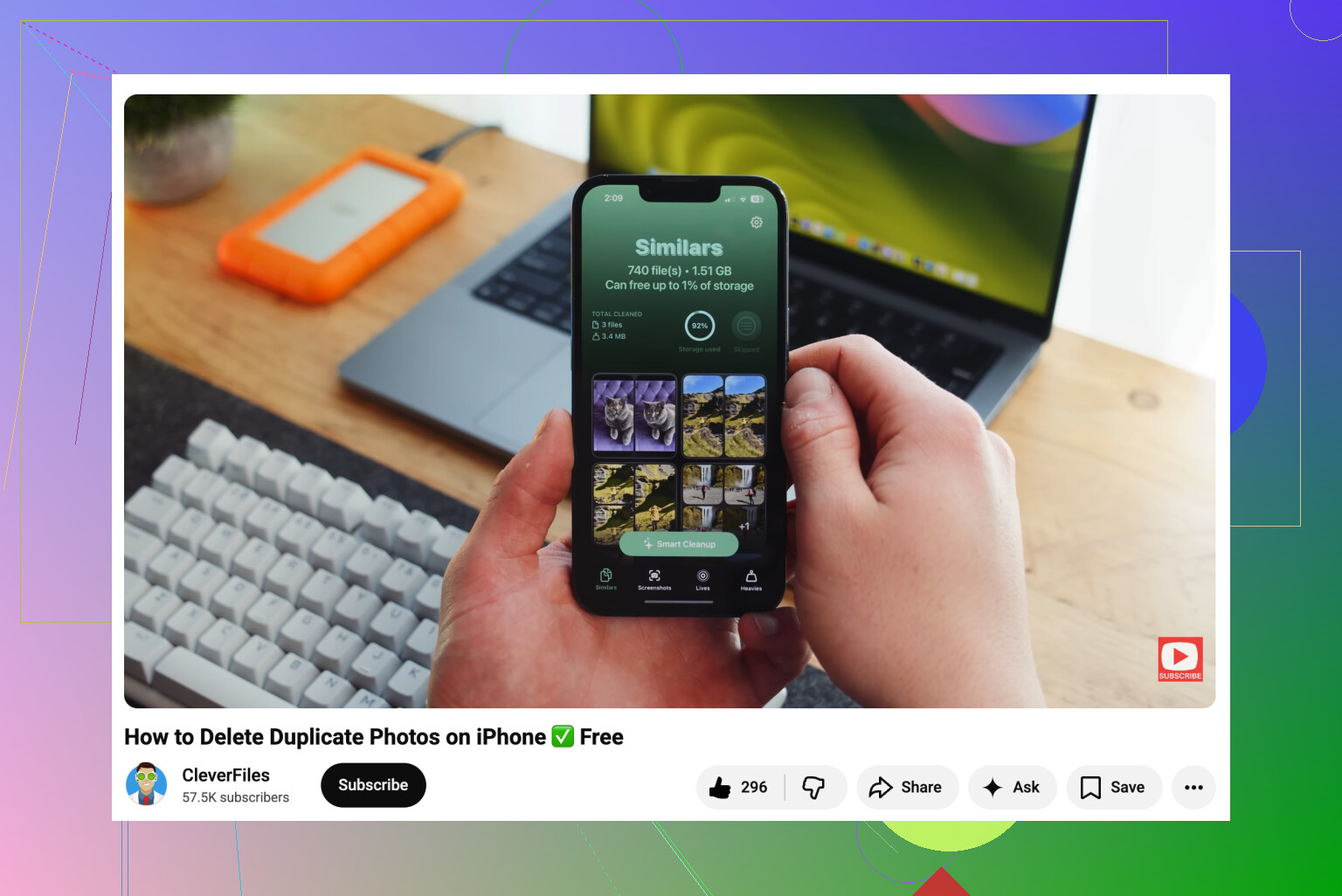
Photos are usually the biggest problem, though. Apple’s duplicate finder helps a little, but it mostly catches exact duplicates. For similar shots, I’ve found Clever Cleaner more useful. Its “Similars” tool groups those sets where you took five almost identical pictures and helps you keep the best one. The “Heavies” section is also handy because it shows the biggest videos first. Those random large clips add up fast. It can also convert Live Photos into regular still images, which saves space if you don’t care about the motion part.
If cleanup still isn’t enough, then you’re looking at cloud storage or an external drive. iCloud with Optimize iPhone Storage is the easiest option because your phone keeps smaller versions locally while the full-size photos stay in iCloud. Google Drive and Dropbox can work too, especially on free plans, but they take more manual file management.
External storage is also worth considering. There are flash drives made for iPhones, with Lightning for older models and USB-C for newer ones. Some can even record video straight to the drive, so the file doesn’t fill up your phone first. Just check that the drive is formatted in something the iPhone can read, like exFAT or APFS.
It’s annoying to manage storage this way, but it’s still a lot safer than trying some unofficial hardware storage swap.
19 Likes
Be careful deleting photos after turning on iCloud Photos, because it is a sync system, not a separate backup. If you delete a photo from the iPhone while iCloud Photos is enabled, it usually deletes from iCloud too. A lot of people think they moved the photos “to iCloud” and can then wipe the phone, but that is not how it works.
On the storage upgrade question, yeah, the internal storage is basically fixed. Apple does not offer a normal upgrade path from 128GB to 256GB or whatever after purchase. The practical choices are either manage what is on the phone, pay for more cloud storage, use an external drive, or eventually trade/sell the phone and buy one with more capacity.
The bit I’d check first is whether you’re mixing up iPhone storage with iCloud storage. iCloud backups filling up means your cloud plan is too small, not that the phone’s chip is full. But photos and videos stored locally absolutely can fill the phone. If Photos is the main offender, turn on Optimize iPhone Storage, then give it time on Wi-Fi and charging before judging the result. It does not always clear space instantly. For local cleanup, deleting big videos and old screen recordings usually makes a bigger difference than chasing tiny apps. Clever Cleaner or Apple’s built-in duplicate tool can help, but I’d still review before deleting anything because no cleanup app knows which blurry photo is secretly important to you.
Expect this to be a storage management problem, not an upgrade project. The internal chip is basically married to that phone, and anything claiming to “upgrade” it is repair-shop surgery, not a normal option. The small catch with external drives is that they don’t work like extra phone storage either: you can move/export photos, videos, files, maybe record some video to them on newer models, but you can’t install apps there or make iOS treat it like built-in space. So before buying accessories, check whether the pain is photos/videos or apps/system data. If it’s apps and cached data, a bigger iCloud plan or flash drive won’t fix much.