I just downloaded a video that came as an .mkv file and I’ve never seen this format before. My media player won’t open it, and I’m not sure if I need a special program, codec, or if I should convert it to another format. Can anyone explain what an MKV file actually is, why it’s used, and what’s the best way to play or convert it on Windows without losing quality?
If you hoard videos on a hard drive the way I do, you bump into MKV sooner or later.
MKV stands for Matroska Video. It sounds like some niche codec thing, but it is not that.
It is a wrapper. A box. A file that holds several media pieces together.
Inside one MKV file you might have
- one video stream
- several audio tracks
- multiple subtitle tracks
- chapters
- extra metadata
All of that lives in a single .mkv file on disk. When you double click it, your player reads the pieces and assembles the movie for you.
How it compares to MP4
Most people meet MP4 first. I did too, mostly from phones, tablets, and streaming downloads. MP4 is also a container format. Same basic idea: one file, multiple streams inside.
A typical MP4 you grab from the web has
- one video track (H.264 or HEVC most of the time)
- one or two audio tracks
- maybe soft subtitles
- sometimes chapters
MP4 works well for streaming and general playback. Phones, TVs, browsers, game consoles, they all tend to like MP4.
MKV is built for flexibility more than compatibility. That is where you start to feel the difference.
How MKV works in practice
When I download a single movie in MKV, it often contains:
- the original audio
- dubbed tracks in other languages
- commentary track
- subtitles for multiple languages
- forced subtitles in a separate track
- chapters that jump to key scenes
All under one filename. No extra .srt files scattered around. No separate “English dub” file.
Some things I run into often with MKV:
-
Multiple audio tracks
I have seen MKVs with 5+ tracks. Original language, English dub, commentary, stereo mix, surround mix. In the player you pick the one you want. -
Multiple subtitles
Fansub packs, Blu-ray rips, etc. You toggle subtitles per language. Some include separate forced tracks for only signs or foreign-language dialog. -
Wide codec support
MKV tends to accept many video and audio codecs. H.264, HEVC, older weird stuff, lossless audio, you name it. That is one reason archivists and home media nerds like it for local libraries.
The tradeoff
- MKV is flexible and feature rich.
- MP4 is more widely supported in “dumb” environments, like older TVs or basic set-top boxes.
So if I want one file that plays on almost anything, I go MP4.
If I am storing a high quality movie with multiple languages and subs, I go MKV.
Players for Windows
On Windows I tested a bunch of players for MKV, and I ended up keeping two installed.
VLC Media Player
- Free, open source, everyone knows it.
- Plays MKV, MP4, AVI, most audio formats, network streams, random junk you find on old drives.
- Has its own internal codecs, so you do not mess with system codec packs.
- Handles multiple audio and subtitle tracks without drama.
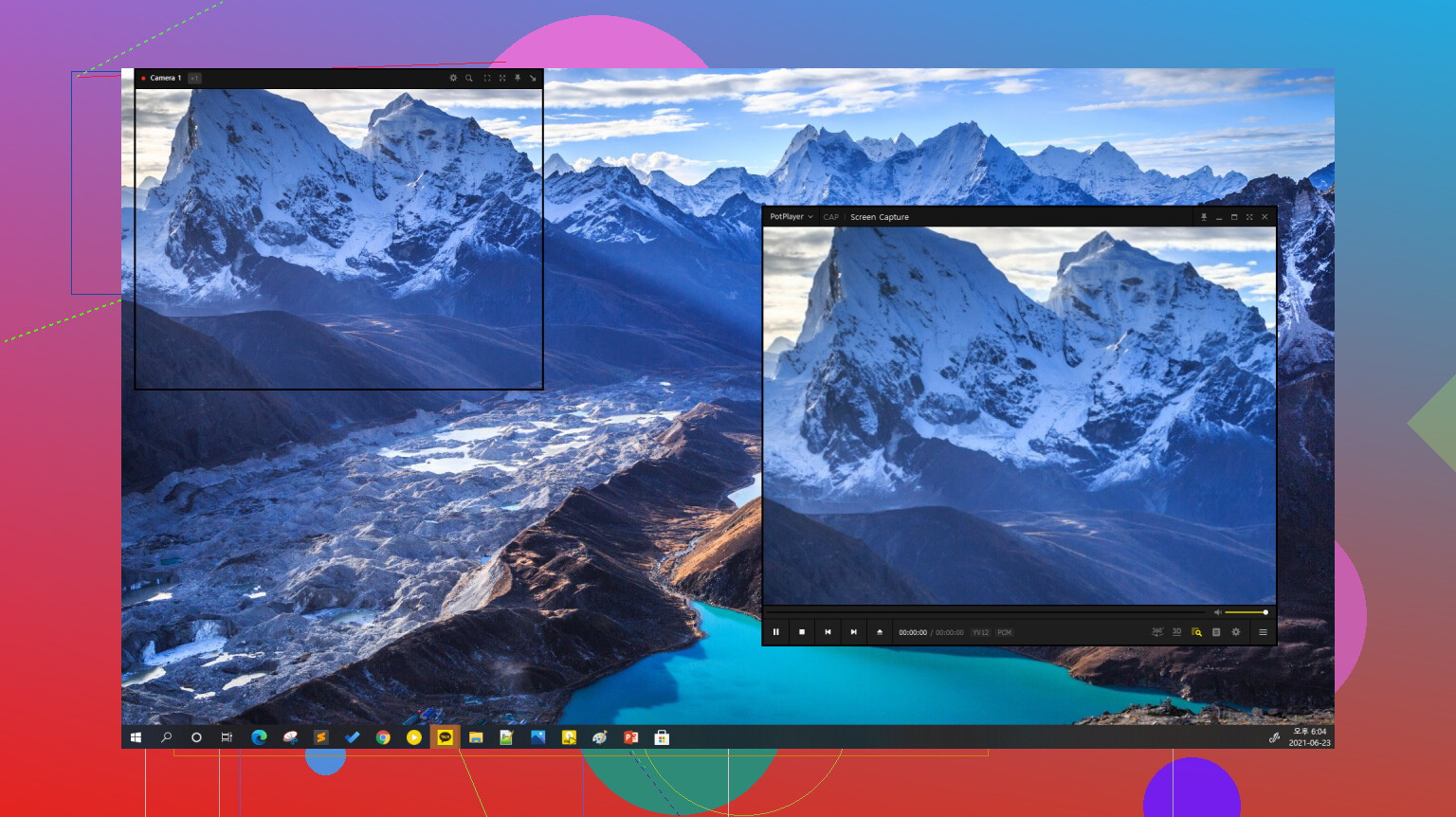
PotPlayer
PotPlayer is a bit more “tweak heavy”. Things I noticed when I used it for a while:
- Lighter on resources on some older laptops compared with VLC.
- Many playback controls, including detailed filters, shaders, and renderers.
- Handles high bitrate MKV files smoothly, even when they are 4K with heavy subtitles.
If you only want something that plays everything with minimal setup, VLC is fine.
If you like menus with options inside options, PotPlayer is worth trying.
Players for Mac
On macOS the situation is slightly messier out of the box. QuickTime looks clean, but it hits a wall quick with MKV.
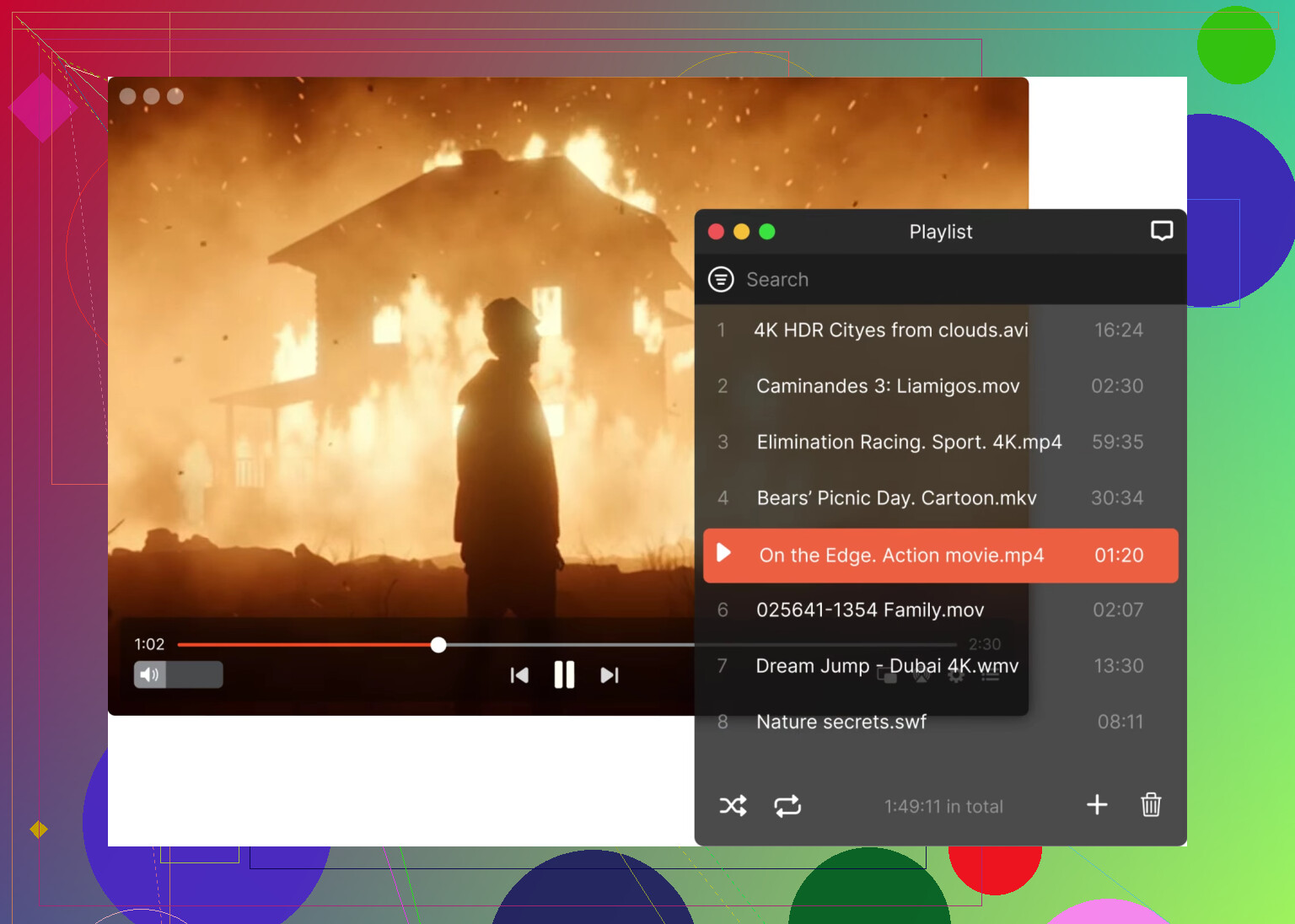
Elmedia Player
When I had to deal with MKV files on a work Mac, I ended up installing Elmedia. Stuff I noticed:
- Opens MKV, MP4, AVI, MOV, FLV and a bunch of others without conversion.
- Handles separate audio and subtitle tracks without needing sidecar files.
- Automatic subtitle loading from files with matching names.
- Manual subtitle sync, which saved a few off-sync downloads.
- Playlist support and variable speed playback, useful if you watch lectures or long talks.
QuickTime Player
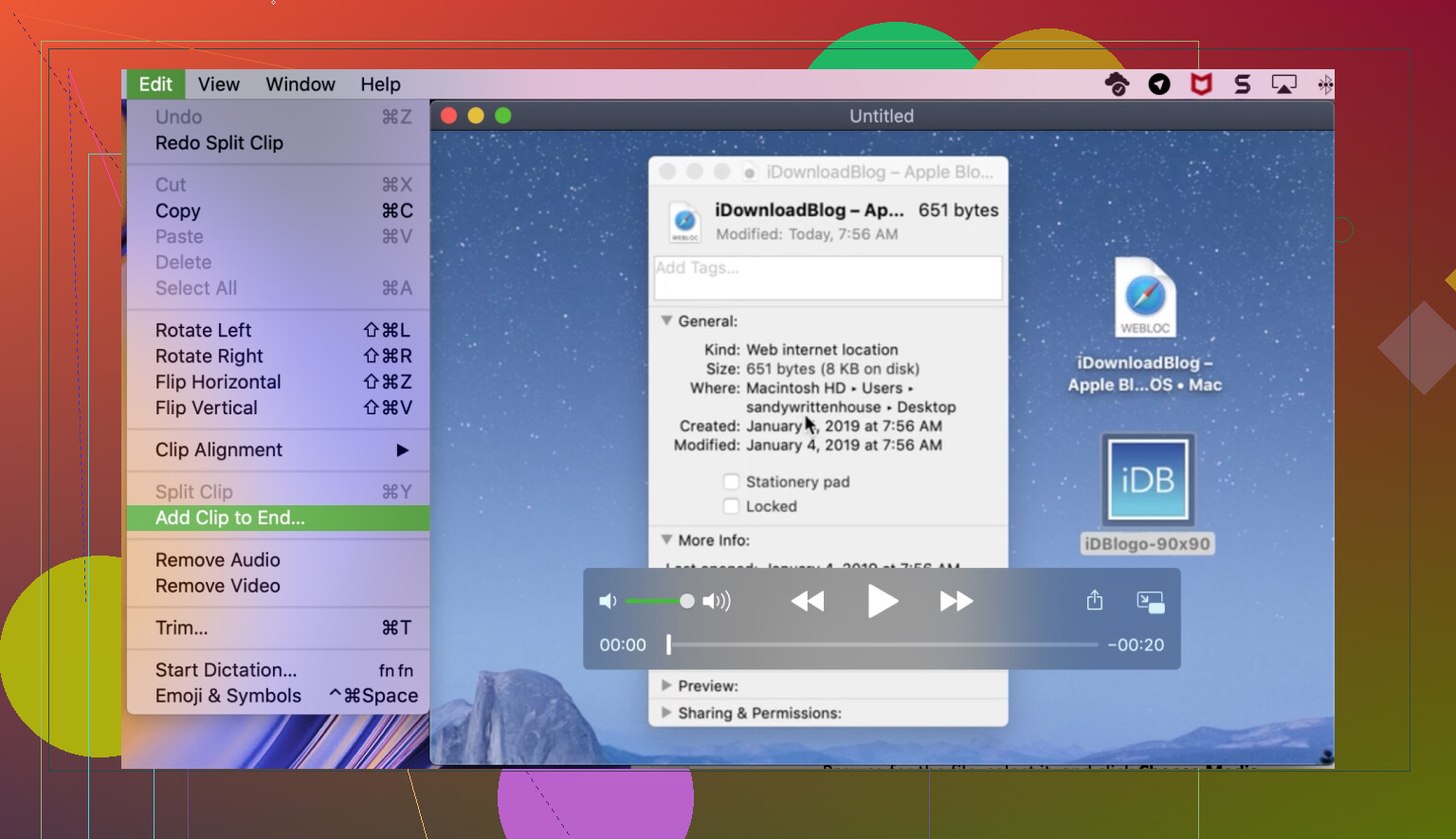
QuickTime is built in. It is fine for:
- MP4 files from iPhones
- Screencasts
- Simple edits like trimming the start and end
Where it falls short in my use:
- No direct MKV support
- Trouble with some AVI files
- Fewer options for subtitles and multiple audio tracks
If you try to open MKV in QuickTime you end up going through conversion tools, which wastes time and sometimes leads to quality loss or broken subtitle timing. That is why I stopped trying to force QuickTime to handle everything and installed another player instead.
Short version
An MKV file is a container for video, audio, subtitles, and extra data in one package.
It tends to be used for high quality rips, multi-language movies, and personal media libraries.
On Windows, VLC or PotPlayer handle it well.
On Mac, something like Elmedia fills the gap that QuickTime leaves for MKV playback.
12 Likes
MKV is a container format, not a specific video codec. Think of it as one file that holds video, audio tracks, subtitles, chapters, and metadata together.
Your player fails because it does not support either the container or one of the codecs inside it.
You have three practical options:
-
Use a better player
This is the easiest route.
On Windows or Mac, install a player that handles MKV and most codecs out of the box.
For macOS, Elmedia Player is a solid option. It opens MKV directly, lets you pick audio tracks, switch subtitles, and seek chapters without conversion.
On Windows, there are others, as @mikeappsreviewer already covered, so I will not repeat the same list. -
Install codecs for your current player
This is more messy and I do not recommend it for non‑technical users.
Codec packs can break things, conflict with each other, and affect system‑wide playback.
If you go this route, use one well known pack and do not stack multiple packs. -
Convert the MKV to MP4
Do this only if you need the file to play on devices like older TVs, consoles, or phones that refuse MKV.
Use a tool like HandBrake.
Set:- Video codec: H.264
- Container: MP4
- Audio: AAC
Be aware of tradeoffs: - Re‑encoding takes time and reduces quality.
- You might lose extra audio tracks or some subtitle formats.
Quick practical steps for you right now:
- On Mac: install Elmedia Player, open the MKV, and see if it plays.
- On Windows: try one of the players mentioned by @mikeappsreviewer.
- Only convert if you need compatibility with a strict device, not for normal desktop playback.
That should solve your issue without extra headache or random codec installs all over your system.
MKV is basically a “DVD in a file.” Not in the legal sense, relax, in the structural sense.
Everyone already told you it’s a container, not a codec, and @mikeappsreviewer and @espritlibre covered players and conversion pretty well. I’ll just fill in the gaps and slightly disagree on a couple things.
- Why your current player chokes
Two separate failure points:
- It might not understand the container (MKV structure itself).
- Or it understands MKV, but not the codec inside (e.g. H.265/HEVC video, DTS audio, etc.).
So “won’t open” doesn’t always mean “bad file.” Often it just means “dumb player.”
- Do you actually need to convert it?
Most of the time: no. Converting an MKV to MP4 just to play it on a desktop/laptop is like printing a PDF to paper so you can read it. Unnecessary and lossy.
Convert only if:
- You want to play it on a picky device (old TV, basic streaming stick, some game consoles).
- Or you know you need strict MP4/H.264/AAC for compatibility reasons.
Otherwise, use a smarter player and keep the original quality and features.
- Best approach by platform
-
Windows
- Try something like VLC or PotPlayer like they said.
- Where I slightly disagree: I actually do not like codec packs at all unless you know exactly what you’re doing. They can hijack system-wide playback and cause weird behavior in other apps. If one player does not work, install another player, do not stack codecs.
-
macOS
- QuickTime is deliberately limited; it is not your fault.
- Instead of forcing QuickTime to behave or wasting time on sketchy plugins, just use a dedicated player.
- Elmedia Player is honestly the low‑friction route here: plays MKV directly, handles multiple audio / subtitle tracks, and you do not need to “convert to .mp4” every time. If you care about subtitles and multi‑language audio, Elmedia Player handles those without drama.
- When conversion actually makes sense
If you must convert, use something like HandBrake, but:
- Keep the video codec the same when possible (e.g. H.264 to H.264) and just change the container MKV → MP4. That is often a near‑instant “remux,” not a full re‑encode, and you avoid quality loss.
- If your device refuses HEVC/H.265, then yeah, you have to re‑encode to H.264, but expect:
- Larger file size at same quality
- Long processing time
- Possible loss of extra tracks or fancy subs unless you configure everything carefully
- How to “use” the MKV in practice
Once you have a proper player:
- Open the file.
- Right‑click or use the menu to choose:
- Audio track (English, commentary, etc.)
- Subtitle track (or “none”)
- Chapters, if they exist.
That is literally it. You do not need to unpack it or “install” the movie.
So for your specific case:
- Install a proper MKV‑capable player.
- On Mac: Elmedia Player is the straightforward choice.
- On Windows: VLC / PotPlayer like @mikeappsreviewer mentioned.
- Try playing the MKV directly.
- Only if you are pushing it to a very picky device, then think about converting or remuxing.
Think of MKV as a “media backpack” and MP4 as a “school folder.” Both hold stuff, but MKV can cram in a lot more weird, useful extras.
What the others said is mostly right:
- @espritlibre nailed the “container vs codec” explanation.
- @sognonotturno expanded the real‑world use (multiple tracks, archiving).
- @mikeappsreviewer covered Windows players and conversion tools nicely.
Where I’ll tilt things a bit:
1. Don’t rush to convert
I’d avoid converting to MP4 unless you have a strict device (old TV, car system, some consoles). Every re‑encode means:
- Lower quality for the same file size
- Time spent waiting
- Risk of losing extra audio or subtitle tracks
If playback is on a Mac or PC, better player > conversion in 95% of cases.
2. macOS playback: Elmedia Player vs the usual suspects
For Mac, instead of fighting QuickTime or juggling codecs, just use a player that handles MKV natively.
Elmedia Player is worth considering here.
Pros:
- Plays MKV without conversion
- Handles multiple audio tracks and subtitles from inside the file
- Can auto‑load external subtitle files and lets you sync them
- Handles lots of other formats besides MKV
Cons:
- Free version is fine for basic playback, but some advanced stuff is locked behind the paid tier
- Interface has more options than QuickTime, which might feel busy if you like ultra‑minimal players
- Not as “household name” familiar as something like VLC, so fewer community tweaks and guides
Compared with what @mikeappsreviewer suggested on Windows, Elmedia Player fills that same “just works with MKV” slot on macOS without you hunting for obscure codec packs.
3. Codecs and packs: where I disagree slightly
Some replies are relatively neutral on codec packs. I’m more blunt:
- For most users, codec packs are more trouble than they are worth.
- They hook into the entire system and can cause weird playback conflicts in different apps.
If your current player will not open MKV, installing a different player is cleaner than dumping a giant codec pack on your system.
4. How to “use” the MKV once you can open it
After you install something MKV‑friendly:
- Open the MKV
- Use the player’s audio menu to switch languages or commentary tracks
- Use the subtitles menu to turn subs on/off or choose the language
- If chapters exist, use chapter navigation for quick jumping
You don’t unpack or “install” MKV files. You just play them and make use of the extra tracks when needed.
5. When you truly need MP4
If you absolutely must convert for a picky device:
- First try a remux (MKV to MP4 without changing the video codec) so you keep quality
- Only re‑encode to something like H.264 if the device cannot handle the original codec
But for desktop use, just grab something like Elmedia Player on Mac or one of the Windows players @mikeappsreviewer talked about and treat MKV as a more capable cousin of MP4, not a problem format.