My iPhone has been slowing down and some apps keep glitching or freezing. I’ve heard clearing the cache can help, but I’m confused about what I can safely delete without losing important data or logins. Can someone walk me through the best and safest way to clear cache on an iPhone, including for Safari and individual apps
iOS does not have a one-button “clear cache” like Android, so you handle it app by app and with a few system tricks. Here is what usually helps without wiping important stuff or logins.
- Check storage and heavy apps
- Go to Settings > General > iPhone Storage.
- Wait for it to load.
- Scroll and look for apps with a lot of “Documents & Data”.
- Social apps and browsers often pile up junk.
- Clear Safari cache
This is the only place Apple puts a clear cache button.
- Settings > Safari.
- Tap “Clear History and Website Data”.
- This removes history, cookies, and site data.
You will be logged out of websites in Safari, but it does not touch apps like Facebook or Instagram.
- Offload vs Delete apps
Offload keeps documents and logins in iCloud, deletes only the app binary.
- Settings > General > iPhone Storage.
- Tap an app.
- Tap “Offload App”.
Icon stays on home screen with a little cloud. Tap it later to reinstall.
If an app is glitching or freezing, you get better results if you fully delete and reinstall it. You lose local files that are not synced to an account, for example downloaded videos in Netflix.
- Clear cache for specific apps
Some apps have a built in clear cache option.
- Open the app.
- Go to Settings inside the app.
- Look for Storage, Data, or Cache.
For example, in Instagram you go to Profile > menu > Settings and activity > check for Media quality or storage options and clear data if available.
Every app is different, so this part is a bit annoying.
- Restart and free RAM
- Do a full restart of the iPhone.
- If you have Face ID models, you can also soft reset RAM: press Volume Up, then Volume Down, then hold Side button until the screen turns off and the Apple logo appears.
This does not delete data. It only clears active stuff in memory, which helps when apps freeze.
- Focus on photo and junk cleanup
Slowdowns on older iPhones often come from low free storage. iOS likes at least 10 to 15 percent free space.
If you have 128 GB and you sit at 120 GB used, things feel slow.
Do this:
- Open Photos. Delete obvious junk like duplicates, random screenshots, screen recordings.
- Go to Albums > Recently Deleted. Tap three dots > Delete All, or restore what you need before. Until you clear Recently Deleted, storage is still used.
- Clear big conversations in Messages with lots of videos.
- In Settings > Messages, set “Keep Messages” to 1 Year or 30 Days if you do not need old chats.
-
Use a cleaner app for easier cache and junk control
If you do not want to tap through every menu, a simple cleaner app helps with photos, videos, contacts and similar clutter.
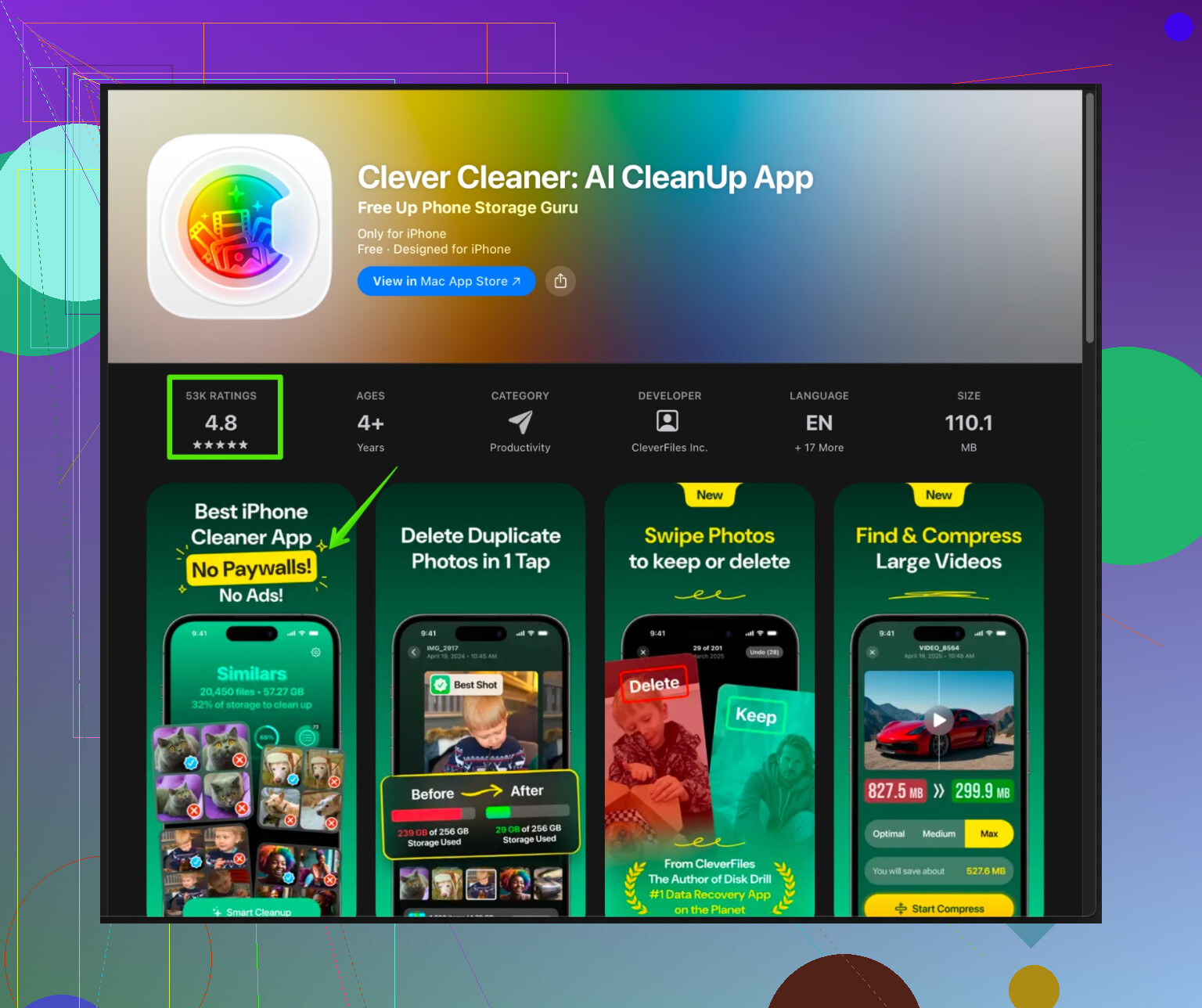
The Clever Cleaner App for iPhone helps organize and clean junk files, duplicates, large videos and messy contact lists, so your device feels smoother.
Check this out on the App Store here:
Clever Cleaner for faster iPhone cleanup
It will not wipe your important data or logins, it focuses on stuff you usually do not need like duplicate photos, similar photos, repeated contacts, and large forgotten videos. -
What is safe to delete
Safe:
- App cache via in-app settings.
- Downloaded offline content you no longer use, like shows from Netflix or Spotify downloads.
- Duplicate and blurry photos.
- Old messages with big attachments, as long as you do not need them.
- Apps you never open.
Risky:
- Deleting apps that store data only locally, like some games. You lose progress if there is no account sync.
- Clearing Safari data if you rely on saved website logins and do not remember passwords and do not use iCloud Keychain.
- If performance is still bad
- Check iOS version in Settings > General > Software Update. Install the latest stable version.
- Go to Settings > Battery > Battery Health & Charging. If “Maximum Capacity” is under about 80 percent and performance management is enabled, the phone may slow to avoid shutdowns. Battery replacement often helps older models a lot.
Do a combo of Safari cleanup, offload or reinstall problem apps, delete junk photos and free at least several GB. That usually stops freezing and gives your iPhone a bit more life.
iOS “cache clearing” is kind of a myth. A lot of what people call cache is actually app data, and nuking it can log you out or kill saves if you’re not careful.
@caminantenocturno covered the classic stuff already, so I’ll try not to repeat all that. A few other angles:
1. Start with the real problem: storage & background stuff
Instead of hunting caches first, check two things:
A. Free space
If your storage is almost full, iOS slows down and apps misbehave even if you clear every cache in sight.
- You want at least 5–10 GB free if possible.
- Big wins: long 4K videos, ancient voice memos, huge WhatsApp / iMessage threads with videos.
B. Background processes
Sometimes it is not “cache” at all, just a bunch of apps and system tasks choking the phone.
- Close apps that are actively misbehaving (swipe up from bottom, swipe them away).
- Then do a proper restart.
This sounds stupidly simple, but it fixes more freezing issues than digging through 15 menus.
2. What you won’t lose if you’re careful
Stuff that is normally safe and comes back after reinstall / cleanup:
-
Anything tied to an online account
- Social apps (Instagram, TikTok, X, etc.)
- Streaming (Netflix, Spotify, YouTube)
- Cloud‑sync notes / to‑do apps (Notion, Todoist, etc.)
-
iCloud‑based things
- iCloud Photos, iCloud Notes, iCloud Drive files
-
Game progress that uses Sign in with Apple, Game Center, or its own login
If an app asks you to create an account or log in, 90% of the time your important stuff lives on their servers, not just your phone.
Stuff you might lose:
- Old single‑player games that never asked you to log in
- “Offline” apps that store stuff only locally
- Downloaded media inside apps that is not backed up anywhere (podcasts saved inside some random app, custom map downloads, etc.)
When in doubt, open the app and look for:
- “Sync,” “Backup,” or “Account” options in settings.
If you see nothing like that, deleting the app could delete everything inside it.
3. Clearing “cache” without destroying logins
Since iOS does not give a universal “clear cache” button, here are some less obvious tricks that don’t wreck your logins:
A. Tweak iCloud & background syncing
Instead of deleting cache, stop apps from constantly filling it back up.
- Settings > Your Name > iCloud
- Turn off iCloud for apps you never use on other devices.
This reduces background syncing and random disk usage.
- Turn off iCloud for apps you never use on other devices.
B. Turn off auto‑downloads you don’t need
- Settings > App Store
- Disable automatic app downloads on cellular / auto video autoplay and so on.
This stops apps bloating themselves in the background.
- Disable automatic app downloads on cellular / auto video autoplay and so on.
C. For glitchy apps, try this order:
- Log out inside the app (if possible).
- Force close the app.
- Restart iPhone.
- Then delete and reinstall only if it is still broken.
That gives you a better chance of the app “resetting” its temp data without randomly corrupting something.
I slightly disagree with the idea that deleting and reinstalling glitchy apps is always better than offloading. On weak networks or limited data, offloading first and seeing if the bug disappears after a fresh load can be the lighter option. Full delete is my step two.
4. Hidden space hogs people forget
If your phone is slow and apps freeze, these are sneaky culprits that act like “cache”:
-
Message attachment graveyard
- In Messages, open a big conversation
- Tap the name at the top > see Photos, Videos, Docs
- Delete old giant clips you do not care about
This doesn’t mess with your logins at all, just media.
-
Mail app
Mail can quietly cache tons of messages and attachments. -
Settings > Mail > Accounts
- Remove old accounts you no longer use
- Or change how much mail is synced (if your provider/app supports that)
-
Third‑party keyboards
Some of them store “learning data” and media. If you installed a custom keyboard ages ago and stopped using it, remove it. That’s basically useless cache.
5. If your iPhone is still laggy even after cleanup
Sometimes the slowdown has nothing to do with cache or storage:
-
Battery health
- Settings > Battery > Battery Health & Charging
- If capacity is low and performance management is on, the phone may deliberately slow down.
In that case, no amount of “clearing cache” is going to make it feel new. A battery replacement can.
-
Old device + new iOS
On older iPhones, the latest iOS can feel heavy. If you just updated and everything became sluggish, it might stabilize after a few days of background indexing. If it doesn’t, you’re basically at the hardware limit.
6. If you hate manual cleanup
If going app by app like @caminantenocturno described makes you want to throw the phone out the window, this is where a cleaner tool is actually useful.
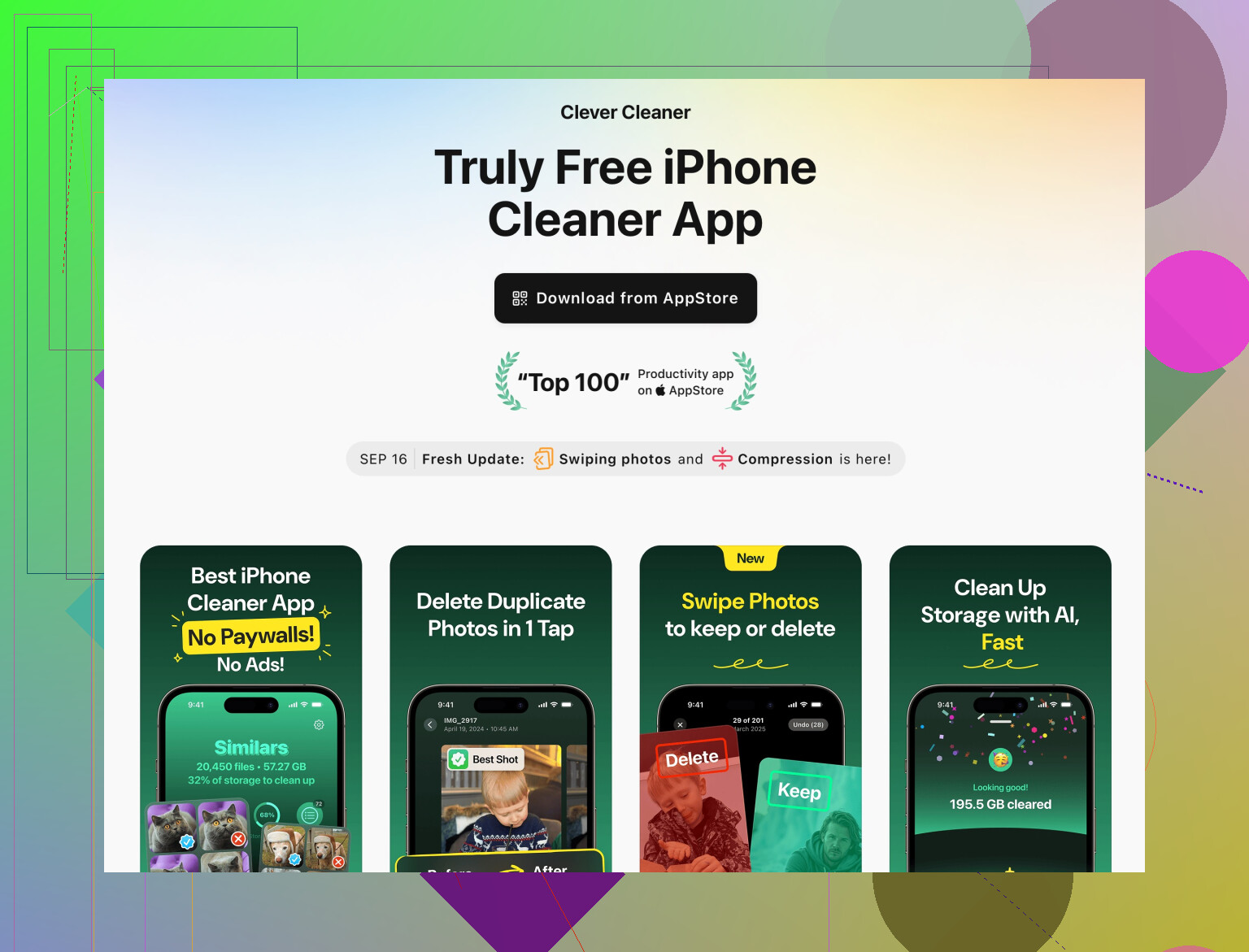
A good one for iOS is the Clever Cleaner App. It doesn’t magically break Apple’s rules and clear every app’s internal cache, but it does help with the stuff that causes most slowdowns anyway:
- Finds duplicate or near‑duplicate photos
- Spots huge old videos you forgot existed
- Cleans messy contact lists and similar junk
- Helps you free gigabytes without touching your logins or account data
If you want something focused on speeding up your device by getting rid of useless clutter, check out this iPhone cleanup and performance tool. It targets junk, duplicates, and oversized files rather than important app data.
TL;DR practical approach for you:
- Free space first: videos, old chats with tons of media, junk photos.
- Restart the phone.
- Only then:
- Reinstall the specific apps that keep glitching (after making sure your stuff is synced).
- Use a helper like Clever Cleaner App if you do not want to manually sift through photos and big files.
That combo usually fixes freezing without you losing logins or anything important.
84 Likes
iOS cache tricks are kind of limited, so instead of repeating what @shizuka and @caminantenocturno already broke down, here are some “second level” moves and clarifications that people usually miss.
1. Don’t obsess over “closing all apps”
Minor disagreement with the usual advice: constantly swiping away every app is overrated and can even hurt battery. iOS is actually pretty good at freezing apps in RAM. What is worth closing:
- Any app that is currently bugging out or frozen
- Navigation apps after you are done (Maps, Waze)
- Heavy camera / editing apps that just processed big videos
So: kill misbehaving apps, but you do not need to clear your entire app switcher as a “cache reset.”
2. Use “Reset” options before you start deleting things
People skip this and jump straight to reinstalling. For system-level weirdness:
- Settings > General > Transfer or Reset iPhone > Reset
- Try Reset All Settings
This keeps your data, photos, and apps, but resets system settings like Wi‑Fi networks, Bluetooth devices, keyboard dictionary, etc. It can fix random lag and UI glitches when basic cache-type stuff is not the real issue.
- Try Reset All Settings
What you lose:
- Saved Wi‑Fi passwords
- Some custom settings (wallpaper, sounds, layouts)
What you keep:
- App data
- Logins in most apps
- Photos, messages, files
I’d do this before doing mass app deletions.
3. Focus on “background load,” not just storage
Both previous replies talked about storage (which is huge), but a second angle is how many things are trying to work in the background.
Go to:
- Settings > General > Background App Refresh
- Turn it off globally, then turn it back on only for apps that matter like messaging, banking, ride-sharing.
This does two things:
- Less background network / CPU churn
- Fewer apps constantly recreating their own “cache” right after you clean it
Also look at:
- Settings > Privacy & Security > Location Services
- Change apps that are on “Always” to “While Using” where possible
That can reduce both lag and heat, which often feels like “freezing apps.”
4. When you should fully delete an app
I slightly split the difference between the others here:
- If an app is just big, but working fine: try offload first
- If an app is glitching repeatedly, especially after an update: full delete is worth it
Signs that full delete is best:
- App crashes on launch
- App UI constantly shows outdated stuff or refuses to refresh
- Only that one app is misbehaving while others are smooth
Before deleting:
- Check the app for account / login
- Confirm your email / username is visible in settings
- If it is a game, look for “Connect to Game Center” or “Sign in with Apple”
If it has none of that, assume local-only data and decide if you are ok losing progress.
5. Quick sanity check: is it really cache?
Some examples where clearing cache will not help much:
- Keyboard lag system-wide → Often related to low storage or heavy third-party keyboards, not app cache
- Camera slow to open → Often because storage is nearly full or phone is too hot
- System animations stutter → Sometimes Spotlight indexing after an update, or weak battery / performance throttling
If multiple system apps are lagging (Settings, Phone, Messages), start thinking:
- Update iOS
- Battery health
- Reset All Settings
Rather than diving deeper into app caches.
6. Cleaner tools: realistic use, not magic
About the Clever Cleaner App specifically, since it came up:
Pros:
- Genuinely helpful for hunting down:
- Duplicate / similar photos
- Giant forgotten videos
- Useless contacts clutter
- Nice if you do not want to manually scroll through thousands of photos and storage lists
- Can free several GB without touching core app data or logins
Cons:
- iOS does not let any app access and wipe internal caches of other apps, so do not expect it to clear the “cache” of Facebook, TikTok, etc
- You still need to review suggestions; automatic cleanup can delete photos or clips you might actually want
- It adds one more app to your phone, so use it as a maintenance tool, not something left running forever
Used correctly, Clever Cleaner App is best seen as a storage organizer and “clutter sniper,” not a magic cache nuke.
For context:
- @shizuka leaned into broader system behavior and myths around cache
- @caminantenocturno gave the classic practical path (Safari, offload, reinstall, photos, Messages)
Clever Cleaner App complements those approaches by making the “find big junk files” part less painful.
7. Simple action plan that keeps your data safe
To keep it practical and low-risk:
- Make sure you have a recent iCloud backup (Settings > Your Name > iCloud > iCloud Backup).
- Free 5–10 GB by:
- Deleting big videos
- Trimming huge chats with lots of media
- Using Clever Cleaner App to spot duplicates and oversized files.
- Turn off Background App Refresh for stuff you do not care about.
- Restart the phone.
- If specific apps are still glitching:
- Confirm they sync with an account
- Delete and reinstall those few apps only
- If system-wide lag continues:
- Check Battery Health
- Consider “Reset All Settings” before more drastic measures
That sequence keeps your important data and logins mostly intact, but usually stops the freezing and lag on an older or cluttered iPhone.
Alternative, simpler: do an encrypted local backup and restore. This refreshes caches systemwide while keeping logins.
- On a Mac or PC, open Finder or iTunes.
- Plug in your iPhone and trust the computer.
- Check Encrypt local backup. Set a password you will remember.
- Click Back Up Now.
- When done, click Restore Backup. Pick teh fresh backup.
- Keep the phone on Wi-Fi and power afteward to finish indexing.
Results: Often frees 2 to 6 GB, reduces freezes. Keeps Health, Keychain, app data. Total time 45 to 90 minutes.