Sure thing. To restore your Mac from a Time Machine backup, follow these steps:
-
Connect Your Time Machine Backup Drive: Make sure the external drive you use for Time Machine backups is connected to your Mac.
-
Enter Time Machine: Click the Time Machine icon in the menu bar and choose “Enter Time Machine”. If the icon isn’t in the menu bar, you can add it through System Preferences > Time Machine and check “Show Time Machine in menu bar”.
-
Locate the Files/Folder: Navigate through the snapshots of your previous backups. You can use the timeline on the right to go to the point in time before you deleted the files. Once there, you’ll see Finder windows for each time period.
-
Restore: Find the file or folder you need to restore. Select it, and click the “Restore” button. The file or folder will be copied back to its original location on your Mac.
For those who’ve deleted files accidentally and maybe don’t have Time Machine running, another option worth considering is Disk Drill
Data Recovery Software. It’s particularly helpful if you haven’t been keeping regular backups and need a quick fix.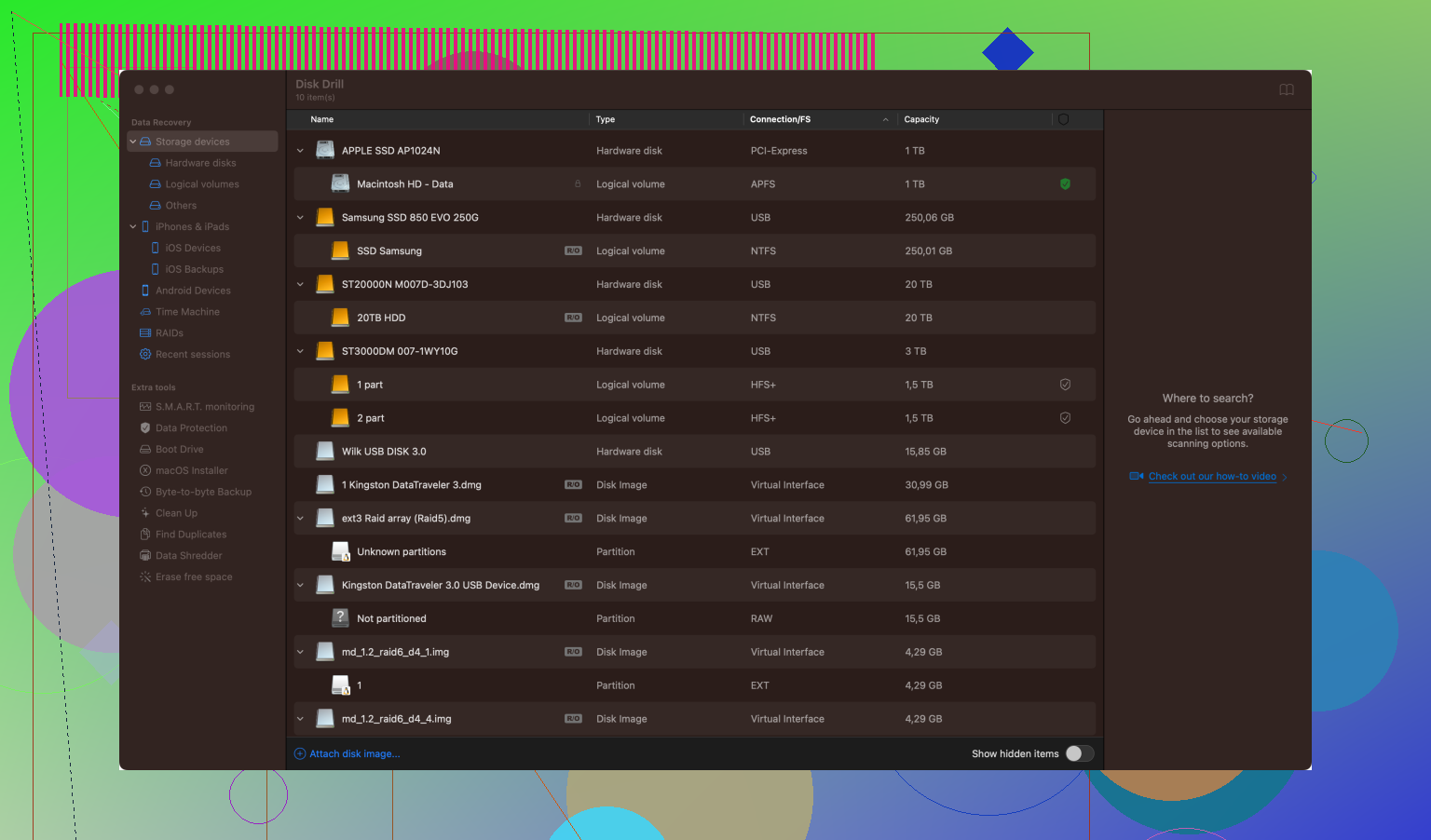
Why Disk Drill?
Sometimes Time Machine backups might not be recent enough, and in cases where immediate recovery is crucial, Disk Drill can be extremely useful. It scans your drive for recoverable data, which can include files, folders, and even entire partitions you thought were lost.
Here’s how you can use Disk Drill:
-
Download and Install: Head to Disk Drill Data Recovery Software and download the software. Installation is straightforward – just drag the application into your Applications folder.
-
Run Disk Drill: Once installed, open Disk Drill. The software will prompt you to select the drive or disk you wish to recover data from.
-
Scan Your Drive: Choose the drive where your deleted files were located and click “Search for lost data”. Disk Drill offers a variety of scanning methods, from quick scans to deep scans. Depending on the situation and how much data you need recovered, your scanning might take a while.
-
Recover Files: After the scan completes, Disk Drill will present a list of recoverable items. You can preview files to make sure they’re the ones you need. Select the files or folders you wish to recover, and click “Recover”. Specify the destination folder where these recovered files should be restored.
Disk Drill is especially useful if your Time Machine backup doesn’t cover the files in question, or if you’ve not yet set up Time Machine. It’s a robust, reliable tool that can be a lifesaver in data loss scenarios.
For future peace of mind, I’d suggest setting up regular Time Machine backups or considering cloud backups as an additional layer of security. Accidents happen, and having multiple backup strategies can save a lot of anguish.
Hope this helps!