I accidentally emptied my Recycle Bin and lost important files I still need for work. I’m looking for the best way to recover deleted files from the Recycle Bin on Windows before they’re gone for good. Any help with safe recovery methods or trusted tools would really help.
I screwed this up worse than I want to admit.
I was cleaning up my Windows 11 PC, emptied the Recycle Bin without looking, and then realized I had deleted stuff I still needed. A few work files, plus some older photos. Bad move. 100 percent on me.
First thing I tried was Ctrl+Z. Useless after the bin was already emptied. I searched the usual folders, checked if I had dragged copies somewhere else, nothing. Gone, at least from what I could see.
So I started digging around to figure out if deleted files are gone for good or if Windows only hides them until new data lands on top. From what I read, emptying the Recycle Bin does not instantly erase the file data in every case. It mostly removes the system's pointer to where the files were stored. If your drive has not overwritten those sectors yet, recovery still has a shot.
I found this thread while panic-searching, and it gave me a clearer starting point than most of the junk results I hit: https://discussion.7datarecovery.com/forum/topic/help-is-it-possible-to-recover-deleted-files-from-recycle-bin-after-emptying-it-on-windows/
A couple things from there lined up with what I ended up doing:
Stop using the PC as much as you can. I mean it. If the deleted files were on your main drive, every install, browser cache, update, or random download lowers your odds.
If you have File History, OneDrive sync, or some other backup turned on, check there before doing anything else. I skipped this at first because I was frazzled. Should have checked sooner.
Recovery software does sometimes work, but only if you move fast and avoid writing new data to the same drive. The safer route is to run the recovery tool from another drive, or connect the affected drive to another machine and scan it there.
For photos, I had slightly better luck searching by file type and previewing results before restoring. For office docs, filenames were messier, so it took longer.
I have not recovered everything yet. Some files showed up, some seem cooked. Still, it went from 'well, I ruined it' to 'there might be a path here,' which was enough to calm me down a bit.
If you're in the same mess, read through this first and stop using the disk before you do anything else: https://discussion.7datarecovery.com/forum/topic/help-is-it-possible-to-recover-deleted-files-from-recycle-bin-after-emptying-it-on-windows/
And if you've got extra recovery tips, I’d still read them. I'm not fully out of the woods yet tbh.
24 Likes
Emptying the Recycle Bin does not always wipe the file data right away. Windows usually removes the file record first, then reuses the space later. This explains it well if you want the short version, what happens when a file is deleted on Windows.
I agree with @mikeappsreviewer on stopping use of the drive. I’d add one thing though. Don’t spend too long poking around Windows looking for them. Every reboot, temp file, browser tab, and update writes more data.
What I’d do:
- Check OneDrive version history and cloud trash. A lot of work docs get saved there without people noticing.
- Check File History, Restore Previous Versions, and any company backup tool.
- If the files mattered, remove the drive and scan it from another PC.
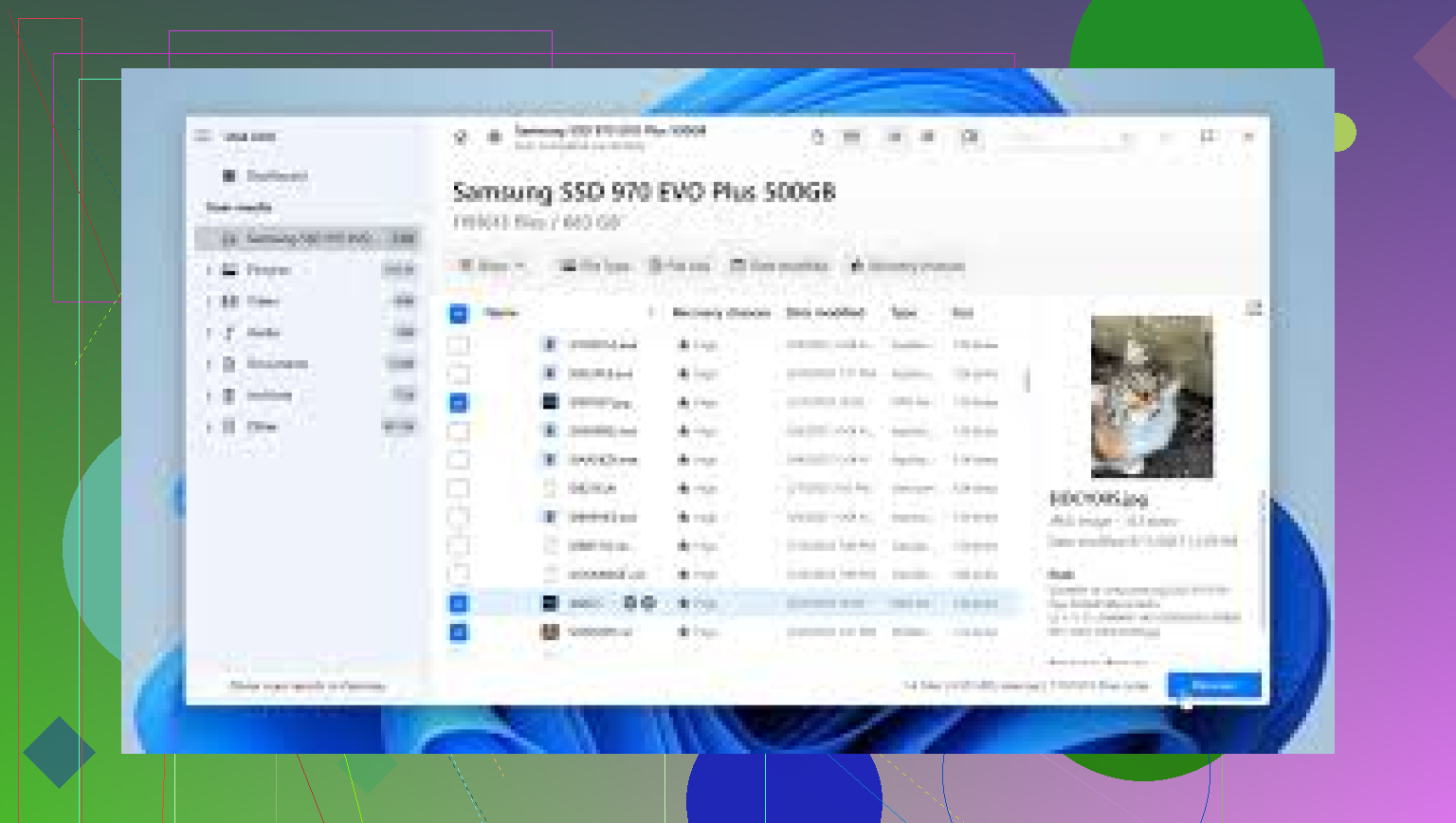
- Use Disk Drill and recover files to a different drive, not the same one. This part matters a ton.
- Sort results by file type and date modified first. Faster than hunting names when metadata is damaged.
If this was an SSD, odds drop because TRIM often clears deleted blocks fast. Not always instant, but faster than old HDDs. So move quik.
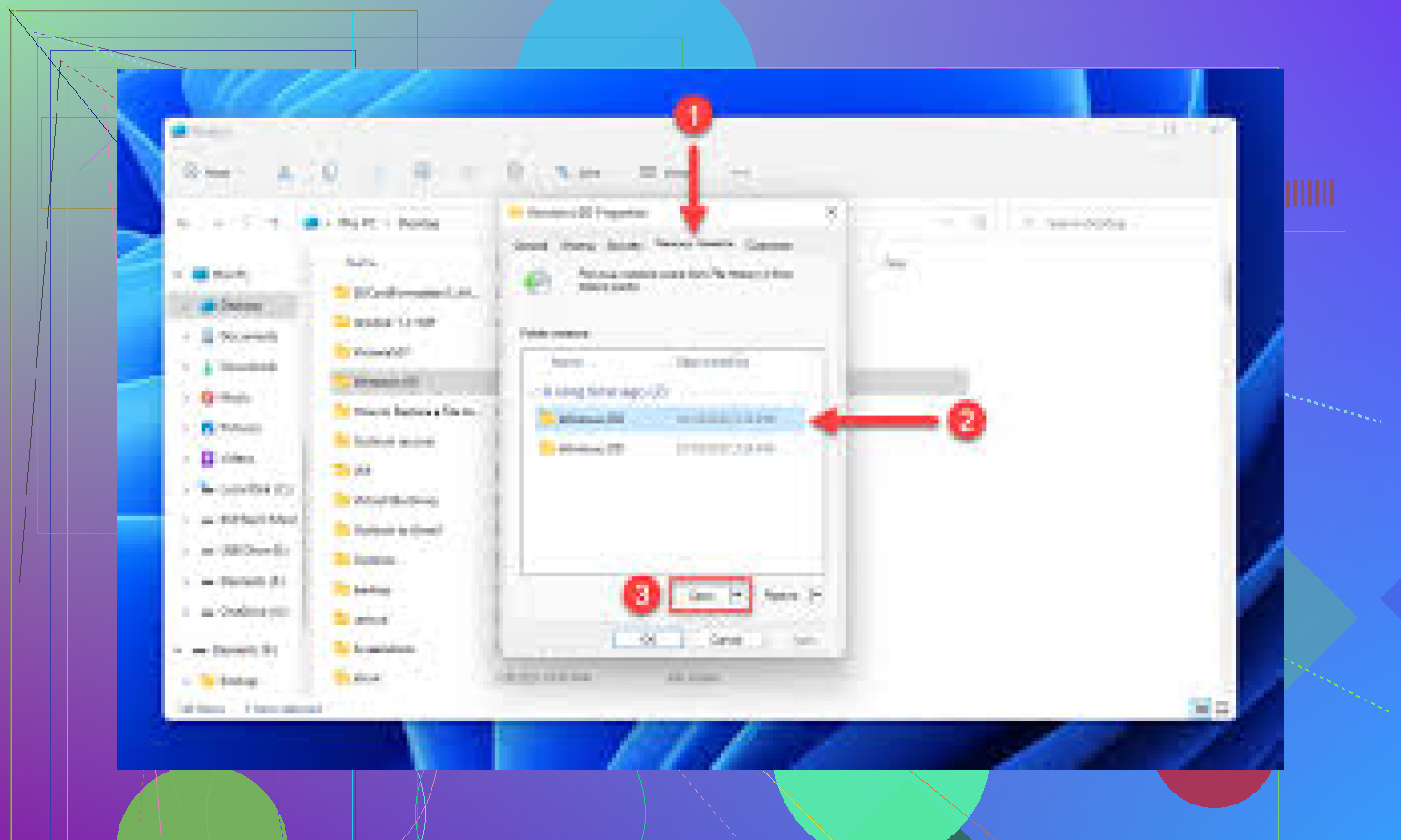
Yes, sometimes you can recover files after emptying the Recycle Bin, but I’d push back a little on the “just scan it fast” advice from @mikeappsreviewer and @yozora. If the files are truly important for work, the best first move is not always DIY software. If this is a business laptop, check whether your IT team has endpoint backup, shadow copies, or retention policies. A lot of companies do, and users never know untill they need it.
Also, check app-level recovery. Word, Excel, Adobe, and even Notepad tabs can leave autosave or temp copies in weird places:
C:\Users\YourName\AppData\Local\Temp
C:\Users\YourName\AppData\Roaming\Microsoft\Word
Office Document Recovery pane
That stuff gets overlooked a lot.
If backup fails, then use Disk Drill, but install it on another drive or run the portable setup from USB if possible. Recover to a different disk, obvously. If the deleted files were on an SSD, chances are worse because of TRIM, but not zero.
For a clear walkthrough on recovering deleted files from the Recycle Bin on Windows, that video is worth a look.
One more thing people forget: email attachments and Teams/Slack uploads. Sometimes the “lost” file still exists there even when the local copy is toast.
I’d add one angle the others only touched lightly: check Windows Search index leftovers and Recent files/jump lists before full recovery. Sometimes the actual file is gone, but those traces tell you the exact filename, extension, and last location, which makes a recovery scan way less chaotic. Win + R then try recent, and also look in the app’s recent file list.
I slightly disagree with the “pull the drive immediately” advice as a blanket rule. Good move for a secondary drive, yes. But on some work laptops, opening the machine or removing the SSD creates more risk than just shutting down and using a bootable USB recovery environment.
Since @yozora, @waldgeist, and @mikeappsreviewer already covered backups, cloud trash, temp files, and scanning from another system, here’s the extra bit:
- Check
C:\$Recycle.Binpermissions only to confirm which drive the files came from - Look in Quick Access history
- Search Outlook, Teams, Slack, and browser downloads history for duplicate copies
- If the files were created by a specific app, inspect that app’s cache folder
If you do scan, Disk Drill is a reasonable option.
Pros:
- simple UI
- good file preview
- can find deleted plus lost partition data
- decent for photos/docs sorting
Cons:
- deep scans can be slow
- filenames/folder structure are not always preserved
- SSD TRIM can still kill recovery chances regardless of software
Big rule: recover to another drive only. If this is a BitLocker system and you plan to remove or boot externally, make sure you have the recovery key first.