I accidentally deleted important videos from my SD card while clearing space, and now I really need help getting them back. The card was in my camera, and the footage includes personal memories I haven’t backed up anywhere else. I’m looking for the best way to recover deleted videos from an SD card after accidental deletion without making things worse.
# Deleted video from an SD card, what I did first
That gut-drop hits fast when you notice a video is missing. I’ve been there a few times. First move, stop. Don’t keep shooting. Don’t mess with the card.
Most deleted videos are not gone on the spot. The file entry gets removed, or the space gets marked free, while the video data often stays put until something new lands on top of it. So your odds depend on one thing more than anything else, you not writing new stuff to the card.
## 1. Stop using the card
This part matters most.
I’d avoid all of this right away:
- recording more video
- taking photos
- copying files onto the card
- formatting it
Pull the SD card out and leave it alone until you’re ready to scan it. I learned this the hard way once. I kept testing the camera, took two clips, and one of those writes wiped out the file I was trying to save. Dumb mistake.
## 2. Check if your computer still sees the card
Before recovery tools, make sure the card shows up at all.
A few things I’d try:
1. Use a different card reader
2. Switch to another USB port
3. Plug it into a second computer
4. Open Disk Management in Windows and see if the card appears there
If Windows says the card is RAW, or keeps asking you to format it, don’t do it yet. A lot of recovery apps still read cards in that state. If the card does not appear anywhere, then I’d start thinking less about deletion and more about the card or reader being dead.
## 3. Scan it with recovery software
For video files, I had decent luck with Disk Drill.
Why I liked it, simple reason. It recognized a lot of formats, and its camera-focused recovery mode helped with chopped-up video files from devices that save footage in pieces. I’ve seen this matter with action cams and drones more than with plain photo files.
Stuff it tends to handle well includes footage from:
- GoPro
- DJI drones
- Sony cameras
- other cameras with fragmented video storage
On Windows, it lets you recover up to 100 MB free. For a full video, 100 MB is often nothing, yeah. Still useful though, because you can scan, preview results, and see whether your clip is there before spending money.
If you want a free route, PhotoRec is worth trying. It does the job more often than people think. Downsides, filenames usually come back mangled, and folder layout is often gone. You get the data, but not the neatness.
## 4. Recover the files without making it worse
The workflow is plain enough:
1. Put the SD card in a card reader
2. Run a full scan, or deep scan if the tool offers one
3. Narrow results to video files
4. Preview what looks like your missing footage
5. Save recovered files to another drive
Don’t save them back to the same SD card. I know it sounds obvious, but people do it. If you write recovered files onto the source card, you risk stomping on stuff the scan has not pulled out yet.
Use your PC drive, an external SSD, anything else.
## 5. If the recovered video looks broken
This happens. You recover the file, it’s there, but it won’t play.
First thing I’d try is VLC Media Player. VLC reads damaged files better than a lot of default players. I’ve had clips fail in Movies & TV and open fine in VLC on the same machine.
If VLC chokes too, video repair tools sometimes help. Some of them rebuild the file using a good sample clip from the same camera with the same settings. Weirdly specific, but it does matter. Same resolution, same codec, same frame rate, same device. Closer match, better shot.
And yeah, ignore any format prompt until after recovery. Windows loves to throw that message up. Don’t click through it because you’re in a hurry.
## What mattered most in my case
Two things:
- stop using the card fast
- start recovery before new data overwrites the old stuff
If your card still mounts, your chances are usually decent. If it vanished from every reader and every PC, that feels more like hardware trouble than a simple delete. Different problem.
If you’re doing this right now, keep it boring. Remove the card. Read it on a computer. Scan it. Recover to another drive. No extra steps, no guessing, no panic-clicking. That’s where people lose the file for good.
Yes, if the card was only erased or files were deleted, recovery rates are often decent. The big factor is overwrite rate. Once new clips hit the same blocks, those parts are gone.
I agree with @mikeappsreviewer on stopping use fast. I disagree a bit on waiting too long to test options. Time matters less than writes. What matters is making a byte-for-byte image of the SD card first, then scanning the image, not the card itself. Tools like USB Image Tool, Win32 Disk Imager, or dd help with this. If recovery software crashes or misreads the card, your original stays untouched.
After you image it, scan the image with Disk Drill or PhotoRec. Disk Drill is easier for most people and better if you want previews and file filtering. If your videos came from a camera using exFAT, deletion often removes directory entries but leaves clusters intact until reuse. That is why recovery works so often.
If the camera did a full format, odds drop. Quick format is less bad.
Also, check your camera brand’s app or cloud sync, some save proxy files or auto imports. Small chance, but worth 2 mins.
If you want a visual walk-through, this SD card video recovery step by step guide is easier to follow than random forum posts tbh.
Save all recovered files to your computer, not the SD card. Even if filenames look messed up, open every file. I’ve had clips come back with gibberish names but play fine.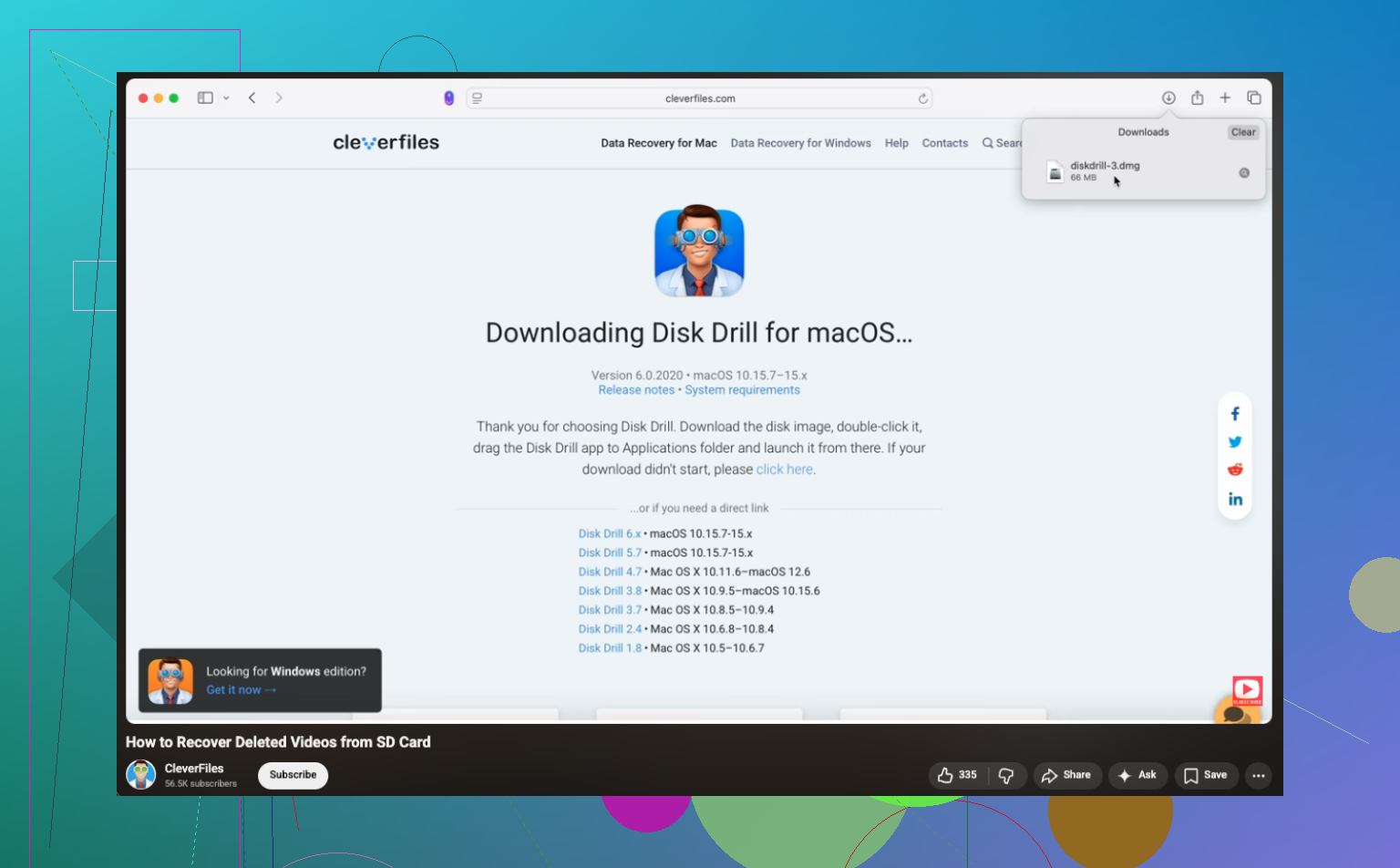
Yes, usually you can, but I’d add one thing to what @mikeappsreviewer and @techchizkid said: if the videos matter a lot, don’t keep retrying scans with every tool you find. Too many people turn one clean recovery attempt into a mess by poking at the card for hours.
My take is this:
- if it was a normal delete, chances are decent
- if it was a quick format, still possible
- if you kept recording after deleting, odds drop fast
- if the card is failing physically, DIY recovery can get ugly real quick
I slightly disagree with the “always image first no matter what” advice. In theory, yes. In real life, if the card is healthy and you’re not super technical, making an image can confuse people and delay the actual recovery. If you know how, do it. If not, use read-only access if possible and go straight into a reputable recovery app on a computer.
What I’d do in your case:
1. Lock the SD card if it has the little write switch.
2. Use a decent card reader, not the camera cable.
3. Scan for deleted videos with Disk Drill first, because it’s easier to sort by video type, preview results, and spot camera footage faster than a lot of free tools.
4. Recover everything to your computer or an external drive.
5. Only after that, test repairs if some files are broken.
One more thing people forget: cameras sometimes split one video into several chunks, so your “missing clip” may come back as multiple files. Don’t panic if filenames look weird or timestamps are off. That’s normal-ish.
If Disk Drill finds the files but they won’t play, recover them anyway. A corrupted recovered file is still better than a totally overwritten one. You can try repair afterward. If the card starts disconnecting, freezing scans, or clicking in the reader, stop DIY stuff and consider a pro lab. That part gets expensive, yeah, but irreplaceable family footage is kinda diff rent math.
Also worth a quick read: best community tips for recovering deleted videos from an SD card
Short version: stop using the card, recover to another drive, and don’t let the camera “help” by formatting anyhting.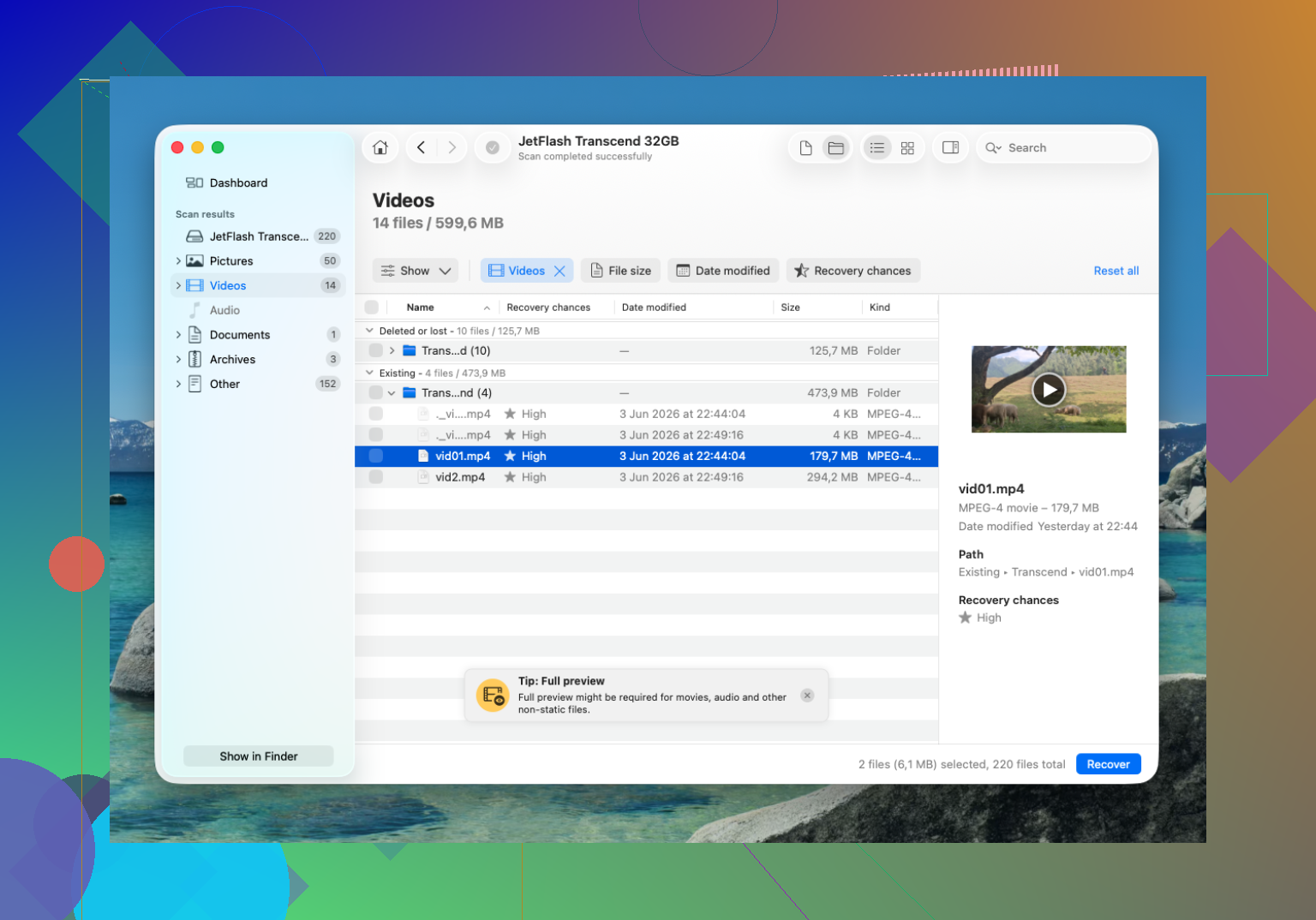
One angle not stressed enough by @techchizkid, @waldgeist, and @mikeappsreviewer: check the card’s health before you do a long recovery run. If SMART-style info is available through your reader, or if reads are slow and inconsistent, the issue may be controller wear, not just deletion. In that case, repeated deep scans can be counterproductive.
I half-disagree with the “just scan it now” camp. If the footage is truly irreplaceable and the card is acting weird, one careful pass matters more than trying five apps.
About Disk Drill:
Pros
- easy to sort by video types
- previews help verify clips fast
- good for normal accidental deletion cases
Cons
- free recovery limit on Windows is tiny for video
- less ideal than lower-level tools when the filesystem is badly damaged
- can feel heavy on weak PCs
My practical take:
- healthy card + accidental delete = Disk Drill is a solid first try
- unstable card + family footage = consider imaging or even a recovery lab sooner
- recovered files that do not play are not useless, repair may still work later
Also, if your camera recorded in segments, recover all related files, not just the obvious one. Some “missing” videos are actually a chain of clips.